
Perform Quick Actions Using 3D Touch on iPhone 6s and 6s Plus
With the unveiling of iPhone 6s and iPhone 6s Plus comes the introduction of iPhone’s newest feature yet: 3D Touch. You can perform many actions with 3D Touch. One of the key functions of 3D Touch is that it allows you to perform Quick Actions on the iPhone. You can rapidly send a message to a favorite contact or take a selfie using your front camera. You can instantly search for a specific location, make a new note, or post in Instagram and Twitter. All of these can be done faster using the Quick Action function. This article will show you how to use this feature.
How to Use Peek and Pop on iPhone 6s and 6s Plus

3D Touch, Apple’s newest feature for iPhone, changes the way that you interact with your phone. Knowing how to use 3D Touch on the iPhone 6s and iPhone 6s Plus lets you maximize your device’s capabilities. One of the most anticipated new features of 3D Touch are the Peek and Pop gestures. By lightly pressing your phone’s screen, you will be given a “peek” or preview websites, email messages, texts, notes, photos and other documents without actually opening them. While previewing a message, you can “pop” it open by pressing harder on the screen to view its contents fully. This article demonstrates how to use Peek and Pop on your iPhone 6s and iPhone 6s Plus.
How Do I Create an Event in the Calendar App on My iPhone?

The Calendar app on your iPhone helps you keep track of appointments and events that are important to you. You can use your iPhone to schedule reminders for dates and meetings through the Calendar app. You can create a new event, edit an existing activity, or delete a calendar entry. To learn how to create a new calendar event on your iPhone, read through the whole article.
How to Add Fonts to Word 2013

Calligraphy is a lost art for those who use computers and the Latin alphabet (e.g., English, French, and Spanish speakers). Nevertheless, creating electronic fonts for computers is still artwork. Here is how to add additional fonts to Microsoft Word so that you can use them with Word.
Back when printing was done with printing presses before computer typesetters, much effort was put into designing handsome fonts and then drawing them by hand onto metal plates so that they could be printed. This world famous New York Times logo is one such example of an elaborate handmade font:
Playstation 3 – Use Remote Play on any Windows 7 PC (2014 update)
This recipe is for the Playstation3 / PS3 users out there that want to utilize the Remote Play features on their PS3. Normally, Sony allows Vaio branded laptops the ability to connect to the PS3 via Remote Play. With the help of 2 patched files from PSDevWiki, we can use the Remote Play software on any PC that has a wireless network adapter. (updated 4/3/2014)
Hack Line to Download Free Country or Region Exclusive Stickers

The popular instant messaging app Line often offers free stickers for users to use in chat. However, most of the free stickers are locked to specific countries or regions only. Users outside the area cannot download the free stickers, even if they have the link to the sticker set. This tutorial will show you how to bypass this restriction on Android devices and download any free sticker sets you want.
How to Search a Conversation on Facebook Messenger

You can quickly locate old conversation by searching for keywords on Facebook Messenger. Using Messenger’s search allows users to jump to certain topics in an instant and reread those old conversations. This article will teach you how to search a conversation on Facebook Messenger using your computer or laptop.

Find contact information of group participants on WhatsApp

Whatsapp is not just a single chat communication App, it has become a lifeline for many us with its amazing features, we can create groups where we share messages, images, videos, etc with a group. A WhatsApp group can be of many types like friends group, work group, family, group, interest group, shopping groups, etc. This is why many of love Whatsapp because of its features and usability. If you are an admin for a WhatsApp group then you can add your favorite participants to the group.
Install WhatsApp web on iPad

Honestly, WhatsApp is an amazing App, I agree!!!!! But I only think why the limitations, many of us have a question that why this incredible App is not available on all devices like iPad. Yes, WhatsApp is not available for iPad users, this sounds miserable, but it is true that an iPad does not support WhatsApp. If you are an iPad user then, don’t worry we tell you the best way to use WhatsApp.
WhatsApp!!!!!!! And its Problems
With over 1 billion users worldwide, WhatsApp proved that it is an outstanding messaging App that allows you to stay in touch with your contacts regularly. The problem with WhatsApp is that it is tied to a single mobile number for a device, if you log in on another device, your current device will be logged out. Only one device is compatible for WhatsApp, if you visit a play store, you can find that WhatsApp is compatible for iPhone but not for iPad users. WhatsApp is permitted to one device with single account and through that account, one can use WhatsApp Web. Here we will show you how to install whatsapp web on iPad.
You need a SmartPhone
Though you have an iPad with all necessary requirements, including compatible browsers, internet connection, etc, still you need a smartphone to install WhatsApp on your mobile and sign in to your WhatsApp account with the valid WhatsApp account. Once you open a WhatsApp account on your mobile, now you will be entitled to use WhatsApp Web with that account on your iPad.

In order to access WhatsApp on iPad start using WhatsApp on your Smartphone and then use the same account on your iPad. There is no other way to use WhatsApp rather than a Smartphone, so we suggest you should own a Smartphone.
Use WhatsApp on iPad
WhatsApp Web is made for windows and MAC users. This extension will allow WhatsApp compatible for PC users. Though WhatsApp Web is only for PC users, we can use WhatsApp Web on iPad using Safari browsers.
To use WhatsApp Web on iPad you need to install the Safari browser on your iPad. Install WhatsApp on your Smartphone and verify your account.
Open Safari Web Browser on you iPad.
Type https://web.whatsapp.com/ in your browser url, the browser does not allow you to use the browser you want to.
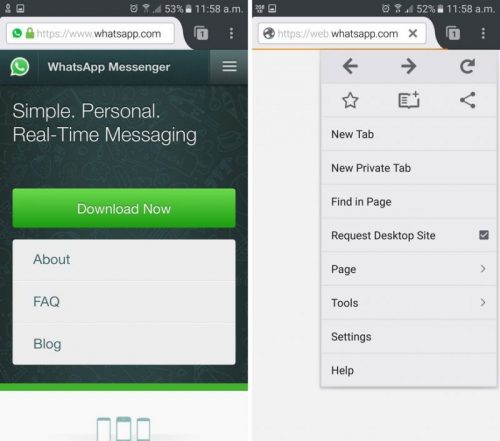
tap on the refresh icon⇒request desktop site
You will see, a QR code on the iPad browser.
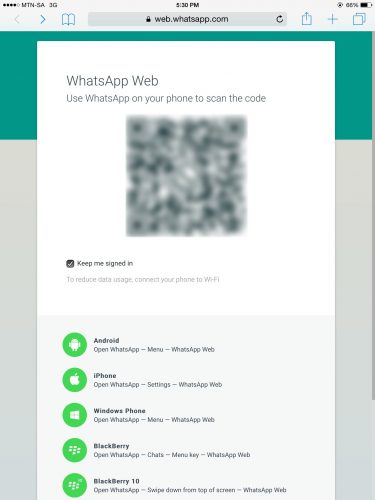
Open WhatsApp on your SmartPhone.
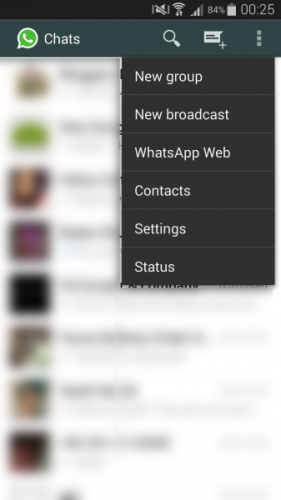
Select WhatsApp Web⇒Scan the QR code from the WhatsApp account QR scanner .

Now your WhatsApp account on iPad is ready, you can use the same WhatsApp account on two devices.
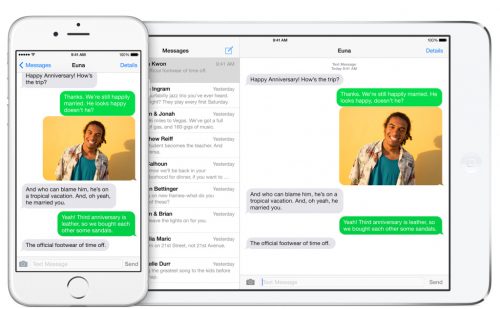
You can see all your WhatsApp conversations on your mobile on your iPad. You will receive notifications while using WhatsApp on iPad.
So, if you have an iPad then, make use of it by switching to WhatsApp Web on your iPad this will reduce the smart phone usage and you can also access WhatsApp during work without unlocking your mobile.
Note: There are few restrictions while using this facility.
- As the browser does not officially support WhatsApp, you cannot send voice notes.
- This is an alternative for iPad users, but due to browser incompatibility, you may face minor issues.
FAQ:
Can I use WhatsApp on iPad?
The very common question we receive from iPad users is that how can they use WhatsApp on iPad, it feels like sickening that the most popular App is not compatible on your device. Sadly, it is true iPad doesn’t support WhatsApp but still, you can use WhatsApp by heading to https://web.whatsapp.com/. Scan the QR code from your mobile WhatsApp account. Now, your WhatsApp account is ready and you can use your WhatsApp account on your iPad. You needto install the Safari browser on your iPad in order to use WhatsApp Web.
Can I use WhatsApp on iPad without using a SmartPhone?
We regret to say that there is no other way rather than having a smartphone to scan the QR code and use WhatsApp on your iPad.
Goto⇒iTunes⇒search WhatsApp.
Download WhatsApp.
Click on iTunes.
You will visit iTunes Media⇒Mobile Applications.
Now you can see ipa files list⇒Find ipa files of WhatsApp⇒transfer the ipa files to the desktop.
Attach iPad to the PC.
Download iFunbox⇒It will help you to manage the files that you are going to transfer to iPad.
Launch iFunbox⇒you will many icons⇒just click WhatsApp ipa file.
You will see WhatsApp being installed on your iPad⇒Once installation is Completed you will find the WhatsApp icon on your iPad.
Scan the QR code from your mobile and enjoy unlimited WhatsApp on your iPad.
How to Disable Images in Firefox