
Office 2010: Disable Protected View for Outlook Attachments

When you open a Word, PowerPoint or Excel document in Outlook, typically it will be opened in Protected View mode. If you find this unnecessary, you can disable this option and go straight to Edit mode by following this step by step tutorial.

When you open a document in Outlook 2010, it will be opened in Protected View mode like below:

To disable protected view for Outlook attachments:

1. Launch Word, PowerPoint or Excel 2010 and go to File->Options.
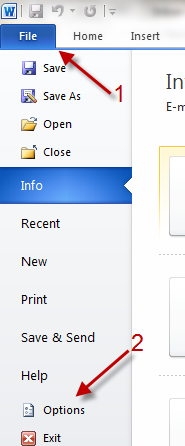
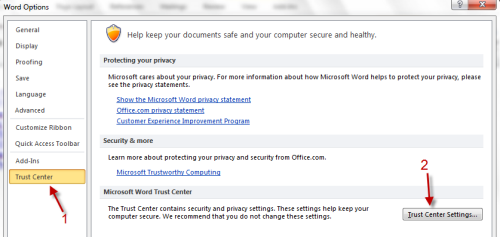
2. In Word Options window, go to Trust Center->Trust Center Settings…
3. Go to Protected View, uncheck Enable Protected View for Outlook attachments and hit OK.
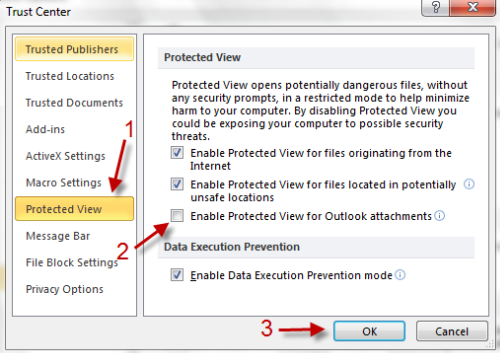
Note: When you use this option, make sure that you know all documents are safe. Opening unknown documents with protected view disabled can harm your computer.


 

About Lê Hoàng

When not creating exciting new Android games, Lê Hoàng is here crafting tutorials, tweaks, and fixes for your enjoyment.
View more articles by Lê Hoàng

The Conversation

Follow the reactions below and share your own thoughts.

One Response to “Office 2010: Disable Protected View for Outlook Attachments”

  1. January 11, 2012 at 9:51 am, adickson said:

    New MW Excel
    Everytime I open older version spreadsheet, yellow strip appears at top: Security Warning Macros have been disabled. “Enable Content”
    To eliminate the warning I started another spreadsheet from scratch with the new Excel 2010. I still get the Security warning even though I have not received the spreadsheet from the internet or an outside source.
    Frustrating. This file I do not intend to send as an attachment to email nor post to the internet. Any way around this?

    Reply

Leave a Reply

You may also like-

Office 2010: Add, remove or modify a trusted locationOffice programs like Word, Excel or PowerPoint all have a Trusted Location. Documents in this location will be opened without being checked by the ...


