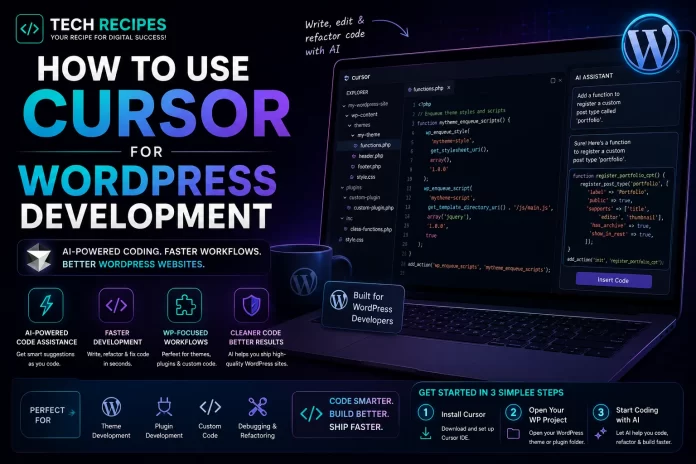
How to Use Cursor for WordPress Development
AI coding tools are transforming WordPress development workflows, and Cursor is currently one of the most powerful AI IDEs available for developers.
WordPress developers can use Cursor to:
- Generate plugin code
- Create custom themes
- Build WooCommerce functionality
- Debug PHP errors
- Refactor old code
- Create Gutenberg blocks
- Generate APIs and integrations
In this guide, we will show you exactly how to use Cursor for WordPress development in 2026.
What is Cursor?
Cursor is an AI-powered code editor built on top of VS Code.
Unlike traditional autocomplete tools, Cursor is designed around AI-first development workflows with codebase understanding, AI chat, multi-file editing, and natural language coding assistance.
Why Cursor Works Well for WordPress Development
WordPress projects often involve:
- Large PHP codebases
- Theme structures
- Plugin ecosystems
- WooCommerce customizations
- Hooks and filters
- Legacy code
Cursor performs especially well in these environments because it can understand project context across multiple files instead of only generating isolated snippets.
Step 1: Install Cursor
Download and install Cursor on your computer.
After installation:
- Open your WordPress project folder
- Import existing plugins or themes
- Configure PHP extensions if needed
Cursor works similarly to VS Code, so most developers adapt quickly.
Step 2: Open Your WordPress Project
Open:
- Theme folders
- Plugin projects
- WooCommerce customizations
- Headless WordPress apps
Cursor will analyze the project structure and begin understanding relationships between files.
This codebase awareness is one of Cursor’s biggest advantages for WordPress development.
Step 3: Use AI Chat for WordPress Tasks
Cursor allows developers to interact with AI directly inside the editor.
Example prompts:
Create a custom WooCommerce checkout field with validation.
Generate a WordPress shortcode for displaying recent products.
Explain this plugin architecture and suggest improvements.
Refactor this legacy PHP code to modern WordPress standards.
The quality of prompts matters significantly.
Specific prompts usually produce better results than vague requests.
Step 4: Generate Plugin Boilerplate
Cursor can generate starter plugin structures quickly.
Example request:
Create a WordPress plugin for custom product badges in WooCommerce.
Cursor can generate:
- Plugin headers
- Admin settings
- Hooks and filters
- Custom post types
- REST API endpoints
- WooCommerce integrations
This dramatically speeds up repetitive development work.
Step 5: Build Custom Themes Faster
Theme development becomes significantly faster with AI assistance.
Cursor can help:
- Generate template files
- Create responsive layouts
- Write CSS and Tailwind code
- Build Gutenberg blocks
- Optimize frontend components
Frontend-heavy WordPress developers can combine Cursor with tools like v0 for even faster UI workflows.
Step 6: Debug WordPress Errors
One of Cursor’s biggest strengths is debugging assistance.
Developers can paste:
- PHP errors
- WooCommerce issues
- Fatal logs
- Database queries
- Performance bottlenecks
and ask Cursor to explain and fix the issue.
This is especially valuable for debugging older plugins and legacy WordPress codebases.
Step 7: Refactor Old WordPress Code
Many WordPress projects contain outdated or poorly structured code.
Cursor can help modernize:
- Legacy PHP functions
- Deprecated WordPress APIs
- Large procedural plugins
- WooCommerce customizations
However, developers should still review AI-generated refactoring carefully before deployment.
Step 8: Improve WooCommerce Development
WooCommerce development often involves repetitive customization tasks.
Cursor can accelerate:
- Checkout customizations
- Cart modifications
- Dynamic pricing
- Product filters
- Custom shipping logic
- Payment integrations
This can save developers significant development time.
Step 9: Use Cursor for Learning
Cursor is not only useful for experienced developers.
Beginners can use it to:
- Understand WordPress hooks
- Learn PHP workflows
- Study plugin structures
- Explore WooCommerce architecture
- Understand theme development
However, developers should avoid blindly copying generated code without understanding how it works.
Best Cursor Workflows for WordPress Developers
| Task | Cursor Benefit |
|---|---|
| Plugin development | Generate boilerplate & hooks |
| Theme creation | Frontend acceleration |
| WooCommerce | Rapid customization workflows |
| Debugging | Error analysis & fixes |
| Refactoring | Modernizing legacy code |
| API integrations | Generate endpoints & logic |
Common Mistakes to Avoid
- Trusting AI-generated code blindly
- Skipping security reviews
- Ignoring WordPress coding standards
- Overcomplicating prompts
- Using AI without understanding PHP fundamentals
AI tools accelerate development, but developers still need to review security, performance, and compatibility carefully.
Is Cursor Better Than GitHub Copilot for WordPress?
For many professional WordPress developers, yes.
Cursor’s codebase understanding and AI-native workflows are often more useful than simple autocomplete systems.
GitHub Copilot remains excellent for lightweight coding assistance, but Cursor is generally stronger for larger WordPress projects and complex WooCommerce workflows.
Final Thoughts
Cursor is becoming one of the most powerful AI development tools for WordPress developers in 2026.
It can dramatically improve productivity, speed up plugin and theme development, simplify debugging, and modernize WordPress workflows.
However, the best developers use AI as a productivity accelerator rather than a replacement for real engineering knowledge and code review.