

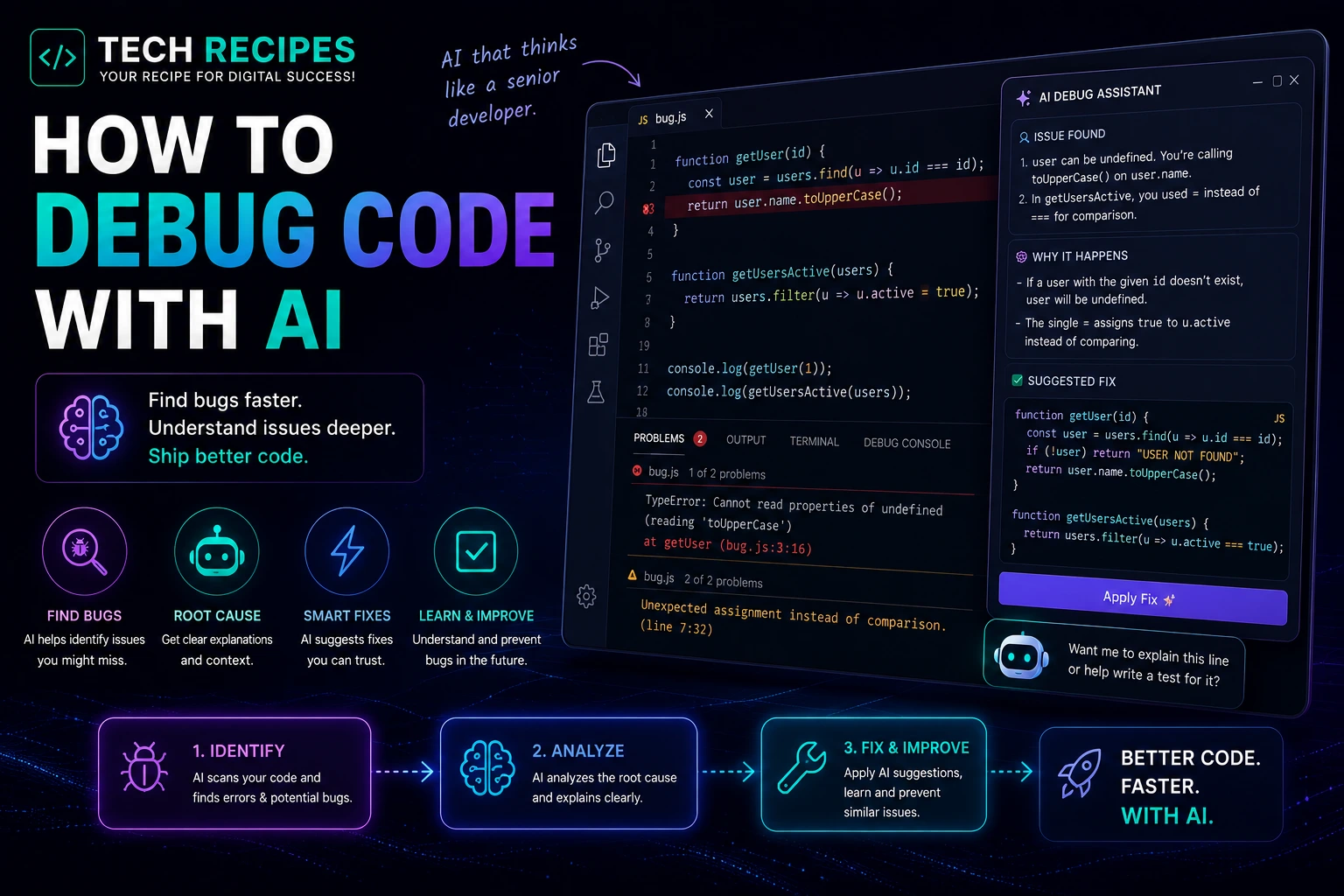
How to Debug Code with AI in 2026
AI coding tools are dramatically changing how developers debug applications.
Instead of manually searching through logs, stack traces, and documentation for hours, developers can now use AI assistants to analyze errors, explain problems, suggest fixes, and refactor broken code faster than ever before.
However, AI debugging is not magic.
The best developers use AI to accelerate troubleshooting while still understanding the underlying problem and validating fixes carefully.
In this guide, we will show you exactly how to debug code with AI in 2026.
What is AI-Powered Debugging?
AI-powered debugging uses machine learning models and coding assistants to help developers:
- Analyze errors
- Explain stack traces
- Find bugs
- Suggest fixes
- Refactor broken code
- Improve performance
- Detect security issues
Modern AI tools can understand large codebases and identify patterns much faster than traditional manual debugging workflows.
Best AI Tools for Debugging Code
| Tool | Best For |
|---|---|
| Cursor | Deep codebase debugging |
| Claude Code | Reasoning-heavy debugging |
| GitHub Copilot | Quick fixes & autocomplete |
| Codex | Autonomous debugging workflows |
| Codeium | Free AI debugging assistance |
| Replit | Browser debugging workflows |
Step 1: Understand the Error First
One of the biggest mistakes developers make is blindly pasting errors into AI tools without understanding the context.
Before asking AI for help:
- Read the error message carefully
- Identify where the issue occurs
- Understand what changed recently
- Check logs and stack traces
AI works significantly better when developers provide clear context.
Step 2: Paste the Error Into an AI Assistant
Modern AI coding assistants can explain complex errors quickly.
Example prompt:
Explain this React hydration error and suggest the most likely causes.
Or:
Why is this PHP WooCommerce hook causing a fatal error?
AI tools can:
- Explain terminology
- Identify likely causes
- Suggest debugging steps
- Recommend fixes
Step 3: Provide Relevant Code Context
AI debugging becomes significantly more accurate when developers provide:
- The failing function
- Related components
- Error logs
- Framework information
- Expected behavior
Vague prompts often produce weak debugging advice.
Good example:
This Next.js component crashes after hydration when loading dynamic user data. Here is the component and the console error.
Step 4: Use AI to Analyze Large Codebases
Advanced tools like Cursor and Claude Code can analyze entire project structures instead of isolated snippets.
This is especially useful for:
- Large applications
- Legacy codebases
- WooCommerce stores
- SaaS platforms
- Microservices
AI can identify relationships between files, dependencies, APIs, and architecture patterns much faster than manual searching.
Step 5: Generate Possible Fixes
Once the issue is identified, AI can suggest:
- Code fixes
- Refactoring strategies
- Alternative implementations
- Performance optimizations
- Security improvements
However, developers should avoid blindly accepting AI-generated fixes without validation.
Step 6: Ask AI to Explain the Root Cause
One of the best AI debugging workflows is asking:
Why did this bug happen in the first place?
This improves developer understanding and helps prevent similar issues later.
Developers who only apply AI-generated fixes without learning the underlying issue often repeat the same mistakes.
Step 7: Use AI for Refactoring
Many bugs originate from:
- Poor architecture
- Duplicate logic
- Legacy code
- Complex dependencies
- Weak state management
AI can help refactor problematic systems into cleaner and more maintainable code.
Example prompt:
Refactor this React component to reduce unnecessary renders and improve readability.
Step 8: Validate the AI Fix Carefully
This step is critical.
AI-generated fixes can:
- Introduce security problems
- Break edge cases
- Create performance issues
- Ignore framework conventions
- Cause hidden regressions
Always:
- Run tests
- Review logic manually
- Check performance
- Validate security
- Test edge cases
Best AI Debugging Workflows
| Workflow | Benefit |
|---|---|
| Error explanation | Faster understanding |
| Stack trace analysis | Quicker troubleshooting |
| Code refactoring | Cleaner architecture |
| Performance debugging | Optimization suggestions |
| Security analysis | Identify vulnerabilities |
| Large codebase analysis | Find hidden issues faster |
Best AI Tool by Debugging Style
- Best overall debugging: Cursor
- Best reasoning: Claude Code
- Best autocomplete fixes: GitHub Copilot
- Best autonomous workflows: Codex
- Best free tool: Codeium
Common AI Debugging Mistakes
- Blindly trusting AI fixes
- Providing vague prompts
- Ignoring architecture issues
- Skipping testing
- Over-relying on AI
- Ignoring security validation
AI accelerates debugging, but engineering judgment still matters heavily.
Can AI Fully Replace Debugging Skills?
No.
AI dramatically improves debugging speed, but developers still need:
- Problem-solving skills
- Architecture understanding
- Framework knowledge
- Testing discipline
- Security awareness
The strongest developers combine AI acceleration with real engineering understanding.
Final Thoughts
AI-powered debugging is becoming one of the most valuable productivity improvements in modern software development.
Developers who learn effective AI debugging workflows can solve problems significantly faster and reduce repetitive troubleshooting work.
However, the best results come from developers who use AI as an intelligent assistant rather than blindly depending on generated fixes.





