

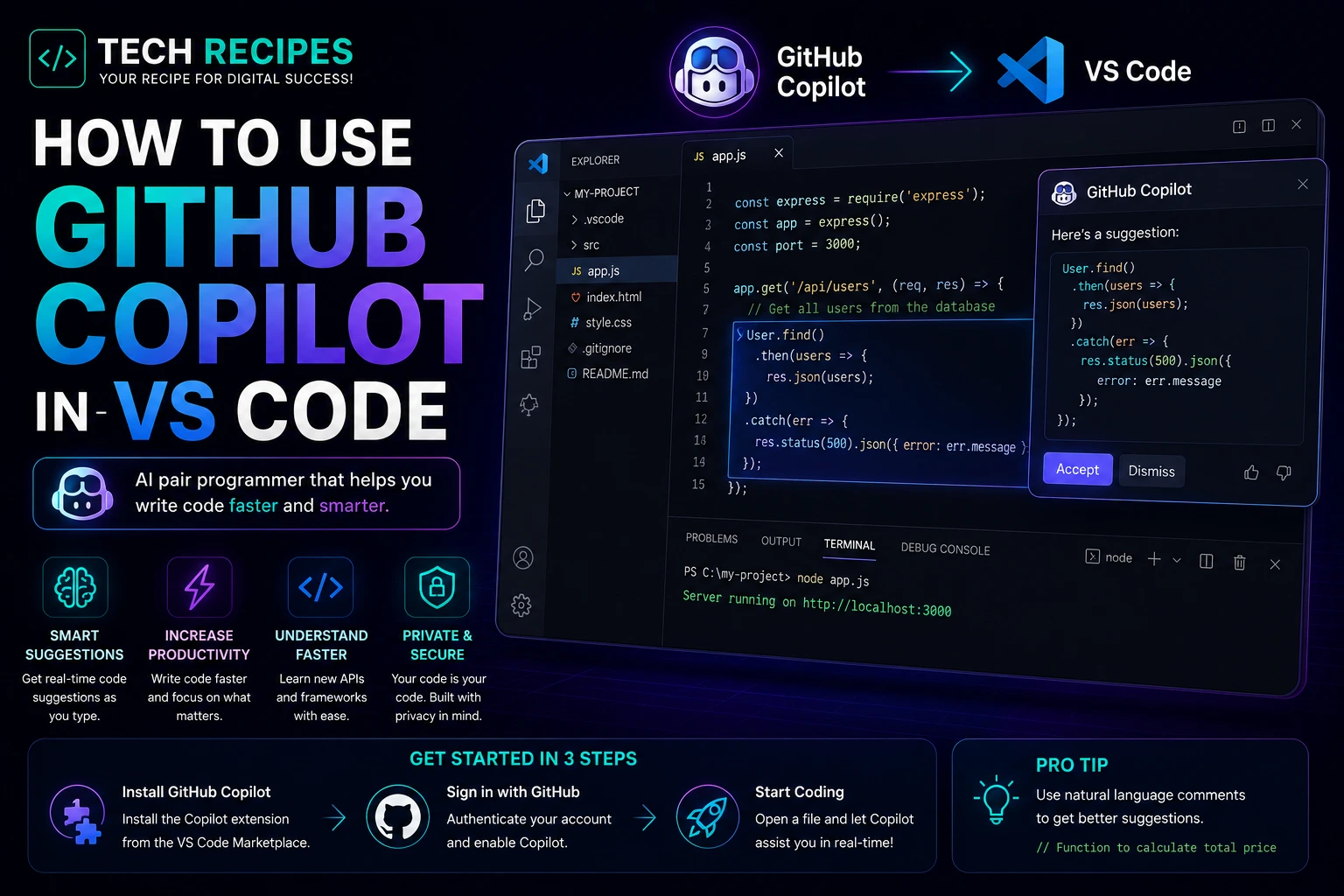
How to Use GitHub Copilot in VS Code in 2026
GitHub Copilot has become one of the most popular AI coding assistants for developers using Visual Studio Code.
It helps developers write code faster using AI-powered autocomplete, inline suggestions, code generation, debugging assistance, and chat-based workflows.
Whether you are a beginner or professional developer, GitHub Copilot can significantly improve coding productivity when used correctly.
In this guide, we will show you exactly how to use GitHub Copilot in VS Code step by step.
What is GitHub Copilot?
GitHub Copilot is an AI coding assistant developed by GitHub and OpenAI.
It integrates directly into VS Code and other editors to provide:
- Autocomplete suggestions
- Inline code generation
- AI chat assistance
- Code explanations
- Debugging support
- Productivity workflows
Copilot is designed to accelerate development rather than fully replace developers.
What You Need Before Starting
Before using GitHub Copilot in VS Code, you need:
- Visual Studio Code installed
- A GitHub account
- An active GitHub Copilot subscription
- Internet connection
Step 1: Install Visual Studio Code
If you do not already have VS Code installed:
- Download Visual Studio Code
- Install it on your operating system
- Open the editor
VS Code is currently one of the most widely used development environments in the world.
Step 2: Install the GitHub Copilot Extension
Inside VS Code:
- Open the Extensions Marketplace
- Search for “GitHub Copilot”
- Install the extension
You can also install:
- GitHub Copilot Chat
for conversational AI assistance directly inside the editor.
Step 3: Sign Into GitHub
After installing the extension:
- Sign into your GitHub account
- Authorize Copilot access
- Activate your subscription
Once connected, Copilot will begin generating suggestions automatically inside VS Code.
Step 4: Start Writing Code
Copilot works by analyzing:
- Your current file
- Nearby code
- Function names
- Comments
- Project context
As you type, Copilot generates autocomplete suggestions in real time.
Example:
Create a function that validates email addresses in JavaScript
Copilot may instantly generate the full function automatically.
Step 5: Use Comments to Generate Code
One of the best Copilot workflows is using natural language comments.
Example:
// Create a responsive navbar with dark mode toggle
Copilot can generate:
- HTML
- CSS
- JavaScript
- React components
- Backend functions
The clearer your comments are, the better the generated output usually becomes.
Step 6: Use GitHub Copilot Chat
GitHub Copilot Chat adds conversational AI workflows directly into VS Code.
Developers can ask:
- Explain this code
- Fix this bug
- Optimize this function
- Refactor this component
- Create unit tests
- Generate API endpoints
This turns VS Code into a more AI-assisted development environment.
Step 7: Debug Code Faster
Copilot can help developers debug errors more quickly.
Paste:
- Error logs
- Stack traces
- Broken functions
- Database queries
and ask Copilot to explain or fix the issue.
However, developers should always validate AI-generated fixes carefully.
Step 8: Generate Boilerplate Code
GitHub Copilot is especially useful for repetitive coding tasks.
Examples:
- CRUD operations
- API routes
- Authentication systems
- Database models
- React components
- WordPress hooks
This can dramatically improve productivity.
Step 9: Learn Coding Faster
Beginners can use GitHub Copilot to:
- Understand syntax
- Explore new frameworks
- Generate examples
- Learn coding patterns
- Study APIs
However, relying too heavily on AI without understanding the generated code can slow long-term learning.
Best GitHub Copilot Workflows
| Workflow | Benefit |
|---|---|
| Autocomplete | Faster coding |
| Natural language prompts | Rapid code generation |
| Debugging | Faster problem solving |
| Refactoring | Cleaner code structure |
| Documentation | Generate comments & explanations |
| Boilerplate generation | Reduce repetitive tasks |
Common Mistakes to Avoid
- Blindly trusting AI-generated code
- Ignoring security issues
- Skipping testing
- Using vague prompts
- Over-relying on autocomplete
AI coding assistants improve productivity, but developers still need strong programming fundamentals and code review practices.
GitHub Copilot vs Cursor
GitHub Copilot focuses heavily on autocomplete and lightweight AI assistance.
Cursor provides deeper AI-native workflows with stronger codebase understanding and multi-file reasoning.
Many developers now use:
- Copilot for autocomplete
- Cursor for advanced AI workflows
Is GitHub Copilot Worth It?
For most developers, yes.
GitHub Copilot can significantly improve coding speed, reduce repetitive work, and accelerate learning workflows.
However, the best results come from developers who combine AI productivity with real engineering understanding.
Final Thoughts
GitHub Copilot remains one of the best AI coding assistants for VS Code users in 2026.
It helps developers code faster, learn new technologies, generate boilerplate, and improve productivity dramatically.
However, AI-generated code should always be reviewed carefully for quality, security, and maintainability.





