
How to Translate Web Pages

They call it the “World Wide Web” for a reason: People all over the world are adding content to the internet in hundreds of languages. In one of the triumphs of the modern age, internet users are armed with tools that let us overcome the language barriers that have separated people and cultures for millennia. One of these tools is Google Translate.
What are Regular Expressions in Google Forms?

Google Forms gives you the option to check that respondents answer your questions the way you want through what is called data validation. For instance, you can make sure that if you ask for an email address, the response typed in is, in fact, an email address. Google Forms has several simple, user-friendly options for data validation that I describe in my tutotial here. If these options are not enough, you can create your own custom data validation rules for text and paragraph questions using a common programming technique called regular expressions.
How to Create Table of Contents in Google Docs
Google Docs is an excellent tool for collaborating with others to write documents. If your paper is long and broken into multiple sections, you may want to add a table of contents in Google Docs to show the organization of your paper and allow you to jump from the table of contents to any section without having to scroll to find it.
How to Make a Google Photos Movie

Google Photos movie maker is truly incredible. Choose a few videos or pictures on your phone, and Google Photos will automatically pick out short clips from each, slap a cool filter on them, and add a soundtrack. You get a fun, quality movie montage in less than a minute with absolutely no skill required. If you already have Google Photos synced on your phone, you do not even have to worry about downloading/uploading your video clips. They will already be right there for you to use in your movie. The steps below explain how to use your clips to make a movie of your own.
This feature is only available on the Google Photos app. It will work on any iPhone or iPad, as well as most android devices. Check to see if your device is supported here.
How to Edit Google Photos Movies
This is Part 2 in a series. Be sure to check out Part 1: How to Make a Google Photos Movie.
You could certainly find a more advanced movie maker. You can only edit the theme, soundtrack, and clip length/order in your Google Photos Movie, but I do not know of any movie makers that are easier and faster to use. If you already have Google Photos synced on your phone, you do not even have to worry about downloading/uploading your video clips. They will already be right there for you to use. Once you have created your Google Photos movie, use the steps in this tutorial to edit it.
How to Use Data Validation in Google Forms
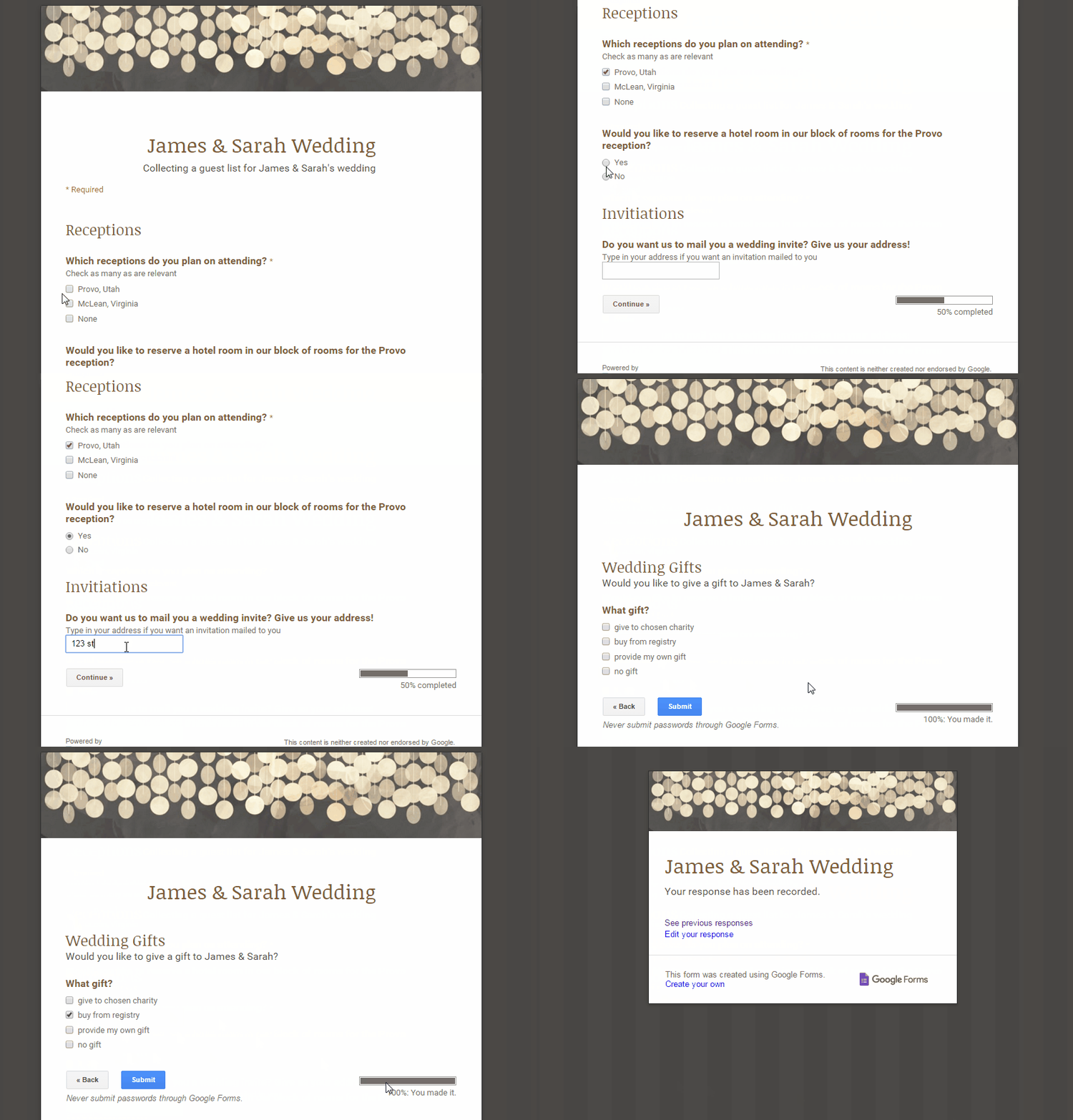
Google Forms is a helpful tool for collecting information from a large group of people. You can use the forms you create to make contact lists, send out surveys, manage registrations, and more. Like all Google Docs, multiple people can edit your form at the same time before you send it out. Forms will organize the responses with real-time charts, or you can view it in Sheets for more thorough analysis.
Through what is called Data Validation, Google Forms gives you the option to check that users answer your questions the way you want. For instance, you can make sure that if you ask for an email address, the response typed in is, in fact, an email address. When used correctly, Data Validation can save you considerable headaches by preventing intentional and unintentional errors. You can use data validation on the following types of questions: text, paragraph text, checkbox, and grid.
Note: Data validation is not available in the new version of Forms.
Help: iPhone Wi-Fi Problems

If you are experiencing problems with your iPhone’s Wi-Fi connection, you can check your phone and your connection yourself before you consider bringing the device to a service center. There are several reasons why an iPhone Wi-Fi will not connect to a router. It may be a problem with your phone, your Wi-Fi router, or your internet connection. Perhaps you simply do not have the right credentials. This article will outline what you need to check to fix your iPhone’s Wi-fi problems.
How to Use Facebook Live Video
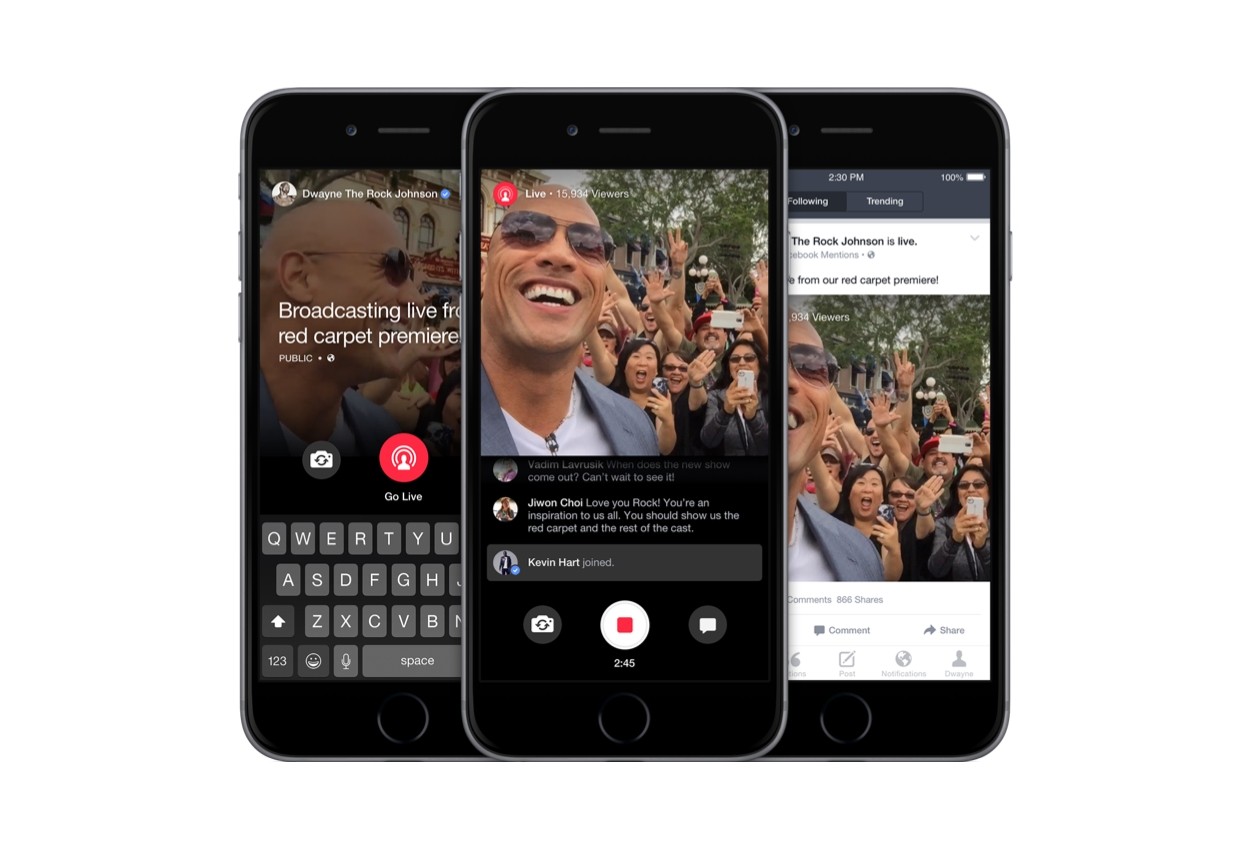
Facebook recently released the biggest new feature in recent history. iPhone users can now create a Facebook live video that your friends can watch and comment on while you are broadcasting. This is a great way to include your friends in life’s significant moments such as your kid’s birthday party or the opening of your new business.
Facebook live video is different from video chat. People tuning in can only type comments. However, they can see each other’s comments in a live stream and respond to what is happening in the live stream and to each other’s comments. I tried it out, and there was about a second of lag between what I was recording on my phone and what the people watching the broadcast were seeing.
This feature is coming soon to Android users.
How to Create a Contact Group on iPhone

Apple has a feature called Groups on the Contacts app. However, the feature only allows you to view existing contact groups on your iPhone. You cannot add a contact group on iPhone using your phone alone. Luckily, you can still create a contact group on iPhone by using your iCloud account and a computer. The steps in this tutorial will show you how to add a contact group to your iPhone or iPad.
Log In with a Different Apple ID on Your iPhone
You can use multiple Apple ID’s on one iOS device. You just need to log in with a different Apple ID on your iPhone to switch to a different account. Switching accounts can be useful for those who are playing multiple entities for online apps that require an Apple ID for each account. Logging out of an account protects your privacy, especially if someone else uses your phone. This tutorial explains how you can log in with a different Apple ID on your iPhone.
Set Up an iCloud Email Account on Microsoft Outlook