
Office 2010: Change Default Save Location

I often want to save my Office files to individual project folders. Changing the default save locations for my Office applications improves my workflow and makes my file organization much easier. This tech-tutorial will provide the steps need to change the default file save location in Microsoft Word, PowerPoint, and Excel.

1. Launch Microsoft Word, PowerPoint, or Excel 2010.

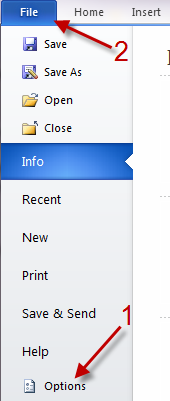
2.Go to File->Options.
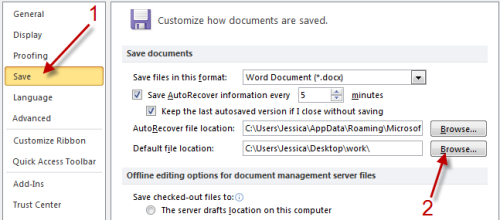
3. In the Options window, switch to Save and look for Default save location option. Change its path to your folder by clicking on Browse…
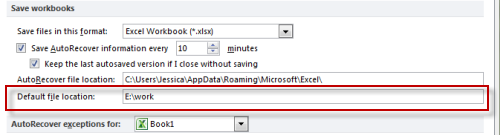
Note: Powerpoint and Excel users may not have the Browse… button so you have to provide the full path in Default file location. After that, jump to step 5.
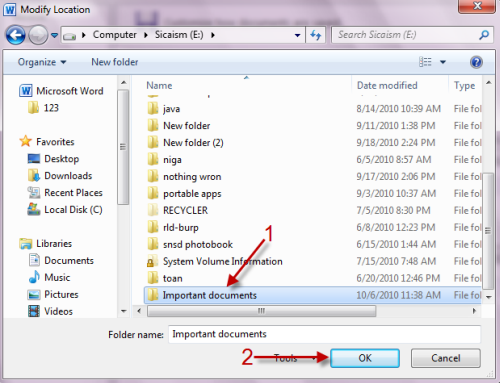
4. When the new window pops up, point it to your folder and hit OK to save the setting.
5. Click on OK in Options window.

From now on, when you save documents, the Save as window will automatically jump to your set folder.


 

About Lê Hoàng

When not creating exciting new Android games, Lê Hoàng is here crafting tutorials, tweaks, and fixes for your enjoyment.
View more articles by Lê Hoàng

The Conversation

Follow the reactions below and share your own thoughts.

3 Responses to “Office 2010: Change Default Save Location”

  1. September 24, 2011 at 7:29 am, David Anderson said:

    Sadly the one single application – Publisher 2010 – does not have this feature is another that would greatly enhance the office workflow and save a lot of time with file organization. Hopefully user pressure will encourage a nessary change in the application.

    Reply

  2. November 23, 2011 at 1:22 pm, Donna said:

    I’m trying to get a letterhead set up in Word 2010. I have ran into several problems. One being that I ended up with several pages, and can’t delete the pages that I want to. If I start deleting them they delete my letterhead. The second being, that when I open the template or document the cursor is up in the header and I’d like to reset that to the body of the letter.

    Reply

  3. December 28, 2011 at 12:05 pm, Brian from Texas said:

    Donna, that’s a cool story, bro.

    Reply

Leave a Reply

You may also like-

Office 2010: Change AutoRecover LocationAutoRecover feature in Microsoft Office can be really helpful. It can be a lifesaver when you are working on a document your app or ...


