


Even though Outlook uses a bold font for displaying unread messages, many people still find them hard to spot. To simplify finding new incoming messages, consider changing the text color or even switching the font type.
For most people Outlook is setup as black text on a white background. Unread messages may be bold, but the lack of color makes scanning for unread emails difficult. To really highlight new messages, users frequently change the color (or font) of these incoming emails.
Please note that although the screenshots are for Outlook 2013, this directions will still work for previous versions.
1. Launch Microsoft Outlook.
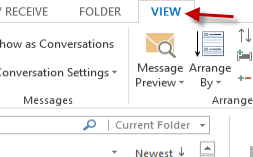
2. Switch to the View tab from the program’s ribbon.
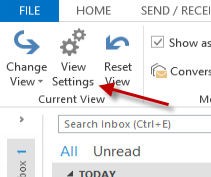
3. Click the View Settings button inside the View tab to continue.
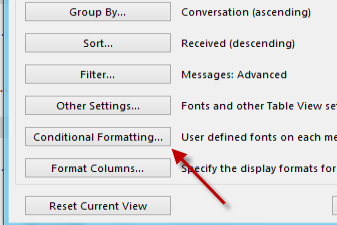
4. In the new View Settings window, find the Conditional Formatting option, and click on it. This option will let you select fonts for many message types such as unread, expired, or overdue mail.
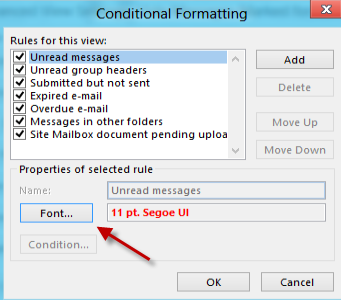
5. When the Conditional Formatting window pops up, highlight the Unread messages option, and click the Font button to change the font and its color.
6. Much like the font format option in Microsoft Word, the Font window in Outlook allows you to change the font, font style, size and even the color of the text.
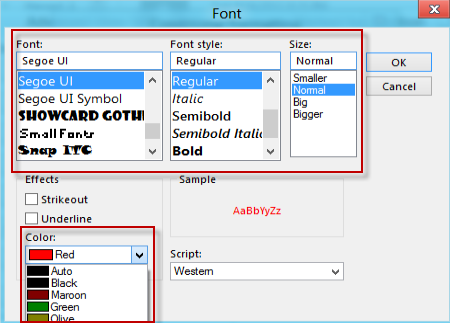
7. When you have completed your changes to the font, click the OK button to save the settings.





