
Windows 7: How to change Windows Explorer’s default folder
Posted by Lê Hoàng in Microsoft Windows 7
By default, when you click on the Windows Explorer icon at the taskbar, you will be redirect to Windows Libraries. If you do not use Windows Libraries, then it is much more efficient to change it to your favorite folder instead.
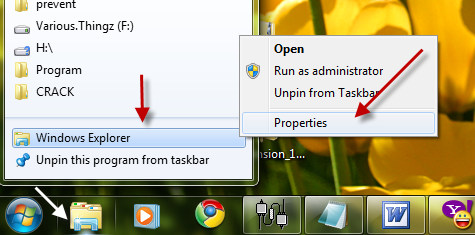
1. Right click on the Windows explorer’s icon
2. Right click on Windows explorer and choose Properties.
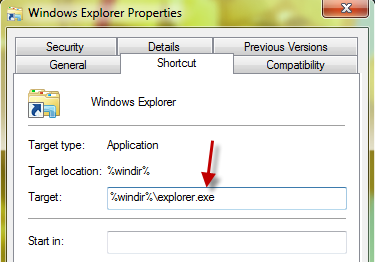
3. Look at the target line. By default, it will be %windir%\explorer.exe.
4. To point the Windows explorer to another directory, simply add its location to right after %windir%\explorer.exe ( For example: %windir%\explorer.exe E:\downloads )
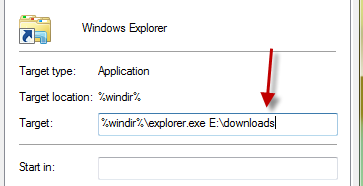
5. Click OK to close the box. From now, when you click on the Windows explorer’s icon, you will be redirect to your favourite folder.
About Lê Hoàng
View more articles by Lê Hoàng
The Conversation
Follow the reactions below and share your own thoughts.


August 04, 2010 at 12:04 pm, Anonymous said:
Great idea!
September 20, 2010 at 2:43 pm, Keith said:
If i want it to open “My Computer”, what should i type in the box ?
October 14, 2010 at 10:28 am, Tipztv said:
Hi Keith
Sorry for my late reply
To open my computer, paste this code: %SystemRoot%explorer.exe ::{20D04FE0-3AEA-1069-A2D8-08002B30309D} to the target section
Hope this help you
August 02, 2011 at 3:21 pm, Sammy5887 said:
thanx im lookin 4 this
December 30, 2011 at 1:59 am, Allan Christensen said:
What is the code if I want it to always open Recent Places?



