
Android: How to Clear Browser Cache, History, Form Data, and/or Cookies

If you have problems with web pages loading correctly on your device, or just want to keep others from seeing where you are surfing or from accessing your accounts, here’s how to clear the information from your Android web browser.

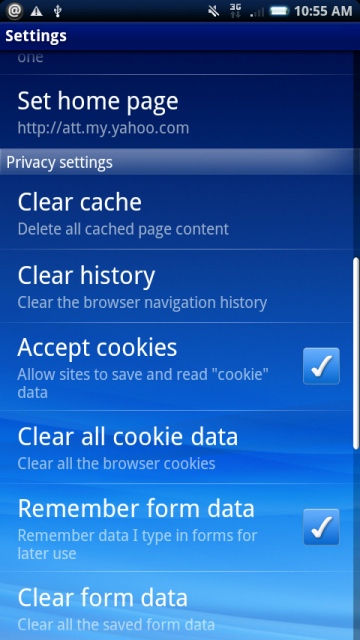
Editor note: Added screenshot.

To Clear the Browser Cache:

1. Open the Browser application.
2. Select the Menu key.
3. Select More.
4. Select Settings.
5. Select Clear cache.
6. Select OK.

To Clear Browser History:

1. Open the Browser application.
2. Select the Menu key.
3. Select More.
4. Select Settings.
5. Select Clear history.
6. Select OK.

To Clear Browser Form Data:

1. Open the Browser application.
2. Select the Menu key.
3. Select More.
4. Select Settings.
5. Select Clear form data.
6. Select OK.

To Clear Browser Cookies:

1. Open the Browser application.
2. Select the Menu key.
3. Select More.
4. Select Settings.
5. Select Clear all cookie data.
6. Select OK.
clear cache screen


About Rob Rogers

Once a prolific author here on Tech-Recipes, Rob has moved on to greener pastures.
View more articles by Rob Rogers

The Conversation

Follow the reactions below and share your own thoughts.

15 Responses to “Android: How to Clear Browser Cache, History, Form Data, and/or Cookies”

  1. June 30, 2010 at 10:42 pm, triprip said:

    i have followed….. or tried tofollow your steps but when i open my browser and then menu and more there is no settings option!!!! any other suggerstions??

    Reply

  2. September 07, 2010 at 1:27 pm, David Kirk - Founder/Editor said:

    Screenshot added…

    Reply

  3. October 04, 2010 at 10:42 pm, Stas said:

    Browser history can be quickly cleared by Refine Efficiency app. It’s a tuning utility of background actions of the OS.

    Reply

  4. February 23, 2011 at 12:00 pm, Maovandara said:

    dara

    Reply

  5. March 14, 2011 at 7:31 am, Mistmc10 said:

    i dont even have a browser app?

    Reply

  6. June 22, 2011 at 10:47 am, Annie said:

    If you have to clear everything to hide it, maybe you shouldn’t be going where you’re going or doing what you’re doing in the first place!

    Reply

    • August 02, 2012 at 1:36 pm, Rory said:

      Not yoir buisness pal.>

      Reply

  7. September 20, 2011 at 11:04 am, Winning said:

    Seriously, though. Thanks’ for the good walkthrough! Super helped.

    Reply

  8. October 12, 2011 at 7:41 pm, Laura said:

    After I follow these instructions, when I hit the back button on my phone it still takes me to the websites I supposedly erased

    Reply

    • November 15, 2012 at 12:11 pm, Arthur said:

      It isn’t obvious but you need to recycle power after the recommended steps. Before you power off you can return to pages using the forward button but after power up the forward button is greyed out until you get more pages.

      Reply

  9. December 26, 2011 at 8:40 am, Terry said:

    Worked for me first time on Samsung Infuse. Thanks,T

    Reply

  10. May 14, 2012 at 11:36 am, Ludvik said:

    These steps haven’t helped me (maybe unusual android device?) :(

    So my friend has adviced me Android Delete History app and I think I don’t need anything advices anymore ;)

    Reply

  11. November 16, 2012 at 1:20 am, nicholas said:

    Browser > Menu > Settings > Privacy and security > Clear cache/ cookies / history

    Reply

  12. February 01, 2013 at 9:14 am, mike said:

    You clearly haven’t tried this on s tablet device such as an archos cobalt.
    If you had you’d know this guide makes zero sense

    Reply

  13. February 12, 2013 at 3:13 am, SierraLeone said:

    Does it work in Germany with iPhone 4?

    Reply

Leave a Reply



