

By default the text font in Lync is set to Segoe UI with black color. If you do not like it, you can always change it to another font and color.
Microsoft’s Lync is quickly becoming a powerful communications platform for the enterprise environment. Integrated into the latest version of Office and available on most mobile devices, Lync is quickly becoming the instant messaging choice for many business networks.
Like most Microsoft products, users quickly want to know how to alter the default settings. For example, using a different font and color while in group chat can really help the others members spot your message quickly and easily. Customizing your instant messages this way can be accomplished through the following steps.
1. Launch Lync 2013 and log in to your account.
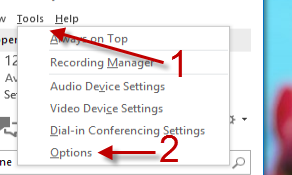
2a. If you have the menu bar displayed at the top, go to Tools -> Options.
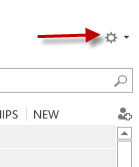
2b. Alternatively, you can simply click the small Gear icon right above the search box to access the Options window.
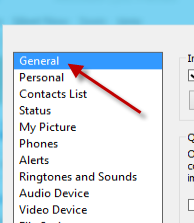
3. When the Options window appears, make sure you are in the General section. This section can be found on the left of the page.
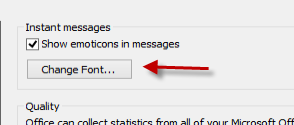
4. On the right side of the window, click the Change Font button at the top.
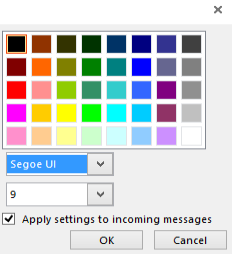
5. The windows that appears will allow you the set color, change the font and adjust the size. You can even apply these settings to the incoming messages.
6. When you are done, click OK to save the changes and close the Options window.
Please note: These steps are applied to Lync 2013 only. The steps may vary in older or newer versions.





