Android 4.0: How to Create Folders on Homescreen and Launcher Bar

One of the new features of Ice Cream Sandwich (ICS) is the ability to create folders without using third party software. This makes it easy to organize the apps on your homescreen and even the launcher bar.

To create folders on your homescreen:

1. Go to the device’s homescreen.

2. Locate the desired app that you wish to include in a folder.

3. Locate a second app (whether on the homescreen or in the app drawer).

4. Tap and hold the second app. Drag the second app to the first app that is located on your homescreen.
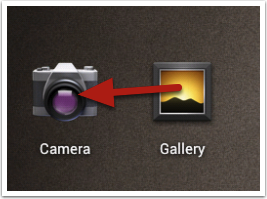
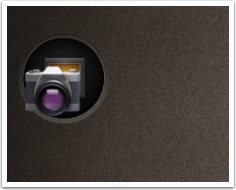
A circle will appear around the first app.
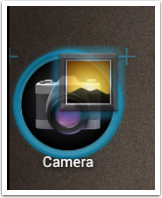
5. Release the second app and its icon will appear in the circle, behind the icon of the first app.
6. Tap the newly created folder.

7. Tap the generic title and input the desired title.
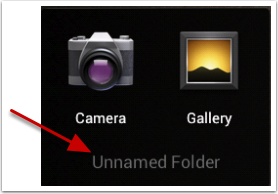
8. Drag additional apps to the newly created folder at any time.

To close the folder, tap on an empty area on the homescreen.

To create folders in your Launcher Bar:

1. Go to the device’s homescreen.

2. Locate the desired app. on the Launcher Bar that you wish to include in a folder.

3. Locate a second app (whether on the homescreen or in the app drawer).

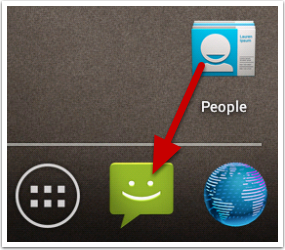
4. Tap and hold the second app. Drag the second app to the first app that is located on your Launcher Bar.

A circle will appear around the first app.

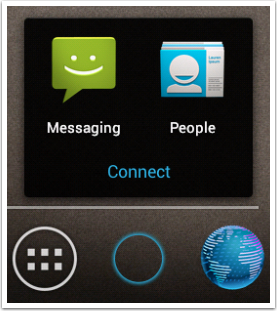
5. Release the second app and its icon will appear in the circle, behind the icon of the first app.

6. Tap the newly created folder.

7. Tap the generic title and input the desired title.
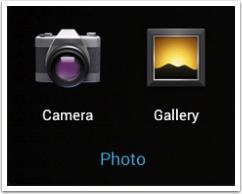
8. Drag additional apps to the newly created folder at any time.

To close the folder, tap on an empty area on the homescreen.

If you want to change the order of the icons that are displayed in your new folder (whether on the homescreen or in the Launch Bar), open the folder and tap and hold the icons and move them to the correct order. The icons on the folder will appear in that order.


 

About Rob Rogers

Once a prolific author here on Tech-Recipes, Rob has moved on to greener pastures.
View more articles by Rob Rogers

The Conversation

Follow the reactions below and share your own thoughts.

9 Responses to “Android 4.0: How to Create Folders on Homescreen and Launcher Bar”

  1. April 04, 2012 at 1:09 am, JG said:

    It does not allow single item folder and is restricted to a maximum of 12 items in a folder. The older Android version didn’t have such limitations.

    Reply

  2. June 01, 2012 at 7:23 pm, Larry said:

    I have two HTC Amaze phones. Both updated successfully. On one this works, on the other it does not. I’m lost here. Any ideas??

    Reply

  3. June 19, 2012 at 5:35 am, Rachit said:

    Thank you Nicely explained i was able to do it very easuly.

    Reply

  4. August 22, 2012 at 9:40 am, Kaeyur said:

    Thank you so much..

    I was struggling for so long to do this since it was my first android phone.

    Reply

  5. August 22, 2012 at 9:40 am, Kaeyur said:

    Very nicely explained!!

    Reply

  6. October 17, 2012 at 10:39 am, sal said:

    also from my side; thanks a lot! saved me a lot of hustle..

    Reply

  7. December 07, 2012 at 6:25 am, Vinod Tiwari said:

    Thanks a lot…!! It has been nicely explained what exactly need for me.

    Reply

  8. January 11, 2013 at 4:46 pm, Faust said:

    stuck with android 2.3.5 gingerbread i was able to tweak around with ics and its responsive

    Reply

  9. April 03, 2013 at 5:01 pm, moein said:

    very gooood. thank you so much.
    that is my problem with sony xperia go android 4 that solved by your guidance.

    Reply

Leave a Reply

You may also like-

Google Nexus One : Quickly add an Application shortcut to HomescreenGoogle Nexus One : Quickly add an Application shortcut to HomescreenThis recipe explains how to add an Application shortcut to your Homescreen from within the Applications list area. Normally you can add widgets/shortcuts/change the ... Google Nexus One: How to Use Folders to Store and Organize Your App ShortcutsGoogle Nexus One: How to Use Folders to Store and Organize Your App ShortcutsBy using folders to group your various application shortcuts, you can stay organized and preserve precious Home screen real estate. 1. Go to the ...