

One of Snow Leopard’s biggest changes was the built-in Quicktime Player. The new player allows you to capture video, audio and also screencasts. However, by default you are only allowed to use your internal or external mic for audio capturing. You cannot capture the audio generated from your mac itself such as sound from a movie playing in your browser or music from a website, for example.
With the help of a free plugin, Soundflower, we can in turn use Quicktime Player’s screen recording abilities as a very free and easy way to capture web video and audio on mac systems.
Requirements:
– Mac running Snow Leopard or later.
– The free Snowflower add-on which can be (download here )
Installation and Use
1. Download and install the Snowflower add-on. Once you install the add-on, I would recommend rebooting.
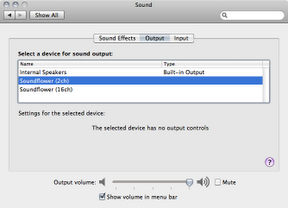
2. After rebooting, you will need to set your audio preferences to output to the new Soundflower audio outputs. Go to System Preferences > Sound > Output and select the Soundflower outputs
3. Now, launch Quicktime Player ( Applications > Quicktime Player or via Spotlight, command+spacebar)
Go to File >New Screen Recording
Then on the recording window, click the drop down arrow and choose the same Soundflower output we setup in our previous step. (Soundflower 2CH, for example).
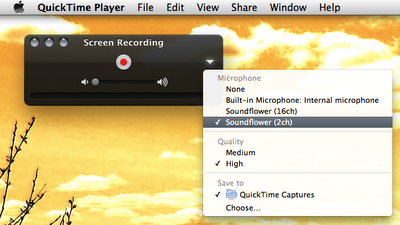
4. Now go to your website and get the video ready to play. Hit the Record button in Quicktime Player and then start your movie/video in your browser. Once your done, stop the recording. You should have an the audio and video captured.
Once you are done capturing your audio and video, remember to change your output audio back to your speakers through System Preferences > Sound > Output. If you do not do this, you will not hear any audio from your device.
TIPS/TRICKS:
– Your mouse is captured when your recording, so try not to put it over the video your capturing.
– You can easily capture web audio by just doing a File > New Audio Recording and again choosing the Soundflower input as source.
– If you want, you can even import the captured video into iMovie and then crop to the video frame itself. Cropping just using Quicktime itself is also possible. Obviously, this makes for cleaner video.




