


By default, Finder’s icon view simply shows you the name of the directory or file. By enabling Show Item Info, you can get additional information like the number of items in a directory, the dimensions of an image, or the length of a music or video file. This can be done for all files and directories on your Mac, or you can enable it individually on select folders.
OS X’s Finder is capable of displaying a huge amount of information. By default, however, most of it is hidden. For power users, showing this information is very important.
1. Open Finder.
2. To enable Show Item Info on all files and folders, go to the left pane and select Macintosh HD. Press Command+J.
To enable Show Item Info on an individual folder, go to the folder and select it. Press Command+J.
This dialog box can also be displayed by clicking the View menu and then selecting Show View Options.
3. In the resulting window, check the Show Item Info checkbox.
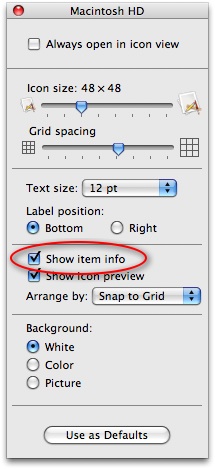
4. If you want all the folders displayed that way by default, click the Use as Defaults button.
5. Close the window.
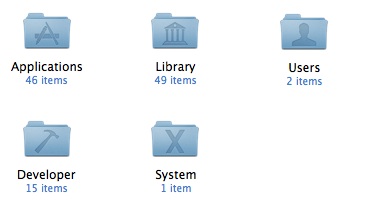
Now you will have additional info placed on directories, images, and media files. For example, the number of files within each folder will be displayed under the icon.
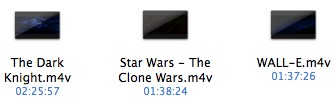
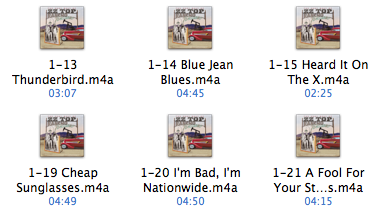
The length of audio and video files will displayed along with the file’s title.
Additional useful information such as the dimensions of images files and the capacity/free space of hard drives will also be shown. Also it should be noted that a folder that is an alias will not display this information. This tip works for Icon view only. If the folder display is in List view, column view, or Cover Flow, no additional information will be shown. You can select Icon view through the View menu -> as Icons.





