

By using the Preview application within OS X, it is very simple to batch resize a large number of images on your mac at once. This has been tested in all current versions of OS X.
Let us say that you want to store some photos of your friends and family, but you need to resize them first. Resizing all these photo manually would be very painful. However, instead of resizing each photo one at a time, it is possible to resize them all at once using the Preview application. By resizing them in a single batch, you will have them done very efficiently.
1. Select the desired images.
2. Click and drag the selected images to the Preview icon on your dock. It is best to use copies and not the original files in case you are unhappy with the conversions. If the Preview application is not in your dock, just run the application first to make it appear. Alternatively, just select all the images, right-click, and then select Open With -> Preview.app.
3. When Preview opens, click the sidebar and then press Command Key+A to select all thumbnails in the sidebar. Alternatively, you can click and drag to select all the thumbnails.
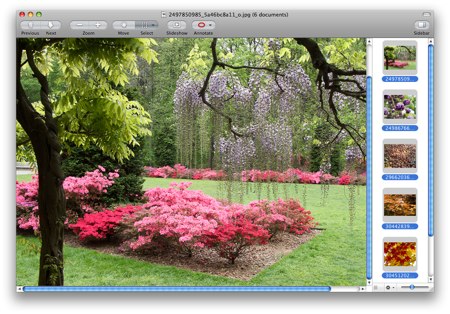
4. Go to Preview’s menu, click Tools and select Adjust Size.
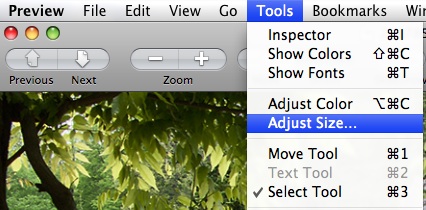
5. Input the desired size.
6. Click OK.
7. Save the resized images. Prior to Lion, you can click File and select Save All. Since OS X Lion does not like to save, in Lion you will select Save a Version instead.




