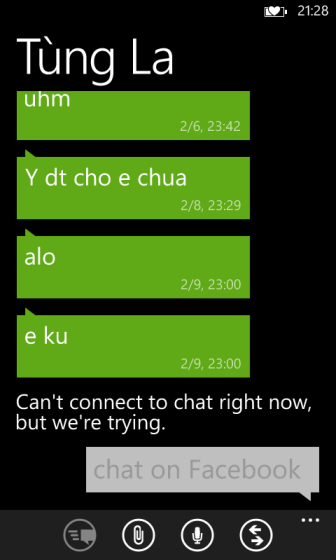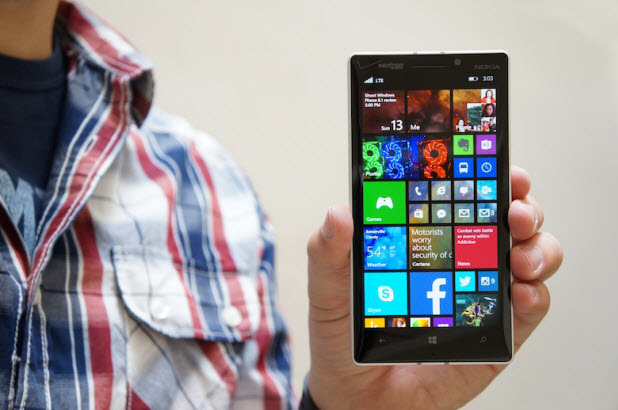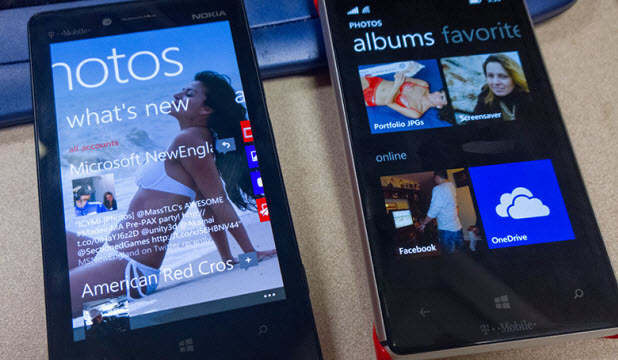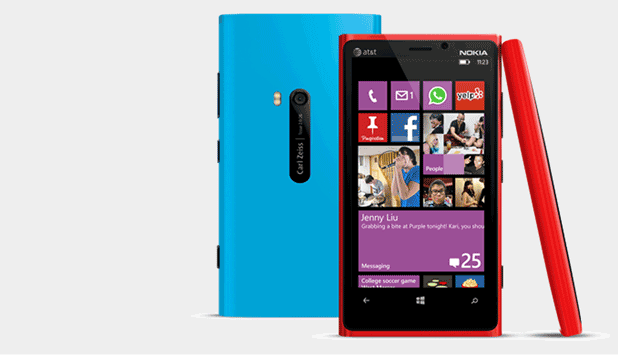
The default size of on-screen text elements of Windows Phone devices is usually acceptable. However, if you find them too small to read, follow the steps in this tutorial to increase the size.
This tip can be very helpful for the elderly or farsighted people.
In most cases, changing the size of text will increase the size of other elements. However, apps that have a hard-coded text size will stay the same and there is no way to increase those sizes. The text size of the app list and the pinned tiles are not affected by the change.
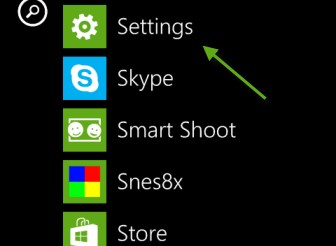
1. Switch to the app list, and choose Settings.
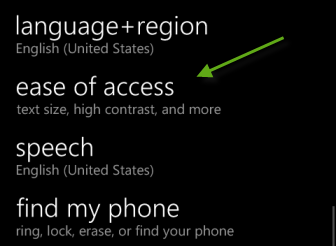
2. While you are in the Settings screen, scroll down to the ease of access option, and tap on it to continue.
3. In the ease of access section, you will find the Text size option right at the top. To make the text larger, simply move the slider to the right side. The box contains the Sample text. The text size will change as you tweak the settings.
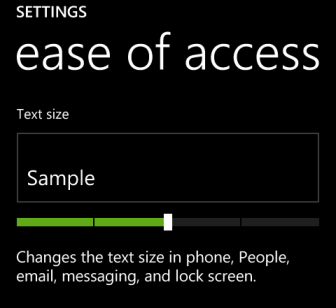
4. Once you are done tweaking the text size, just exit the settings section, and the change will be saved. Below is an example of how elements on the screen change.
Before: (default text size)
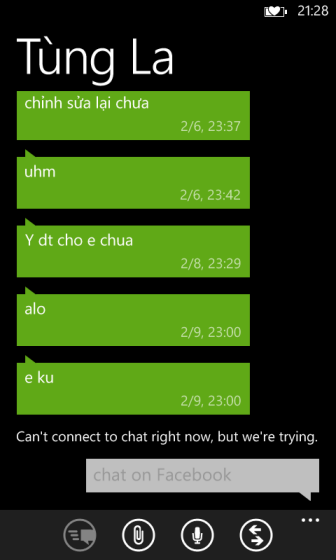
After: (medium text size)