

By using Window 8’s Task Manager you can easily schedule your computer to turn itself off at night when not in use.
Many people debate if computer systems are better to be left eternally on or if they should be powered down each night. For those of us who shut down their systems each night, you should know that you can schedule your computer to do this automatically. Windows is smart enough to do this only if the computer has been idle for your set amount of time.
Additionally, this is an excellent introduction to the Task Manager. This is one of the most popular tools of power users and can be used to schedule almost a limitless number of actions on your system.
1.First, search for “Schedule tasks” from the Start menu. 
2.The Task Scheduler window will come up. Here you must select Create Task… from the “Actions” banner on the right. 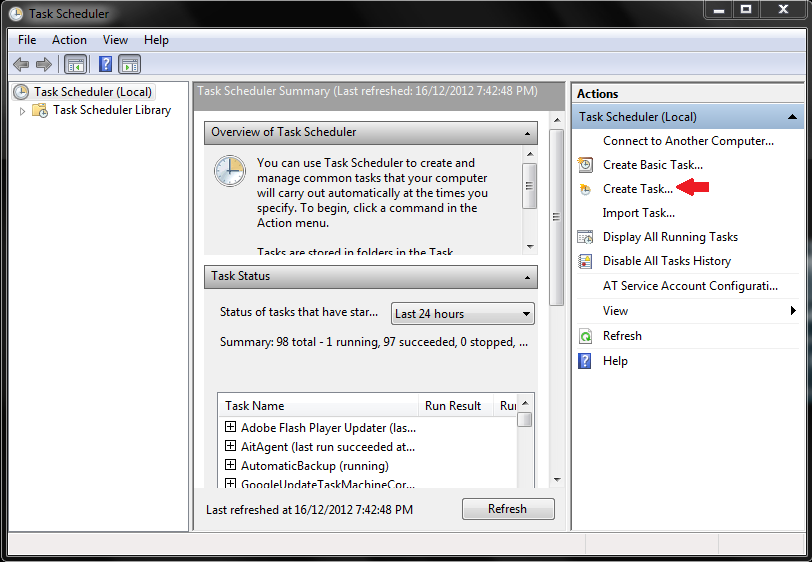
3.Name your task, and then click on Triggers. 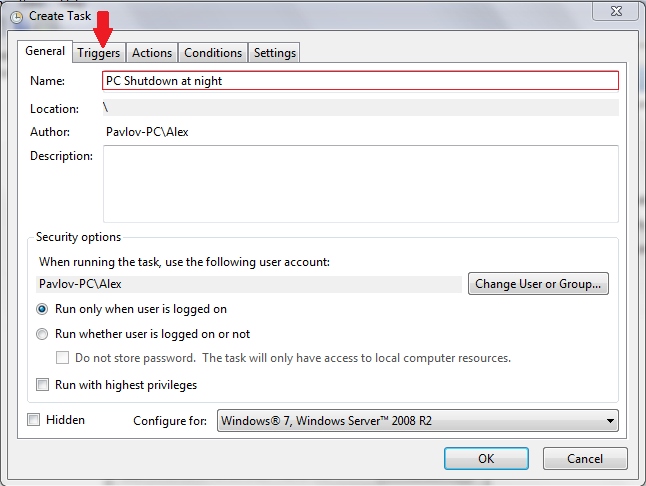
4.Under “Triggers,” select New… 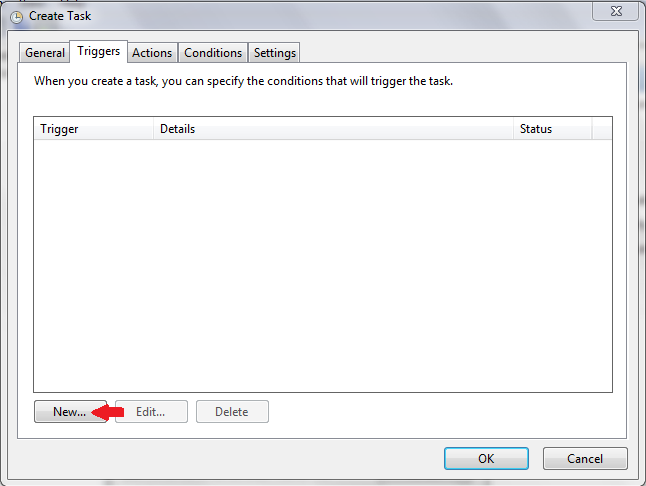
5.Set up the settings similar to what is pictured below. Click OK. 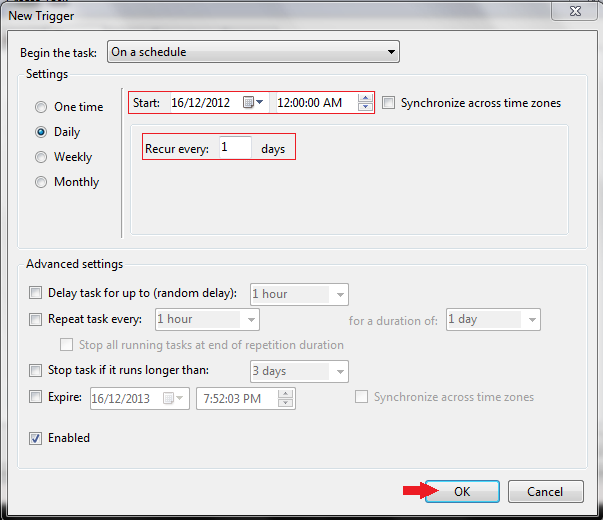
6.Now, click on the Actions tab.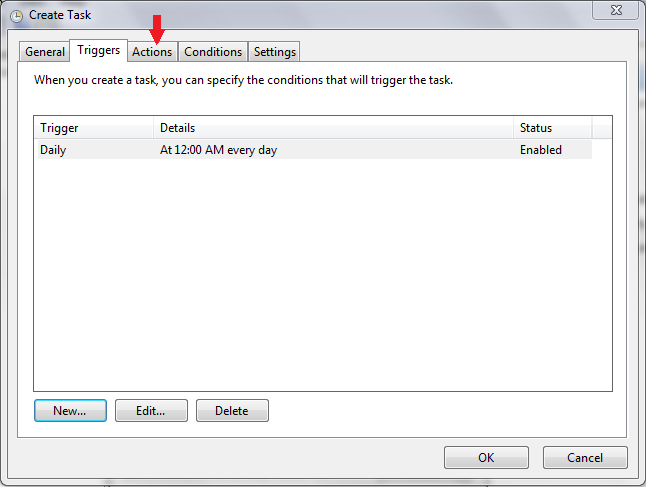
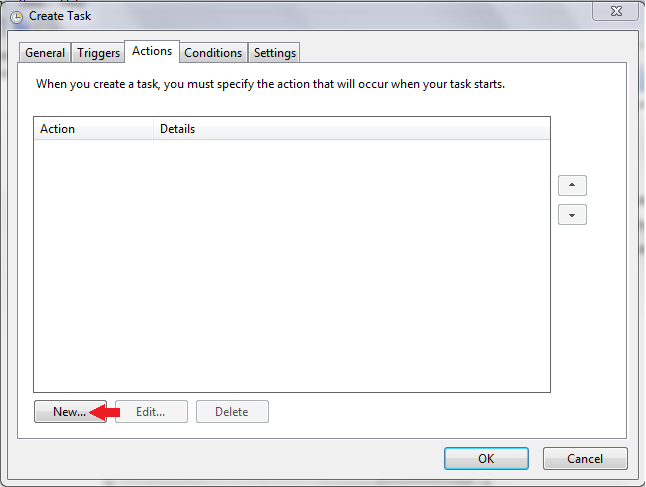
7.Under the “Actions” tab, select New…
8.Type in shutdown in the Program/script box. Then click OK. 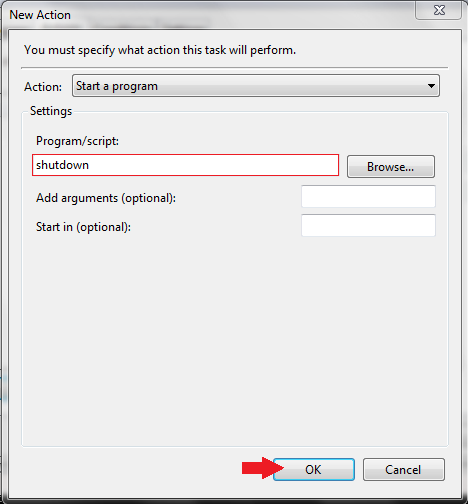
9.Finally, click on the Conditions tab.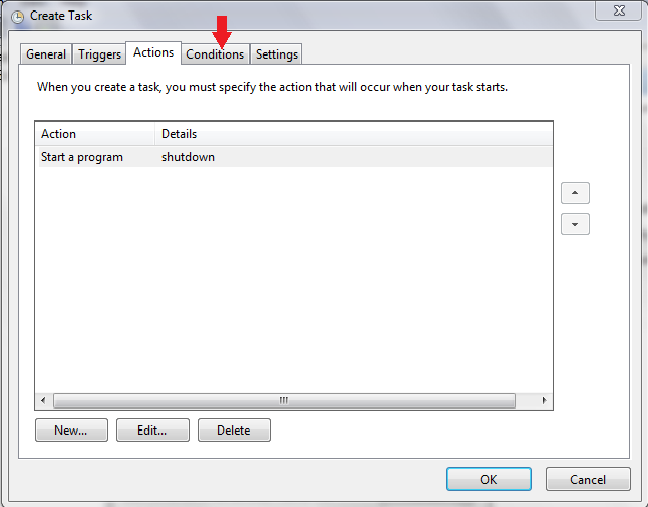
10.Check the box next to Start the task only if the computer is idle for:, and then adjust the time intervals to fit your needs. Click OK. 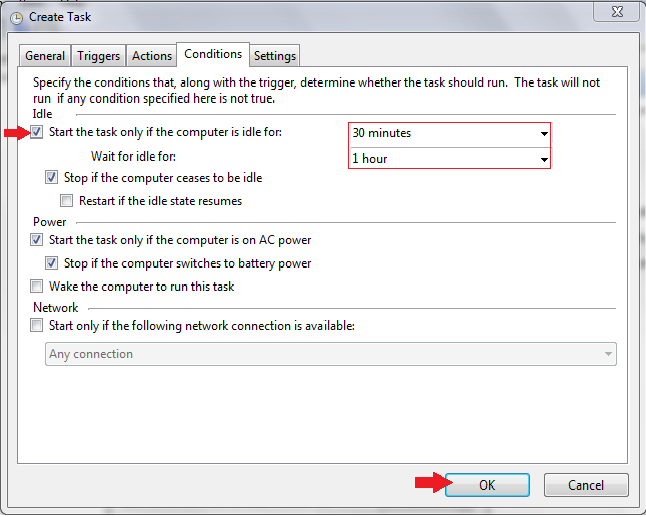
You have now scheduled a daily task. You can be sure that your computer will be turned off even if you are not there to initiate the shutdown.





