

This recipe will explain how to use a batch file i’ve written and windows media encoder 9 to convert mpg / avi / asf video files to wmv. The batch file will allow you to convert a folder full of videos one at a time w/a specific profile. The best part about this recipe is that all the ingredients are free. 🙂
Microsoft has made the Windows Media Encoder 9 application available since Media Player 9, however most are not aware of its power and utility. This recipe will explain one way to use it to batch convert a folder of video files to wmv (will work with mpg (divx too), avi, asf).
REQUIRED FILES:
Windows Media Encoder 9
Windows Media Encoder has not been updated since 2011 and it may be outdated for most users. but if you are still using windows xp you can download it from here:
https://www.free-codecs.com/download/windows_media_encoder_9_series.htm
My batch files and prx profiles
http://seamonkey420.tech-recipes.com/other/misc/batchConvertwmv.zip
INSTRUCTIONS:
1. Install Windows Media Encoder 9.
2. Save my zip file to your c: and extract the zip file of my batch and prx files to your c:

so you should have a C:\WME folder
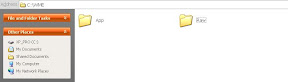
3. You can use the batch files as is if you want, just put your mpg, avi, and/or asf files in the RAW folder (default c:\wme\raw).
Then go to the App folder and run the Convert to Zune Display.bat to convert the videos to my zune profile
or
run the High_quality Convert.bat for a higher quality conversion.
Let it process, it takes about 150 secs per 4 min video file. Once its done, you should have a Converted folder in C:\WME\ with your converted videos!

You can create your own profile using the Windows Media Profile Editor in the start menu folder.
NOTES:
-The zune profile settings are as follows:
320×240 resolution, 256kbps video, 30fps, 192kbs/44khz stereo sound
-The high_quality profile settings are as follows:
Same as input size, 768kbps video, 30fps, 192kbs/44khz stereo sound
-To change the folder settings, you will just need to edit the batch file and the idir and odir folder settings (see below)





