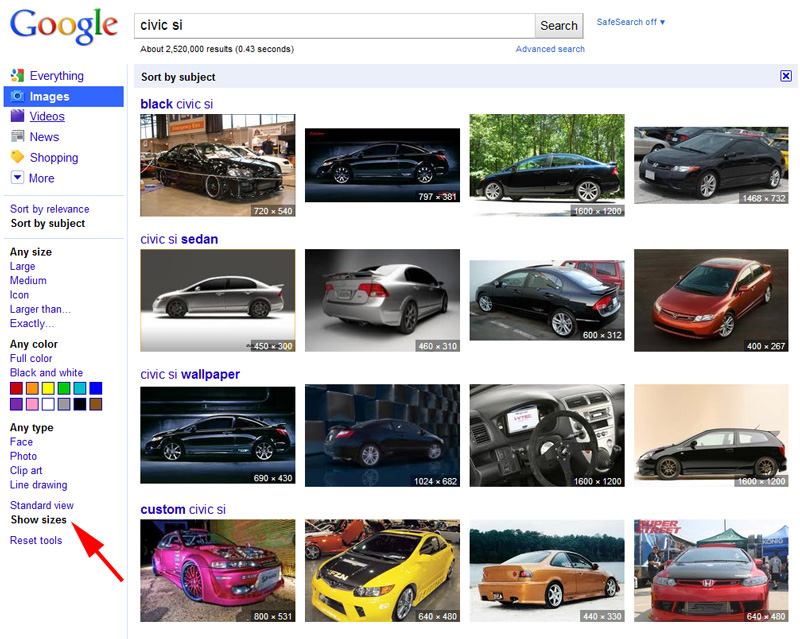
This guide will show you how to use sort your Google Image searches by subject. You can also display the sizes of the images on the previews.
Google Images is a wonderfully powerful tool. Frequently, I use it why looking for stock images or for photos for my lectures. However, the default display is too random. By sorting by subject and by displaying the image size, I can quickly scan a large group of images for my perfect target. Here is how to do it.
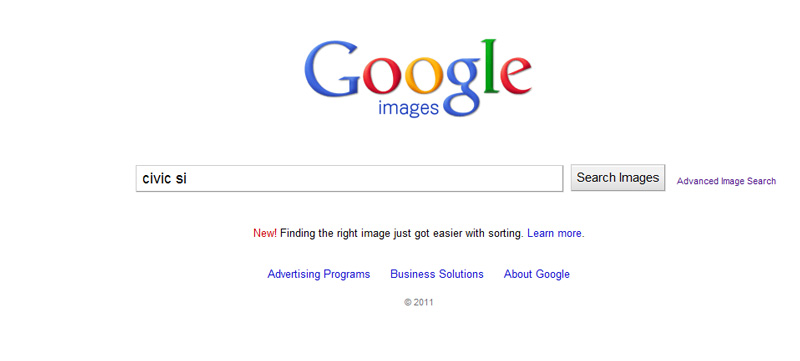
1. Head over to google.com/images with your browser of choice.
2. Input your image search terms, in our example: civic si
3. On the results screen, click on the “Sort by Subject” link on the left pane, in the middle.
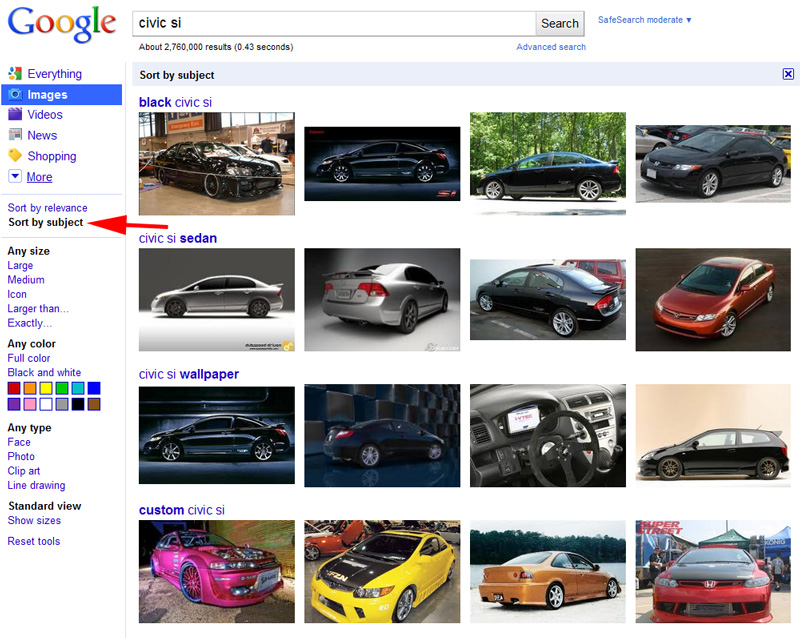
Your results will now contain the terms you specified and be sorted by subject (related search terms).
4. We can go a step further and have the results show the image size on the preview by click on the “Show Sizes” link on the left pane, bottom area.