

Encrypting your documents with passwords can prevent other users from opening or modifying them. This step-by-step guide describes how to set (and remove) a password for documents in Word, Powerpoint and Excel 2010.
To set password for document:
1. Open your document.
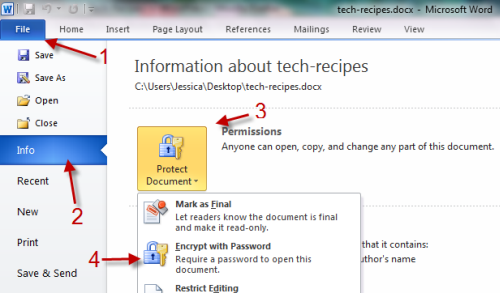
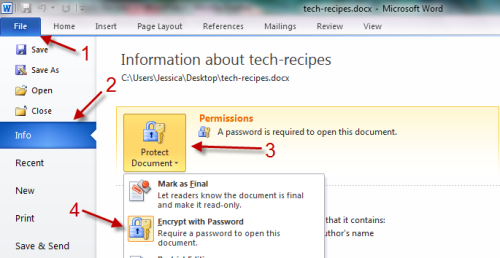
2. Go to File->Info->Permissions->Encrypt with password.
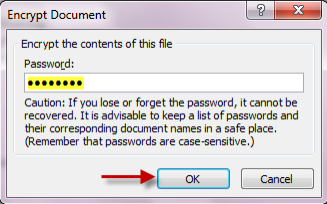
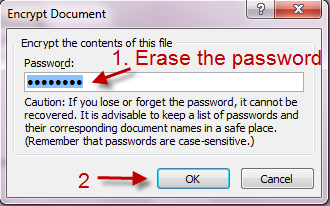
3. Provide your password in Encrypt Document window and hit OK.
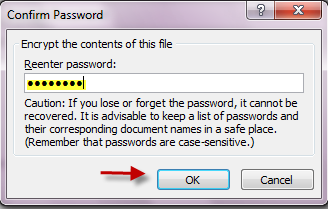
4. Re-enter your password in next step and then hit OK.
5. Save your document. Your document is now password-protected.
To remove password from document:
1. Open your document.
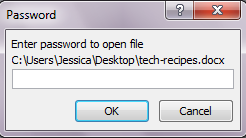
2. Provide the password to access the contents.
3. Go to File->Info->Permissions->Encrypt with password.
4. Erase the password in the field and hit OK.
5. Save your document.




