
Windows 7: How to Execute Programs from the Search Run Box as Administrator

Many of us make extensive use of the search run box provided in the Windows 7 start menu. However, if we normally start a task from the start menu, it does not execute with administrator rights. Here is how to change that.
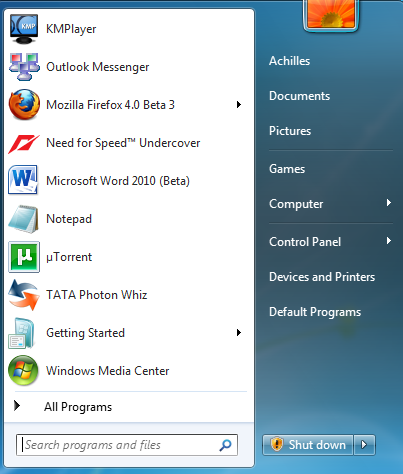
Go to the Start menu and type the application name in the run box.
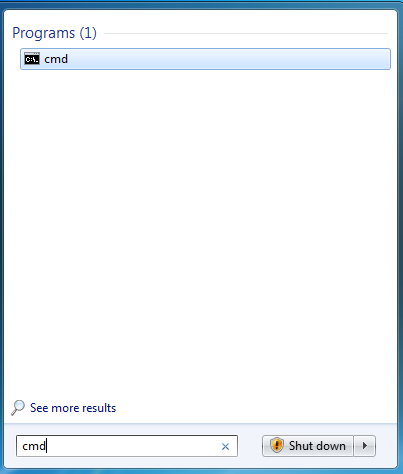
Then instead of pressing the Enter key, press Ctrl + Shift + Enter to run the task as an Administrator.
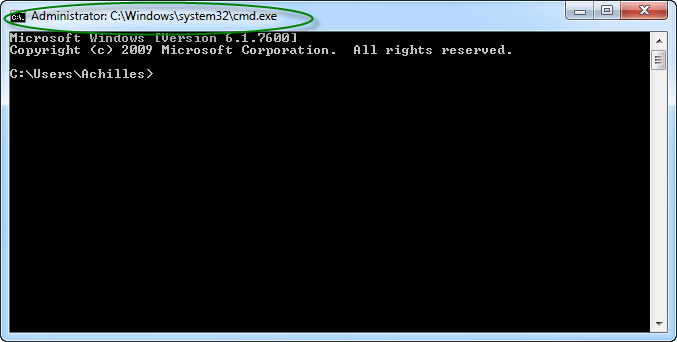
The task should be started as an Administrator. If you have User Account Control (UAC) enabled, then the UAC screen is opened which you have to accept.

This is an extremely easy and time saving method to run applications as an administrator.

The Conversation

Follow the reactions below and share your own thoughts.

6 Responses to “Windows 7: How to Execute Programs from the Search Run Box as Administrator”

  1. November 29, 2010 at 2:24 pm, Guest said:

    Very nice.

    Reply

  2. November 29, 2010 at 2:37 pm, Lucio Mollinedo said:

    That was cool. I was expecting to read a post about right click cmd.exe and choosing “run with highest privileges”, and I found this instead. neat :)

    Reply

  3. November 29, 2010 at 4:01 pm, seinfeld5a said:

    Thanks for this. I was wondering if the search box and the run box are exactly the same.

    Reply

  4. November 30, 2010 at 3:30 pm, SpoTHT said:

    This will eliminates the hassle of right-clicking and selecting Run as administrator.

    Reply

  5. December 04, 2010 at 8:44 am, Tory Burch Shoes said:

    I am a little bit short-spoken since I was very young,because I do not

    like talking too much ,if there is a choice,I would rather doing or

    talking.I don’t know why.maybe this is me inborn.

    Reply

  6. February 29, 2012 at 4:19 am, MrPloops said:

    That’s nice.
    But is there a way to put arguments after the program name? I can’t make it work…
    tia
    MrPloops

    Reply

Leave a Reply

You may also like-

The Tech-Recipes Quick Guide to Customizing Windows 7Microsoft's latest operating system is a bit different than Windows versions of the past, and with these differences come more things to customize and ...



