

Word 2011: Use Full Screen View for Undistracted Writing

By using Word’s full screen Write mode, you can remove all distractions from your view and focus on writing that important document.

1. Open Word 2011 to the new or existing document that you wish to work on.

2. Go to the Menu bar.

3. Select View and click Full Screen.
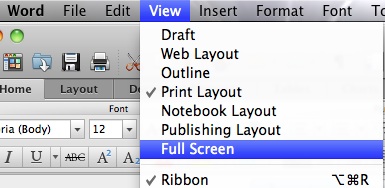
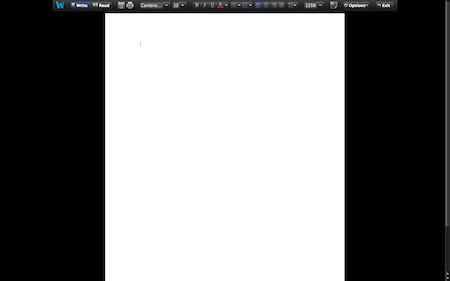
Your document will open in Full Screen Write mode. By moving your cursor to the top of the document, you can access the formatting tools.
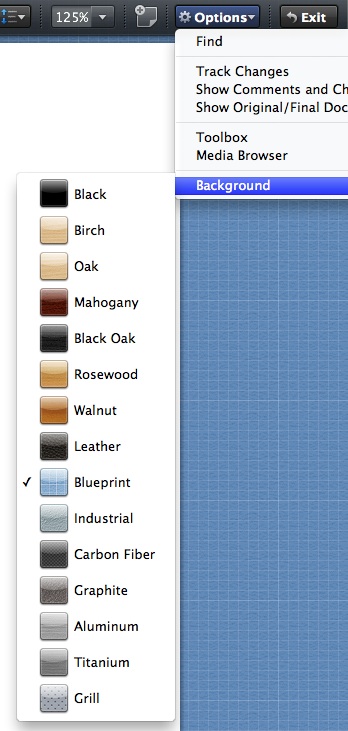
If you don’t like the black background, you can change it by clicking the Options button, mousing over Backgrounds and selected the desired one.
To exit Full Screen, move the cursor to the top of the window and click the Exit button or press Esc on your keyboard.


 

About Rob Rogers

Once a prolific author here on Tech-Recipes, Rob has moved on to greener pastures.
View more articles by Rob Rogers

The Conversation

Follow the reactions below and share your own thoughts.

3 Responses to “Word 2011: Use Full Screen View for Undistracted Writing”

  1. March 31, 2011 at 2:26 pm, Robinson Tes said:

    Can you save the background images to use as wallpapers?

    Reply

  2. September 25, 2011 at 4:49 pm, anonymous said:

    In spaces (mac), when you switch spaces or apps, etc, it exits fullscreen.

    AAARRRRGGGHHH

    SOOOOOOOO ANNOYING!!!

    Reply

  3. December 07, 2011 at 1:10 pm, Walter said:

    Yes, the full screen features would have been near perfect if it would just stop exiting to the regular view every time I switch to another screen or app. Unfortunately this one thing makes it perfectly unusable.

    Reply

Leave a Reply

You may also like-

Kindle 2: How to Switch Between Portrait and Landscape ModesWith the installation of the 2.3 update, you can rotate your screen so that you can view webpages, books and PDF files in landscape ...


