

In Windows 8, when you delete an item, it will be moved to the Recycle Bin right away without any confirmation. This can be very annoying when you accidently delete the wrong files. Fortunately, restoring the delete confirmation dialog box is not difficult.
Just like Windows 7, the Recycle Bin in Windows 8 has an option to display or hide the delete confirmation box when you send something to the bin. However, this feature is turned off by default. The following steps will help you bring it back.
1. If you are in the Windows 8 menu interface, switch to the desktop mode.
2a. Right-click on the Recycle Bin icon, and choose Properties.
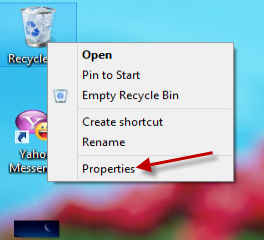
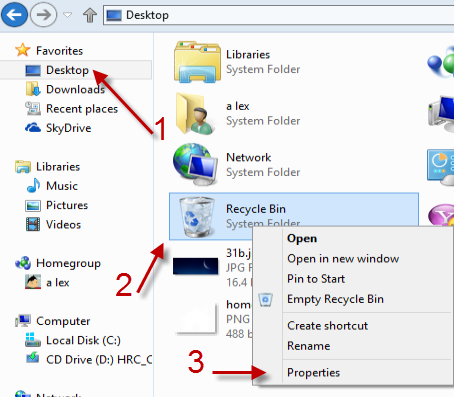
2b. If the Recycle Bin icon is hidden from your desktop, open the Explorer window, go to Desktop, right-click on Recycle Bin and choose Properties.
3. In the Recycle Bin Properties window, check the box next to the Display delete confirmation dialog option.
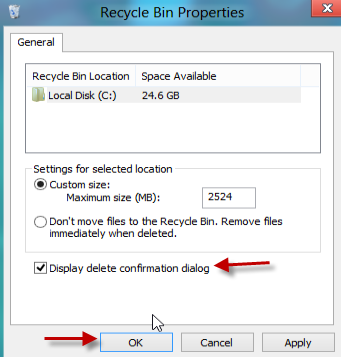
4. Click OK to save the setting.
5. Now, when you delete a file, the delete confirmation dialog box will appear.





