Windows 7 : How to Disable the Caps Lock Key

As typewriters are a distant thing of the past, there is no longer a great need for the Caps Lock key. It is a source of great irritation if it gets turned on accidentally. This article shows how to disable the Caps Lock key in Windows 7.

This process involves the remapping of the keys by using the registry editor. Only proceed if you are familiar with editing the registry.

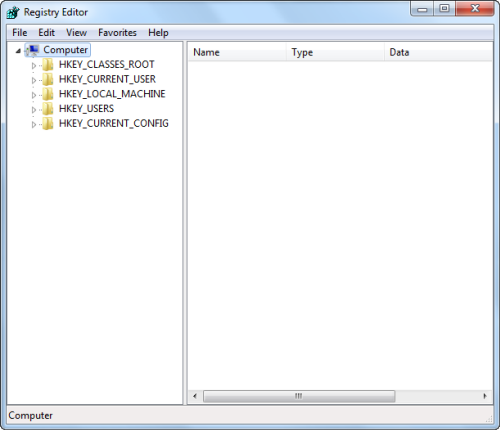
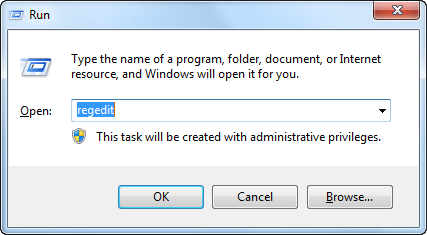
Type regedit in the windows run dialog box and press enter.
Once the editor is open, navigate to the following key

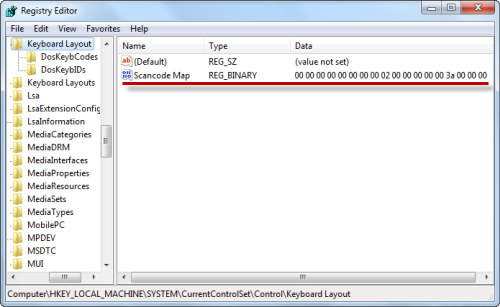
HKEY_LOCAL_MACHINE\SYSTEM\CurrentControlSet\Control\Keyboard Layout


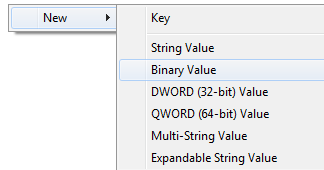
Right click and add a new binary value and rename it as Scancode Map

Change the value of the created binary key to

00000000 00000000 02000000 00003A00 00000000
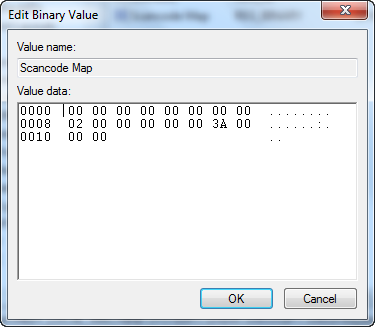

Exit the registry editor, restart your system, and you are set. The Caps Lock key is now disabled.


The Conversation

Follow the reactions below and share your own thoughts.

3 Responses to “Windows 7 : How to Disable the Caps Lock Key”

  1. February 06, 2011 at 4:06 pm, A guy in DC said:

    Can I assign it some other task, like open browser? I don’t find I hit the capslock key by mistake very often, so it would be good to assign it something. Perhaps even requiring a double stroke to launch? Is that asking too much? : )

    Reply

  2. March 05, 2011 at 6:49 am, Windows 7 Key said:

    Just in case someone else may need this: If you don’t need to disable the Caps Lock key, but you want to have the Shift Key turn it off instead (which I much prefer because I actually use the Caps Lock key. Seldom, but I do), this is the procedure:

    Control Panels > text Services and Input Languages > Advanced Key Settings > To turn off Caps Lock: Press Shift Key – Radio Button.

    Reply

  3. November 26, 2011 at 1:26 am, Roxz said:

    Nice tip, did worked for me.

    Reply

Leave a Reply

You may also like-

iPhone: Enable and use the caps lock keyboard featureBy default, the caps lock feature on the iPhone keyboard is disabled. If you do a lot of shouting in your emails, you'll want ...