Have you ever accidentally closed out of a tab you were using? Maybe you found a great recipe or article the other day, and now you cannot find it. Fortunately, Google Chrome keeps a history of your browsing data. You can look through your history to find that elusive page you viewed. If you want to be a real Chrome Guru, you can use the tricks and shortcuts detailed below to open recently closed tabs without using your mouse.
1.Press Ctrl-Shift-T (Cmd-Shift-T for Mac) on your keyboard to re-open closed tabs in the order they were closed. You can do this multiple times to re-open as many closed tabs as you want. This shortcut works for Chrome, Firefox, and Opera browsers. Safari reacts similarly when you press Ctrl-Z (Cmd-Z for Mac).
This method is great if you just recently closed the tab, but if you closed it a while back, then you will have to open numerous tabs to get back to the one you want. Try Method #2 instead.
2.If you know you closed the tab a while ago and do not want to open several tabs using the method above, go to Menu>History and recent tabs to see a list of your recently closed tabs. Click on an item in the list to open it in a new window. If the site was closed too long ago to be included in the list, go to your history by pressing Ctrl-H or clicking History on the top of the recent tabs list that you have open.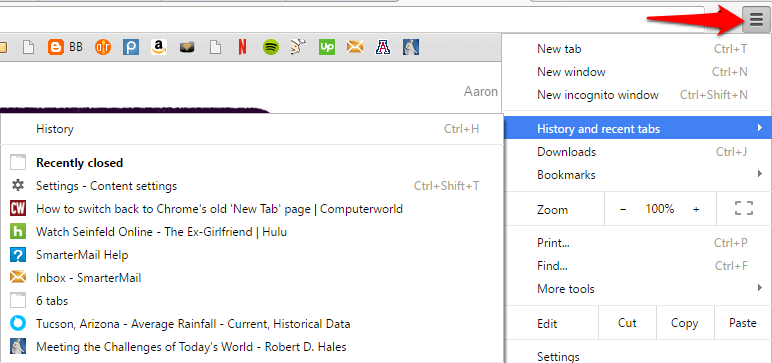
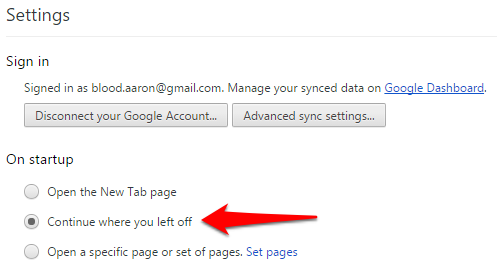
3.Did you accidentally close a window instead of just a tab? You can change your Chrome settings so that when you close a window, Chrome will remember which tabs you had opened. The next time you launch Chrome, all the tabs you had before will re-open. To set this up, to to Menu>Settings>On startup, and press the button for Continue where you left off.