The iPhone, Apple’s iconic smartphone, is packed with a range of useful features that many users might not be aware of. One such handy capability is the ability to screen record. Whether you’re aiming to create a tutorial, capture gameplay, or document a bug, the iPhone’s built-in screen recording feature has got you covered. In this article, we’ll guide you through the simple steps to screen record on your iPhone.
5 Easy Steps to Perform Screen Record on Iphone
1. Enable Screen Recording
Before you can start recording, you need to add the Screen Recording function to your Control Center:
Open the Settings app on your iPhone.
Scroll down and tap Control Center.
Select Customize Controls.
Find “Screen Recording” in the list and tap the green ‘+’ icon beside it. This will move it to the “Included Controls” section.
2. Start Recording
Now that you’ve enabled screen recording, follow these steps to start capturing content:
Swipe into the Control Center:
On iPhone X or later: Swipe down from the upper-right corner of the screen.
On iPhone 8 or earlier: Swipe up from the bottom edge of the screen.
You’ll see a circular record button (it looks like a dot). Press on this icon to start recording.
You’ll get a 3-second countdown before the recording begins, giving you time to get ready.
3. Add Voiceover (Optional)
If you wish to narrate while screen recording:
Deep press (or hold down) the screen recording icon in the Control Center.
Tap the microphone icon on the pop-up screen to turn audio recording on or off.
Tap “Start Recording”.
4. Stop Recording
There are two easy methods to stop your recording:
Tap the red status bar at the top of your screen, then tap “Stop”.
Or, open the Control Center and tap the screen recording icon again.
5. Accessing and Editing Your Recording
Once you’ve finished recording, your video will be saved to the Photos app. You can:
Open Photos and find the screen recording in your library.
Tap on the recording to play it.
If desired, you can use the built-in editing tools to trim the video, add filters, or even add text and doodles.
Tips & Warnings for Recording Screen on Iphone
Screen recordings will capture notifications, so consider enabling “Do Not Disturb” to prevent unwanted interruptions.
Avoid recording sensitive information, as whatever is on your screen will be captured in the video.
Note that some apps might block screen recording for copyright or security reasons.
Conclusion
Screen recording on the iPhone is a breeze once you know how. Whether for professional, educational, or personal use, this built-in tool can prove invaluable. Always respect privacy and copyright guidelines when sharing or distributing your recordings. Happy recording!
Frequently Asked Questions (FAQs) about Screen Recording on iPhone
Is there a time limit for screen recording on the iPhone?
While there isn’t a strict time limit set by iOS for screen recording, the length can be restricted by available storage on your device. Ensure you have sufficient storage if planning a long recording.
Why is there no sound in my screen recording?
Make sure you’ve turned on the microphone audio. Deep press the screen recording icon in Control Center and ensure the microphone is toggled on. Remember, toggling the microphone will capture both internal and external sounds.
Can I screen record streaming services like Netflix or Hulu?
Many streaming services block the screen recording feature to prevent piracy. Attempting to record might result in a blank video or an error message.
How can I change the quality of my screen recordings?
By default, screen recordings are captured at a high quality. However, you cannot change the quality directly within the screen recording settings. If you need to reduce the file size, consider using third-party video editing apps.
Is it possible to record screen and camera at the same time?
The built-in screen recording feature doesn’t support this. However, third-party apps from the App Store might offer this functionality.
Can I screen record a FaceTime call?
Yes, you can, but always ensure you have the consent of all parties involved before recording any conversation or video call.
Where are my screen recordings saved?
All recordings are saved to the Photos app by default. They can be found in the “Recents” album or under “Screen Recordings” in the media types section.
My screen recording failed. What can I do?
Ensure that your device has sufficient storage. Close unnecessary apps to free up RAM, and restart your device. Also, check if the app you’re trying to record isn’t blocking the recording.
Can I pause and resume a screen recording?
The native iOS screen recording feature doesn’t allow for pausing and resuming. You would need to stop the current recording and start a new one, then edit clips together if needed.
Does screen recording capture touch gestures?
By default, touch gestures aren’t shown in screen recordings. For tutorials or walkthroughs where touch gestures are crucial, consider third-party apps that offer this feature.
Explore further and dive deeper into the topic by checking out our related articles below
The iconic Beats headphones, known for their exceptional sound quality and sleek design, pair seamlessly with iPhones to provide an immersive audio experience. If you’ve recently bought a pair of Beats and are wondering how to connect them to your iPhone, this guide will walk you through the process step by step.
Step 1: Turn On Your Beats
Before you can connect your Beats headphones to your iPhone, ensure they are powered on. Typically, there’s a power button on the headphones. Press and hold it until you see the indicator light signaling it’s on.
Step 2: Enable Bluetooth on Your iPhone
Unlock your iPhone and navigate to the home screen.
Open the ‘Settings’ app.
Tap on ‘Bluetooth’.
Toggle the switch to turn on Bluetooth. You should see it turn green, indicating it’s active.
Step 3: Put Your Beats in Pairing Mode
If you’re connecting your Beats to your iPhone for the first time, you’ll need to put them in pairing mode.
For over-ear headphones, press and hold the power button for 5 seconds. The indicator light should flash, signaling they’re ready to pair.
For earbuds like the Powerbeats Pro, simply open the case lid with the earbuds inside, and they should enter pairing mode automatically.
Step 4: Pair Your Beats with iPhone
Once your Beats are in pairing mode:
On your iPhone’s Bluetooth settings screen, you should see your Beats listed under “Other Devices.”
Tap on your Beats’ name.
If prompted, confirm the pairing by tapping “Pair” or “Connect” on the pop-up notification.
Step 5: Confirm the Connection
Once paired, your Beats should move from “Other Devices” to “My Devices” on the Bluetooth settings screen, indicating a successful connection. You might also hear a confirmation sound from the Beats headphones themselves.
Step 6: Enjoy Your Music
Now that your Beats are connected to your iPhone, you can play music, take calls, and more, all wirelessly!
Troubleshooting Tips:
Ensure your Beats are charged.
Restart both your iPhone and Beats if they don’t connect initially.
Move away from other Bluetooth devices to avoid interference during pairing.
Ensure that your iPhone is updated to the latest iOS version.
Conclusion:
Connecting Beats headphones to an iPhone is a straightforward process. With Bluetooth enabled and your Beats in pairing mode, you’re just a few taps away from an enhanced listening experience. So, put on your favorite playlist and lose yourself in the world of music!
Frequently Asked Questions (FAQs) about Connecting Beats to iPhone
Why can’t I see my Beats headphones in my iPhone’s Bluetooth list?
Ensure your Beats are in pairing mode and nearby your iPhone. Remember to check if your Beats are charged, as low battery can interfere with the pairing process.
I’ve paired my Beats with my iPhone before. Do I need to pair them again?
No, once paired, your iPhone should automatically recognize your Beats whenever they’re turned on and within range. However, if you’ve reset either device or “forgotten” the Beats in your Bluetooth settings, you’ll need to pair them again.
How do I disconnect my Beats from my iPhone without turning off Bluetooth?
Go to “Settings” > “Bluetooth”, find your Beats under “My Devices”, tap on the “i” icon next to them, and then select “Disconnect”.
Can I connect my Beats to multiple devices at the same time?
Some Beats models offer multi-point connectivity, which allows them to be connected to two devices simultaneously. Check your Beats model’s manual for specific details.
How far can my Beats be from my iPhone and still stay connected?
Typically, the Bluetooth range is about 33 feet (10 meters) without any obstacles. However, walls and other electronic devices can reduce this range.
My Beats are connected but not playing sound. What can I do?
Ensure your Beats are selected as the output device. You can check this by swiping into the Control Center and tapping on the audio output icon. Select your Beats from the list.
Are all Beats models compatible with all iPhone models?
As long as your iPhone has Bluetooth capability (which all modern iPhones do), it should be compatible with all Beats models. However, always check the Beats manual for any specific compatibility requirements.
If you think this article is helpful, then you may find these related articles interesting:
Parental controls are essential tools for parents who want to ensure their children’s online safety and set certain usage limits on their devices. Apple’s iPhone comes equipped with a robust set of built-in parental controls known as “Screen Time.” This feature not only helps you track and limit device usage but also lets you set content and privacy restrictions. Here’s a step-by-step guide on setting up parental controls on an iPhone.
81. Accessing Screen Time:
Open the ‘Settings’ app on the iPhone.
Scroll down and tap on ‘Screen Time.’
72. Setting Up Screen Time:
If you’ve never used Screen Time before:
Tap on “Turn On Screen Time.”
A brief overview will be presented. Tap “Continue.”
Choose “This is My [device]” or “This is My Child’s [device]” based on your needs.
63. Downtime:
Tap “Downtime” in the Screen Time menu.
Turn on the “Downtime” toggle.
Choose the start and end times. This will block device access outside of those specified times.
54. App Limits:
Go back to the Screen Time menu and tap on “App Limits.”
Tap “Add Limit.”
Choose the app categories you want to limit (e.g., Social Networking, Games).
Set the time limit and tap “Add” in the top right.
45. Content & Privacy Restrictions:
Back in the Screen Time menu, tap “Content & Privacy Restrictions.”
Turn on the toggle at the top.
Here, you can set a variety of restrictions related to iTunes & App Store Purchases, explicit content, web browsing limits, app usage, and more.
36. Always Allowed Apps:
From the main Screen Time menu, tap on “Always Allowed.”
Here, you can select apps that will always be available, even during Downtime or after reaching App Limits.
27. Use a Screen Time Passcode:
It’s essential to set a Screen Time passcode to prevent your child from changing the settings.
In the Screen Time menu, tap “Use Screen Time Passcode” and set a 4-digit code.
18. Family Sharing (optional):
If you have set up Family Sharing:
Go to the “Family” section in the Screen Time menu.
Here, you can view usage reports and set restrictions for family members’ devices, provided they are part of your Family Sharing group.
Conclusion:
Setting up parental controls on an iPhone provides parents peace of mind, knowing that their children’s online interactions and screen time are monitored and restricted as needed. Regularly reviewing the Screen Time reports can also offer insights into your child’s digital habits, helping you make informed decisions about their online safety.
What if my child forgets the Screen Time passcode?
The Screen Time passcode is for parents. If forgotten, you can recover or change it using Apple ID or by following Apple’s instructions.
Can my child turn off Screen Time?
Without the passcode, your child won’t be able to modify or turn off the Screen Time settings.
Does Screen Time also monitor texts and calls?
No, Screen Time primarily focuses on app usage, web browsing, and content restrictions. It doesn’t monitor individual texts or call details.
How often should I check Screen Time reports?
It’s a personal choice, but reviewing weekly is a good practice to understand your child’s device usage patterns.
If you think this article is helpful, then you may find these related articles interesting:
Siri, Apple’s voice-activated personal assistant, has been helping users across the globe for years. Originally, Siri had just a few voice options. But with advancements in technology and a push for more inclusivity, Apple has expanded the range of voices available for Siri, allowing users to personalize their experience further. This guide will walk you through the steps to change Siri’s voice on your Apple device.
Steps to Change Siri’s Voice
7Open Settings:
Begin by opening the ‘Settings’ app on your iPhone or iPad.
6Scroll Down to Siri & Search:
Navigate through the settings list and tap on ‘Siri & Search’.
5Tap on ‘Siri Voice’:
This will open up a menu showcasing different voice options available for Siri.
4Listen and Select:
You can tap on each voice to hear a preview. Once you find a voice that you like, select it. The voice you choose will have a checkmark next to it, indicating it’s the currently selected voice.
3Wait for Download (if necessary):
Newer Siri voices might need to be downloaded. If the voice you’ve selected isn’t already stored on your device, you’ll see a download icon next to it. Ensure you’re connected to Wi-Fi, then tap on the voice to initiate the download.
2Exit Settings:
Once you’ve made your selection, simply exit out of settings. The next time you activate Siri, the new voice will be used.
Things to Note
Device Compatibility: The ability to change Siri’s voice might vary based on your device and its software version. Ensure you have a compatible device running the latest version of iOS or iPadOS.
Different Regions, Different Voices: The range of voices available may differ based on your device’s region setting. If you can’t find a particular voice, check if it’s available for your chosen region.
Voice Quality: Some voices might require a high-quality download for the best listening experience. Make sure you’re on a stable Wi-Fi connection for seamless downloads.
1Conclusion
Changing Siri’s voice not only adds a layer of personalization to your device but also showcases the advancements in voice technology and Apple’s commitment to inclusivity. Whether you’re aiming for a fresh feel or simply curious about the new voices, updating Siri’s voice is a straightforward process that offers a renewed experience.
FAQs on Changing Siri’s Voice:
1. Can I change Siri’s voice on my Mac?
Yes, you can change Siri’s voice on your Mac. Head to ‘System Preferences’, then ‘Siri’, and select the voice you prefer from the dropdown menu.
2. Is there a cost associated with downloading new Siri voices?
No, downloading Siri voices is completely free, though it may consume data if you’re not connected to Wi-Fi.
3. How many Siri voices are there?
The number of available Siri voices varies depending on the region and the iOS version. With recent updates, Apple introduced multiple new Siri voices, offering a broader range of choices.
If you think this article is helpful, then you may find these related articles interesting:
FaceTime is one of Apple’s signature services, allowing users to conduct video and audio calls across a myriad of devices. But like any technology, sometimes it can run into issues. If you’re finding that your FaceTime isn’t working as expected, don’t worry. In this article, we’ll explore some common problems and provide solutions to get you back on track.
Common Causes and Solutions
1. Connectivity Issues:
Cause: Often, FaceTime problems arise from a poor or unstable internet connection.
Solution: Ensure you’re connected to a stable Wi-Fi network. If using cellular data, make sure FaceTime is enabled for cellular usage in “Settings” > “Cellular” > “Cellular Data Options”.
2. FaceTime Activation Problems:
Cause: Sometimes, FaceTime struggles to activate or gives an error during activation.
Solution: Ensure you’re logged in with your Apple ID. Go to “Settings” > “FaceTime” and check if your Apple ID is active. If you see a “Waiting for activation” message, give it a few moments. Restarting your device can also help.
3. Device Compatibility:
Cause: Older Apple devices may not support FaceTime.
Solution: Check if your device is compatible. Remember, both participants need devices that support FaceTime.
4. FaceTime Restrictions:
Cause: FaceTime may be restricted under your device’s Screen Time settings or parental controls.
Solution: Go to “Settings” > “Screen Time” > “Content & Privacy Restrictions” and ensure that FaceTime and Camera are allowed.
5. Software Updates:
Cause: Outdated software can lead to FaceTime malfunctions.
Solution: Regularly check for and install the latest iOS or macOS updates. Go to “Settings” > “General” > “Software Update” on iOS or “System Preferences” > “Software Update” on macOS.
6. Regional Restrictions:
Cause: FaceTime might not be available in all countries or regions.
Solution: Verify if FaceTime is supported in your country or region. If you’re traveling, this could be the reason for the service interruption.
7. Blocked Contacts:
Cause: The person you’re trying to reach may be on your blocked contacts list.
Solution: Check “Settings” > “FaceTime” > “Blocked” to see and manage your blocked contacts.
8. FaceTime Server Down:
Cause: On rare occasions, Apple’s FaceTime servers might be down.
Solution: Check Apple’s System Status page to see if there are any ongoing issues.
Conclusion
FaceTime issues, while inconvenient, are usually straightforward to diagnose and resolve. By working through the potential causes listed above and applying the relevant solutions, you’ll likely be able to remedy the situation. If problems persist, consider reaching out to Apple Support or visiting an Apple Store for professional assistance.
FAQs on FaceTime Issues
Can I use FaceTime without Wi-Fi?
Yes, you can use FaceTime with cellular data, but ensure it’s enabled in your device’s settings and be aware it may consume a significant amount of data.
Why is the FaceTime option not visible on my device?
If you’re in a region where FaceTime is not supported or if it’s restricted due to settings or parental controls, the FaceTime option might be hidden.
Can I use FaceTime on a non-Apple device?
No, FaceTime is exclusive to Apple devices. If you need to video call someone on a different platform, consider using other apps like Zoom, Skype, or WhatsApp.
Explore further and dive deeper into the topic by checking out our related articles below
FaceTime, Apple’s built-in video and audio calling app, has been a favorite among iPhone, iPad, and Mac users for years. With the introduction of iOS 15 and macOS Monterey, Apple has enhanced FaceTime with a slew of new features, one of which is the ability to share your screen during a FaceTime call. This feature is incredibly useful for collaborative tasks, guiding someone through a process, or simply sharing content. Here’s how you can make the most of this feature:
Prerequisites
Both parties should have devices running iOS 15, iPadOS 15, or macOS Monterey or later.
Ensure you’ve set up FaceTime on your device with an active Apple ID.
Sharing Screen on FaceTime: Step-by-Step
1. Start or Join a FaceTime Call:
Initiate a FaceTime call as you usually would by selecting a contact and tapping the FaceTime icon.
2. Access the Call Controls:
Once you’re on the call, you’ll notice several icons on the screen. These are your FaceTime call controls.
3. Tap the ‘SharePlay’ Icon:
Look for the icon that resembles two overlapping rectangles. This is the SharePlay icon.
4. Choose ‘Share My Screen’:
After tapping the SharePlay icon, a menu will pop up. From this menu, select the “Share My Screen” option.
5. Confirm and Start Sharing:
A prompt will appear, asking you to confirm your choice to share your screen. Confirm the action, and your screen will be visible to the other party on the call.
6. Navigate as Usual:
Once screen sharing is active, you can navigate your device as you usually would. Whether you’re showing a presentation, browsing a website, or guiding someone through a setting, everything you do will be mirrored to the other person’s device.
7. Stop Sharing:
To end the screen sharing, tap the red flashing icon on the top (on iPhone or iPad) or the FaceTime window on a Mac, and then select “Stop Sharing” or simply end the FaceTime call.
Tips and Best Practices
Use Wi-Fi: Sharing your screen can consume a significant amount of data. If possible, connect to a Wi-Fi network to ensure a smooth experience.
Privacy Matters: Before you start sharing your screen, close any private or sensitive information on other apps or browser tabs.
Mute Notifications: To avoid any distractions or unintentional sharing of personal information, consider enabling “Do Not Disturb” mode on your device during the screen sharing.
Conclusion
FaceTime’s screen sharing is a powerful tool for both personal and professional interactions, bridging the gap between simple video calls and collaborative work sessions. By following the steps above, you can utilize this feature efficiently and elevate your FaceTime experience.
FAQs on Sharing Screen on FaceTime
Do both parties need to have iOS 15 or macOS Monterey to use the screen sharing feature on FaceTime?
Yes, both the person sharing the screen and the one viewing it need to have devices running iOS 15, iPadOS 15, or macOS Monterey or later.
Can I share my screen on FaceTime with multiple people at the same time?
Yes, if you’re in a group FaceTime call, you can share your screen with all the participants simultaneously.
Is the screen sharing feature available on older iPhone models?
As long as the iPhone can be updated to iOS 15, the screen sharing feature will be available, irrespective of the device’s age.
Is there a time limit to how long I can share my screen during a FaceTime call?
No, there isn’t a specific time limit for screen sharing. You can share your screen for as long as the FaceTime call is active.
Does screen sharing on FaceTime also share the audio from my device?
No, screen sharing will only share the visual content of your screen. If you want to share audio, you’d need to ensure your device’s microphone is picking it up.
Explore further and dive deeper into the topic by checking out our related articles below
It’s a common scenario: you plug in your iPhone expecting it to charge, but nothing happens. It’s frustrating, especially when you rely heavily on your device. This article will explore the potential reasons your iPhone isn’t charging and provide solutions to rectify the problem.
Potential Reasons and Solutions
Dirt or Debris in the Charging Port
Cause: Over time, lint, dust, and other debris can accumulate in the iPhone’s charging port, preventing a solid connection.
Solution: Carefully use a soft brush or toothpick to clean the port. Ensure the device is off while cleaning.
Faulty Cable or Adapter
Cause: Wear and tear can damage charging cables, or there may be a defect in the cable or adapter.
Solution: Try using a different cable and adapter. Ensure they’re Apple-certified to avoid potential damage.
Software Glitch
Cause: Occasionally, software hiccups can interfere with charging.
Solution: Restart your iPhone. If the problem persists, consider resetting all settings or updating to the latest iOS version.
Charging from a Weak Source
Cause: Not all USB ports are made equal. Some, especially those on older computers, may not supply enough power.
Solution: Try charging from a wall outlet using an Apple-certified adapter.
Damaged Charging Port
Cause: Physical damage to the charging port can prevent effective charging.
Solution: If you suspect damage, consult with Apple Support or an authorized service provider.
Battery Issues
Cause: iPhone batteries have a limited lifespan and can degrade over time.
Solution: Check battery health in Settings > Battery > Battery Health. If it’s significantly degraded, consider a battery replacement.
Outdated Software
Cause: Older iOS versions may contain bugs affecting charging.
Solution: Always keep your iPhone updated. Go to Settings > General > Software Update to check for available updates.
Temperature Extremes
Cause: iPhones have built-in temperature controls and may not charge in very hot or cold environments.
Solution: Ensure your iPhone is at room temperature when charging.
Preventive Measures
Regular Maintenance: Periodically clean the charging port to prevent debris accumulation.
Quality Accessories: Always use Apple-certified cables and adapters.

Safe Storage: Avoid extreme temperatures, and store your iPhone in a protective case.
Conclusion
While it’s disconcerting when your iPhone won’t charge, the solutions are often straightforward. Regular maintenance and understanding potential causes can save time and stress. If you’ve tried multiple fixes and still face issues, consult with professionals for a comprehensive device check-up.
Frequently Asked Questions (FAQs) about iPhone Charging Issues
Will wireless charging work if my charging port is damaged?
Yes, wireless charging bypasses the physical port, making it an alternative if you face port-related issues.
Are there risks to using non-Apple charging accessories?
Non-certified accessories might not meet Apple’s standards, potentially leading to damage or reduced charging efficiency.
How long should a typical iPhone battery last before it needs replacement?
On average, an iPhone battery retains up to 80% of its original capacity after 500 complete charge cycles, but individual experiences may vary.
Why does my iPhone get warm while charging?
Some heat is normal during charging, but excessive warmth might indicate a problem with the battery or charging equipment.
Is it okay to charge my iPhone overnight?
Yes, modern iPhones are designed to stop charging once they reach 100%, preventing overcharging. However, it’s always a good practice to use genuine or certified chargers and cables and ensure the phone is not covered, preventing heat buildup.
What should I do if my iPhone’s battery drains quickly after a full charge?
Rapid battery drain can be caused by various factors, including background app activity, outdated software, or battery health issues. You can check which apps are consuming the most battery in Settings > Battery. Ensure your iOS is updated, and if battery health is below 80%, consider a replacement.
If you think this article is helpful, then you may find these related articles interesting:
Your voicemail greeting is the first impression many callers get when they can’t reach you directly. Whether you want to add a professional touch, inject some humor, or update it with relevant information, changing your voicemail on the iPhone is a straightforward process. This article will guide you through the steps and provide tips for creating an effective greeting.
Changing Your Voicemail Greeting on iPhone
Accessing Voicemail Settings:
Open the ‘Phone’ app on your iPhone.
Tap on the ‘Voicemail’ tab located at the bottom right.
If prompted, enter your voicemail password.
Setting a Custom Greeting:
Tap on ‘Greeting’ in the top left corner.
You’ll typically see two options: ‘Default’ and ‘Custom’. The default is a generic greeting provided by your carrier.
To record a new greeting, tap on ‘Custom’.
Tap ‘Record’ to begin recording your message. Speak clearly and keep the message concise.
Once you’re done, tap ‘Stop’.
To review your greeting, tap ‘Play’.
If you’re satisfied, tap ‘Save’. If not, you can re-record until you’re happy with the result.
Setting Up Voicemail Password and Access:
While you’re in the ‘Voicemail’ section, consider setting or changing your voicemail password for added security.
Tap ‘Set Up Now’ and follow the prompts.
Tips for an Effective Voicemail Greeting
Keep It Clear and Concise: Lengthy greetings can be off-putting. Aim to communicate essential details succinctly.
Be Professional: If it’s a work phone or you use your personal phone for work, maintain a professional tone.
Provide Return Call Information: Mention when you might return the call or other ways they can reach you.
Update Regularly: Ensure your greeting is current, especially if you have specific information about your availability.
Conclusion
Your voicemail greeting plays an essential role in communication, even in our modern era of texting and emails. Whether you’re making it personal or professional, changing your voicemail greeting on the iPhone is simple and effective.
Frequently Asked Questions (FAQs) about Changing Voicemail on iPhone
How long can my voicemail greeting be?
The maximum length for a voicemail greeting varies by carrier, but it’s typically between 30 seconds to 1 minute.
I can’t access my voicemail settings. What should I do?
If you’re having trouble accessing voicemail, ensure you have set it up with your carrier. If issues persist, contact your service provider or reset network settings.
Can I set different voicemail greetings for specific contacts?
As of the last update, iPhone’s voicemail system doesn’t support multiple greetings for specific contacts. You’ll have one active greeting at a time.
Will changing my voicemail greeting affect saved voicemail messages?
No, changing or updating your greeting won’t delete or affect any saved voicemail messages.
I’ve forgotten my voicemail password. How can I reset it?
If you forget your voicemail password, you can’t retrieve it from the device. Typically, you’ll need to contact your service provider or carrier to reset it. Some carriers also provide online portals where you can manage or reset your voicemail password.
Can I use a previously recorded audio file as my voicemail greeting on my iPhone?
By default, the iPhone doesn’t allow users to set an external audio file as a voicemail greeting directly from the device. However, a workaround could involve playing the audio file on a different device while recording it as a new greeting on your iPhone. Ensure the playback is loud and clear to capture a good quality greeting.
If you think this article is helpful, then you may find these related articles interesting:
Vibration alerts on your iPhone are essential when you need a more discreet notification, especially during meetings, social events, or in noise-sensitive areas. Whether you’re new to the iPhone ecosystem or simply need a refresher, this guide provides step-by-step instructions on enabling vibration for various scenarios.
Activating Vibration on Your iPhone
Standard Vibration for Calls and Notifications
Instructions:
Open ‘Settings’ on your iPhone.
Tap on ‘Sounds & Haptics’ (or just ‘Sounds’ on older models).
Here, you will see two options: “Vibrate on Ring” and “Vibrate on Silent.” Toggle on as desired.
Custom Vibration Patterns
Instructions:
In ‘Settings’, go to ‘Sounds & Haptics’.
Select a type of alert (like Ringtone or Text Tone).
Tap ‘Vibration’ at the top.
Here, you can choose from various preset patterns or even create your own by selecting ‘Create New Vibration’.
Vibration for Specific Contacts
Instructions:
Open the ‘Contacts’ app and select a contact.
Tap ‘Edit’ in the top-right corner.
Tap ‘Ringtone’ or ‘Text Tone’ and set a specific vibration pattern for that contact.
Additional Tips
Silent Mode: When your iPhone’s ringer switch (on the left side) is toggled off (revealing an orange color), the phone is on silent. If “Vibrate on Silent” is activated, your phone will vibrate for notifications even in silent mode.
Accessibility Settings: For those who need stronger vibration alerts, visit Settings > Accessibility > Touch > Vibration to adjust the intensity.
Conclusion
Activating and customizing vibration on your iPhone ensures you never miss important calls or notifications while maintaining discretion. With a combination of standard and custom vibrations, you can tailor your notification experience to suit any environment.
Frequently Asked Questions (FAQs) about Turning on Vibrate on iPhone
Does frequent use of vibration drain my iPhone’s battery faster?
While vibrations do consume battery, the drain is relatively minor compared to activities like screen usage or GPS. However, if you’re aiming for maximum battery life, consider minimizing unnecessary vibrations.
Can I adjust the intensity of the default vibration?
Yes, you can adjust vibration intensity in the Accessibility settings. Navigate to Settings > Accessibility > Touch > Vibration.
Why isn’t my iPhone vibrating even after turning on the feature?
Ensure the ringer switch isn’t set to silent, or if it is, ensure “Vibrate on Silent” is activated. If issues persist, check individual app settings or consider restarting your iPhone.
Can third-party apps have different vibration patterns?
Some third-party apps offer custom vibration patterns or use the default iOS patterns. You may need to explore the app’s specific settings.
If you think this article is helpful, then you may find these related articles interesting:
Connecting to Wi-Fi networks is second nature for most iPhone users. But sometimes, you might need to know a Wi-Fi password to connect another device or share it with a friend. While the iPhone doesn’t natively show saved Wi-Fi passwords, there are workarounds to retrieve them. Let’s dive into the methods you can use.

Understanding iPhone Wi-Fi Password Storage
By design, Apple prioritizes user security. Once a Wi-Fi password is entered on an iPhone, it’s stored securely and isn’t directly accessible for viewing. However, there are indirect ways to access this information.
Methods to Retrieve Wi-Fi Passwords
Using iCloud Keychain on a Mac
If your iPhone and Mac are linked with the same Apple ID and have iCloud Keychain enabled, Wi-Fi passwords saved on your iPhone will be accessible on your Mac.
Instructions:
On your Mac, go to ‘Applications’ > ‘Utilities’ > ‘Keychain Access’.
Ensure ‘System’ is selected and check the box for ‘Show Passwords’ at the bottom.
Search for the Wi-Fi network name.
Double-click the network name and check the ‘Show Password’ box to view the password.
Sharing Wi-Fi Passwords Between Devices
If you have a friend or another device nearby running iOS 11 or later, you can directly share the Wi-Fi password.
Instructions:
Bring the second Apple device close to your iPhone.
On the second device, try to connect to the Wi-Fi network.
A pop-up will appear on your iPhone asking if you want to share the password. Confirm to auto-fill the password on the second device.
Using a Third-party App
Some third-party apps claim to retrieve saved Wi-Fi passwords. However, be cautious, as they might not be secure or violate App Store guidelines.


Conclusion
While the iPhone’s design prioritizes security, making it challenging to directly view saved Wi-Fi passwords, the methods above offer indirect approaches to access this information. Always prioritize security and avoid sharing Wi-Fi passwords indiscriminately.
Frequently Asked Questions (FAQs) about Finding Wi-Fi Passwords on iPhone
Why doesn’t the iPhone allow users to view saved Wi-Fi passwords directly?
Apple’s decision to hide saved Wi-Fi passwords is a security measure. By doing so, they protect users from potential security breaches if their device falls into the wrong hands.
Can I retrieve Wi-Fi passwords if I don’t have a Mac or another Apple device?
Without a Mac or another Apple device, direct retrieval is challenging. You may need to reset the router’s password or contact the network administrator.
Are third-party apps safe for retrieving Wi-Fi passwords?
Not all third-party apps are secure. Always check reviews, ensure the app is from a reputable developer, and be wary of granting excessive permissions.
If I reset my iPhone’s settings, will saved Wi-Fi passwords be lost?
Yes, resetting network settings will erase all saved networks and their respective passwords. Ensure you have a backup if needed.
If you think this article is helpful, then you may find these related articles interesting:
Over time, iPhone users may notice a collection of duplicate photos taking up precious storage space. Whether they are similar shots from trying to capture the perfect moment or backup copies, these duplicates can clutter your photo library. This guide will walk you through various methods to efficiently identify and delete these redundant images.
Identifying Duplicate Photos
Before diving into the deletion process, it’s crucial to identify duplicate photos. Here’s how:
Manual Sorting:
While time-consuming, scrolling through your ‘Photos’ app and checking for duplicates is the most straightforward method.
Use the ‘Albums’ view to categorize by date or location, which might make spotting duplicates easier.
Use Smart Albums on Mac:
If you sync your iPhone photos with the Photos app on a Mac, use the ‘Smart Albums’ feature.
Create a new Smart Album with criteria like photos taken on specific dates or matching certain descriptions. This can help cluster potential duplicates for easier identification.
Deleting Duplicate Photos
Direct Deletion on iPhone:
Once you’ve identified duplicates, simply select them in the ‘Photos’ app.
Tap the trash icon and confirm the deletion.
Remember to clear the ‘Recently Deleted’ album periodically to free up storage.
Third-party Apps:
Several apps, like “Duplicate Photos Fixer” or “Gemini Photos,” are designed to find and remove duplicate images from your iPhone.
After downloading and granting them access to your photos, these apps will scan and suggest duplicates for removal.
Always use apps from trusted developers and read user reviews for best results.
Using a Computer:
Connect your iPhone to a computer and use tools like iTunes or third-party software to manage and delete duplicates.
Ensure you backup your photos before making any large-scale deletions.
Preventing Future Duplicates
Be Mindful When Taking Photos: Instead of snapping multiple similar shots, take a moment to frame your photo and review it afterward.
Check Sync Settings: Ensure you’re not accidentally syncing photos from other devices or platforms, leading to duplicates.
Regular Maintenance: Periodically review and clean your photo library to prevent accumulation.
Conclusion
Duplicate photos can be a nuisance, taking up storage and creating unnecessary clutter. With the methods described above, you can efficiently manage and eliminate these redundancies, ensuring a streamlined photo library.
Frequently Asked Questions (FAQs) about Deleting Duplicate Photos on iPhone
Will deleting photos from my iPhone also remove them from iCloud?
Yes, if you have iCloud Photos enabled, deleting a photo from your iPhone will also remove it from iCloud and any other synced device.
I accidentally deleted unique photos while removing duplicates. Can I recover them?
Deleted photos are stored in the ‘Recently Deleted’ album for 30 days. Navigate to this album in the ‘Photos’ app to restore any mistakenly deleted images.
How do third-party apps identify duplicates?
Most third-party apps use algorithms to compare image data, file sizes, timestamps, and more to identify potential duplicate or very similar photos.
Can I backup only unique photos without duplicates?
Manual backups, third-party apps, or using Smart Albums on Mac can help ensure you’re only backing up unique images. Regularly clean your library before initiating a backup.
If you think this article is helpful, then you may find these related articles interesting:
Crypto Sports Betting has taken the world by storm in recent years, and the Philippines is no exception. With the rise in popularity of cryptocurrencies like Bitcoin and Ethereum, sports enthusiasts in the country have found a new way to engage with their favorite sports while potentially earning significant profits.
In this comprehensive guide, we will delve into the exciting world of crypto sports betting in the Philippines, explore some of the best platforms available, discuss the benefits of using cryptocurrency for sports betting, and provide tips to enhance your experience.
6 of the Best Crypto Sports Betting Sites in the Philippines
Explore the premier crypto sports betting sites in the Philippines. The following platforms offer a diverse range of sports, esports, and crypto casino games, coupled with enticing bonuses and competitive odds, making them the go-to choices for sports enthusiasts seeking cryptocurrency-driven betting excitement.
FortuneJack: A versatile and reputable crypto sports betting platform with a wide range of sports, esports, and casino games.
Cloudbet: A pioneer in Bitcoin sports betting with a strong focus on esports and competitive odds.
Empire.io: A rising star in crypto sports betting known for its user-friendly interface and attractive bonuses.
Thunderpick: A specialized esports betting platform offering comprehensive coverage of competitive gaming events.
Bets.io: A user-friendly crypto sports betting platform with competitive odds and diverse gaming options.
22Bet:A well-established international sports betting site that accepts cryptocurrency and offers a comprehensive sportsbook.
FortuneJack
FortuneJack stands tall as one of the most respected names in the world of crypto sports betting. It is renowned for its comprehensive coverage of sports events, which includes not only traditional sports but also esports and casino games. This versatility ensures that players have an extensive array of options at their fingertips.
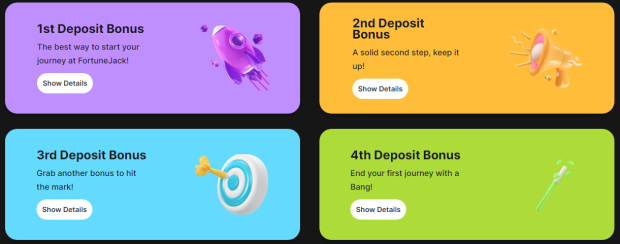
Bonuses: FortuneJack is no stranger to pampering its users with generous bonuses. A warm welcome bonus, free bets, and a plethora of ongoing promotions await new and loyal users alike.
Odds: The odds provided by FortuneJack are highly competitive, making it an attractive choice for those seeking value in their bets.
Pros: Besides its vast array of gaming options, FortuneJack enjoys an excellent reputation for reliability, fairness, and speedy withdrawals.
Cons: Some users might find the customer support options to be somewhat limited.
Reputation: FortuneJack has garnered a well-deserved reputation for being one of the most trustworthy and transparent platforms in the crypto betting industry.
Cloudbet
Cloudbet is a pioneer in the world of crypto sports betting, with a heavy emphasis on Bitcoin betting. It offers a wide range of sports events and is particularly known for its esports coverage.
Bonuses: Cloudbet offers an enticing welcome bonus and a variety of promotions. While the focus is primarily on Bitcoin, its bonuses are attractive to cryptocurrency enthusiasts.
Odds: Cloudbet is celebrated for its competitive odds, particularly in the realm of Bitcoin betting.
Pros: With its comprehensive sportsbook and live betting options, Cloudbet is a well-established and reliable platform.
Cons: Some users may be disappointed by the limited cryptocurrency options beyond Bitcoin.
Reputation: Cloudbet’s sterling reputation is a testament to its long-standing commitment to providing secure and fair betting services.
Empire.io
Empire.io is a rising star in the world of crypto sports betting. It has garnered attention for its user-friendly platform, a rich selection of sports and casino games, and an intuitive interface.
Bonuses: Empire.io offers a range of attractive bonuses, making it a great destination for players looking to maximize their betting experience.
Odds: Competitive odds across a wide spectrum of sports events ensure that Empire.io remains a compelling choice for bettors.
Pros: Modern and mobile-friendly, Empire.io is gaining popularity thanks to its user-focused approach and expanding user base.
Cons: While Empire.io offers several cryptocurrencies for betting, some players might find its options slightly more limited compared to other platforms.
Reputation: Empire.io is gradually building a positive reputation for its innovative approach to crypto sports betting and commitment to user satisfaction.
Thunderpick
Thunderpick distinguishes itself by specializing in esports betting. For enthusiasts of competitive gaming, Thunderpick provides a dedicated platform with extensive coverage of esports tournaments.
Bonuses: Thunderpick’s bonuses are tailored specifically for esports, making it a top choice for those looking to wager on their favorite gaming events.
Odds: With competitive odds for esports events, Thunderpick has carved a niche for itself in this rapidly growing sector.
Pros: Thunderpick’s dedication to esports, comprehensive coverage, and user-friendly interface make it a preferred destination for esports bettors.
Cons: Thunderpick’s sportsbook options for traditional sports are somewhat limited compared to its esports offerings.
Reputation: Thunderpick enjoys a commendable reputation within the esports betting community, owing to its reliability and comprehensive esports coverage.
Bets.io
Bets.io provides a user-friendly platform catering to both sports and casino enthusiasts. With its modern interface and growing user base, it offers a promising betting experience.
Bonuses: Bets.io boasts an array of bonuses, including matched deposits and free bets, making it an appealing choice for bonus-conscious players.
Odds: Competitive odds across popular sports events ensure that Bets.io remains a strong contender in the crypto sports betting arena.
Pros: Bets.io’s user-friendly interface and diverse gaming options have garnered it a growing fan base.
Cons: Some users may find the cryptocurrency support on Bets.io slightly more limited compared to certain competitors.
Reputation: Bets.io is building a reputation for its reliability and user-friendly approach, making it a platform to watch in the crypto sports betting scene.
22Bet
22Bet is a well-established international sports betting platform that also accepts cryptocurrency. Its extensive sportsbook and live betting options appeal to a global audience.
Bonuses: 22Bet offers an enticing welcome bonus and various ongoing promotions, ensuring that players are well-rewarded for their loyalty.
Odds: Competitive odds across a wide range of sports events, both traditional and esports, make 22Bet a compelling choice.
Pros: 22Bet’s strong global presence, comprehensive sportsbook, and live betting features make it an attractive option for bettors.
Cons: While 22Bet accepts cryptocurrency, its options may be somewhat limited compared to crypto-exclusive platforms.
Reputation: 22Bet is renowned for its reliability and comprehensive sports betting offerings, solidifying its reputation as a trustworthy platform.
Advice on Choosing the Best Crypto Sports Betting Site in 2023
In 2023, selecting the right crypto sports betting site is pivotal to your betting success. Here are some additional considerations when making your choice:
Market Coverage: Assess the diversity of sports events and leagues covered by the platform, ensuring it aligns with your interests.
User Interface: Evaluate the platform’s user-friendliness and accessibility, as a well-designed interface enhances the overall betting experience.
Customer Support: Examine the availability and responsiveness of customer support channels to address any concerns or issues promptly.
Mobile Compatibility: Check if the platform offers a seamless mobile experience, as this is essential for betting on the go.
Licensing and Regulation: Verify that the platform is licensed and regulated, ensuring a fair and secure betting environment.
Community and Reviews: Seek feedback from other users and review platforms to gauge the platform’s reputation and user satisfaction.
Transaction Speeds: Consider the speed of deposits and withdrawals, as timely transactions can significantly impact your betting experience.
Benefits of Using Crypto for Sports Betting
Beyond the conveniences mentioned earlier, using cryptocurrency for sports betting offers a plethora of benefits:
Global Accessibility: Cryptocurrencies transcend geographical boundaries, granting Filipinos access to sports betting markets worldwide.
Reduced Fees: Cryptocurrency transactions often come with lower fees compared to traditional banking methods.
Security: The use of blockchain technology in cryptocurrencies enhances security, reducing the risk of fraud and hacking.
Anonymity: Cryptocurrency transactions provide a level of privacy that traditional methods cannot match, offering a discreet betting experience.
Supported Cryptocurrencies in Sportsbook Betting Sites
Cryptocurrencies have become an integral part of sportsbook betting sites, providing users with a variety of options for seamless transactions. Here are some commonly supported cryptocurrencies that enhance the betting experience:
Ethereum (ETH)
Ethereum is a leading cryptocurrency widely accepted on sportsbook betting sites. Its smart contract capabilities ensure transparency and security in betting transactions. Ethereum’s blockchain technology is known for its efficiency and speed, making it a preferred choice for both traditional and blockchain-based sports betting.
Binance Coin (BNB)
Binance Coin has gained prominence as the native cryptocurrency of the Binance exchange. Its low transaction fees and quick processing times make it an attractive option for efficient sports betting. Binance Coin users can enjoy the benefits of a rapidly growing ecosystem and an expanding range of betting opportunities.
Ripple (XRP)
Ripple (XRP) is known for its focus on facilitating fast and low-cost cross-border transactions. This efficiency has made it appealing for sports bettors who appreciate quick deposits and withdrawals on sportsbook betting sites. Ripple’s integration into these platforms offers users a convenient and economical way to engage in sports wagering.
Bitcoin (BTC)
Bitcoin is the pioneer of cryptocurrencies and remains a pillar of the crypto sports betting world. Its stability and widespread adoption make it a reliable choice for users. Many sportsbook betting sites focus primarily on Bitcoin, offering a secure and pseudonymous way to engage in sports wagering.
Cronos (CRO)
Cronos is associated with the Crypto.com ecosystem and has found utility in the sports betting world. It serves as the native cryptocurrency for seamless transactions and bonuses within this ecosystem. Cronos users can access a wide range of betting options while benefiting from the integration of cryptocurrency into the betting experience.
Stellar (XLM)
Stellar (XLM) has gained traction in the sports betting arena due to its mission of facilitating cross-border transactions and financial inclusion. Its blockchain technology ensures secure and swift transactions, making it an attractive choice for bettors looking to maximize their betting opportunities without delays or excessive fees. Stellar’s presence on sportsbook betting sites contributes to the growing adoption of cryptocurrencies in the betting industry.
Best Crypto Betting Bonuses 2023
Crypto-betting bonuses add an extra layer of excitement to the world of sports betting. In 2023, sportsbook betting sites continue to offer a variety of enticing bonuses to attract and reward their users. Here are some of the best crypto betting bonuses you can expect to encounter:
Free Bets
Free bets are a staple in the world of sports betting bonuses. With free bets, users receive a specified amount to wager on a particular event or market. If the bet wins, the user receives the profit, minus the stake amount. Free bets are an excellent way for new users to explore the platform and for experienced bettors to test their strategies without risking their own funds.
Matched Deposits
Matched deposit bonuses are a common sight on sportsbook betting platforms. When users make an initial deposit, the platform matches a percentage of that deposit with bonus funds. For example, a 100% matched deposit bonus would double the user’s deposit amount, effectively providing them with twice the betting power. Matched deposits offer a significant boost to a user’s bankroll and are a valuable tool for maximizing potential winnings.
No Deposit Bonuses
No deposit bonuses are particularly appealing to new users who are hesitant to commit their funds right away. These bonuses provide a small amount of cryptocurrency upon registration, allowing users to place bets without making an initial deposit. No-deposit bonuses offer an excellent opportunity to explore the platform and potentially win real money without any financial risk.
VIP Rewards
VIP rewards programs are designed to acknowledge and reward loyal users. Users who reach VIP status by betting consistently or reaching specific betting milestones can enjoy a range of benefits. These benefits may include access to exclusive promotions, faster withdrawals, personalized customer support, and even cashback on losses. VIP programs provide an added incentive for long-term engagement with the platform.
Reload Bonuses
Users who add to their original deposit by making additional deposits are eligible for reload bonuses. Reload bonuses provide customers with more money to wager with, much like matched deposit bonuses do. These bonuses are not limited to new users and are an effective way to retain and reward existing users for their continued patronage.
Cashback Bonuses
Those who take advantage of cashback bonuses get a portion of their losses reimbursed. For instance, if a platform offers a 10% cashback bonus, all users who experience losses will be given a bonus equal to 10% of their losses. Cashback bonuses soften the blow of losses and encourage users to keep betting.
How to Gamble on Sports With Cryptocurrency
Starting your crypto sports betting journey in the Philippines is a straightforward process:
Choose a Reputable Platform: Select a well-established and reputable crypto sports betting platform that aligns with your preferences.
Account Creation: Register for an account and complete any necessary KYC (Know Your Customer) verification, adhering to the platform’s requirements.
Deposit Cryptocurrency: Deposit your preferred coin to fund your betting account. Make sure you pay close attention to the platform’s deposit instructions.
Explore Sports Events: Browse through the platform’s available sports events, leagues, and markets to find the bets that interest you the most.
Place Bets: Once you’ve found a bet that aligns with your prediction, place your wager. Verify your selections and bet amount before confirming.
Withdraw Winnings: If your bets are successful, you can withdraw your winnings back into your cryptocurrency wallet.
Sports Bets You Can Make at Crypto Sportsbooks
Crypto sportsbooks offer a wide range of bet types to cater to various betting preferences:
Moneyline Bets: This classic bet involves choosing the outright winner of a match or game.
Point Spread Bets: Point spreads allow you to wager on the margin of victory in a game or match.
Over/Under Bets: Predict whether the total score in a game will be over or under a specified number.
Prop Bets: Proposition bets enable you to wager on specific in-game events or player performances, adding an extra layer of excitement to your betting experience.
Most Popular Sports to Bet on at Crypto Betting Sites
Filipino sports bettors often gravitate towards the following popular sports:
Football (Soccer): With its global appeal, soccer is a favorite sport for betting enthusiasts in the Philippines.
American Football: The NFL and college football games draw significant attention from bettors.
Basketball: Basketball, particularly the NBA, is immensely popular, with Filipinos following both local and international leagues.
Formula 1: Motorsports fans find excitement in betting on Formula 1 races.
Tennis: Tennis tournaments, including Grand Slam events, attract a substantial number of bets.
eSports: The explosive growth of competitive gaming has led to a surge in esports betting.
Virtual Sports: Virtual sports simulations offer around-the-clock betting opportunities, with events like virtual soccer, horse racing, and more.
Only Bet at Reputable Crypto Betting Sites
A cardinal rule of successful crypto sports betting is to wager exclusively at reputable platforms. To ensure a safe and secure betting experience, consider these additional factors:
Licensing and Regulation: Verify that the platform is licensed and regulated by a recognized authority, such as the Curacao Gaming Control Board or other relevant regulatory bodies.
User Reviews and Ratings: Read user reviews and ratings to gain insights into the platform’s reputation, reliability, and user satisfaction.
Transparency: Opt for platforms that provide transparent information about their operations, including fair gaming practices and fund security.
Customer Support: Assess the responsiveness and availability of customer support channels to ensure you can seek assistance when needed.
Secure Transactions: Confirm that the platform employs robust security measures, including encryption and two-factor authentication, to safeguard your funds and personal information.
Security and Privacy of Crypto Betting Sites
The security and privacy of users are paramount in the world of crypto sports betting. Betting platforms employ advanced security measures, including SSL encryption, cold storage of funds, and regular security audits, to protect user data and assets. However, players also bear responsibility for their security:
Use Strong Passwords: Create unique, complex passwords for your betting accounts, and consider using a reputable password manager.
Enable Two-Factor Authentication (2FA): Activate 2FA whenever possible to add an extra layer of protection to your account.
Practice Safe Browsing: Be cautious of phishing attempts and only visit official betting sites. Avoid clicking on suspicious links or sharing sensitive information through unsecured channels.
Keep Your Wallet Secure: Store your cryptocurrency in a secure wallet, ideally a hardware wallet, when not actively betting.
Regularly Update Software: Ensure that your computer and devices have up-to-date antivirus software and operating systems to protect against malware and security threats.
Crypto Sports Betting – Player Tips and Hints
Enhance your crypto sports betting experience with these valuable tips:
Manage Your Bankroll: Set a budget for your bets and stick to it. Avoid chasing losses, and resist the temptation to bet more than you can afford to lose.
Do Your Research: Research teams, players, and historical data to make informed betting decisions. Stay up-to-date with injury reports, team news, and other relevant information.
Stay Informed: Keep abreast of sports news and developments, as this can provide valuable insights for your bets.
Diversify Your Bets: Avoid placing all your funds on a single bet. Spread your wagers across different events and markets to minimize risk.
Use Bonuses Wisely: Familiarize yourself with the terms and conditions of bonuses to make the most of them while understanding the associated requirements.
Cryptocurrency Sports Mobile Apps
In the age of convenience, many crypto sports betting platforms offer mobile apps to cater to users who prefer betting on the go. These apps provide a seamless and accessible way to bet from your smartphone or tablet, ensuring that you never miss out on exciting betting opportunities, even when away from your desktop computer.
Let’s Sum Up – Crypto Sports Betting Sites: Is it worth it?
As we conclude our exploration of the world of crypto sports betting in the Philippines, it’s essential to address the overarching question: Are crypto sports betting sites truly worth the investment? The answer depends on your interests, preferences, and risk tolerance.
For those who relish the thrill of sports and the potential for profit, crypto sports betting can be an exciting and potentially lucrative endeavor. The convenience of cryptocurrency transactions, the global accessibility of betting markets, and the added layer of privacy make it an attractive option for Filipino sports enthusiasts.
However, it’s crucial to approach crypto sports betting with caution and responsibility. Set realistic expectations, manage your bankroll wisely, and conduct thorough research before placing bets. Only use reputable platforms, and prioritize security and privacy to safeguard your assets and personal information.
Ultimately, the allure of crypto sports betting lies in its ability to combine the excitement of sports with the innovation of cryptocurrency, offering an alternative way to engage with your favorite games while potentially reaping financial rewards.
FAQ
Is crypto sports betting legal in the Philippines?
Cryptocurrency regulations in the Philippines are evolving, and as of now, there are no specific laws governing crypto sports betting. However, many international platforms accept Filipino players. It’s essential to stay informed about local regulations and consult legal experts if needed.
How can I ensure the fairness of crypto sports betting sites?
To ensure the fairness of a platform, opt for those with a positive reputation, valid gambling licenses, and systems that enable provably fair gaming. Reading user reviews and seeking feedback from the betting community can also provide insights into a platform’s fairness.
Which cryptocurrency is the best for sports betting?
The choice of cryptocurrency for sports betting depends on your preferences. While Bitcoin and Ethereum are widely accepted and offer stability, other cryptocurrencies like Binance Coin, Ripple, and Stellar can also be viable options. Consider factors such as transaction speed, fees, and personal preference when choosing a cryptocurrency.
Are crypto sports betting winnings taxable in the Philippines?
Tax regulations regarding cryptocurrency earnings can be complex and may vary depending on your location and the amount of your earnings. It’s advisable to consult with a tax professional who is well-versed in cryptocurrency tax laws to ensure compliance.
Is it safe to use cryptocurrency for sports betting?
Cryptocurrency transactions are generally secure due to the robust security features of blockchain technology. However, to ensure your safety, use reputable platforms, enable two-factor authentication, and follow best security practices for your cryptocurrency wallet. Staying informed about potential security risks and being vigilant against phishing attempts is essential to protect your assets.