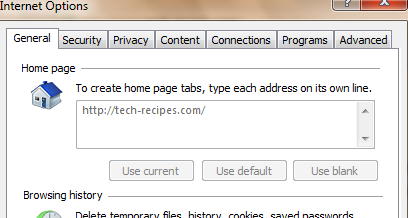
The home page setting in the IE browser can be changed in a few clicks. If your computer is used by other users, you may not want them being able to set the home page to a different location. To avoid frustration, you can disable that option. This tutorial will show how to do it in IE9.
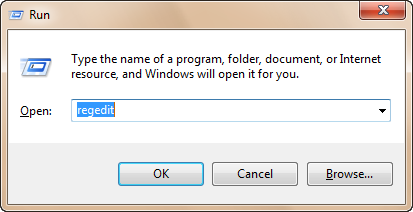
1. Press the Win key + R to bring up the Run window.
2. Type in regedit, and hit Enter.
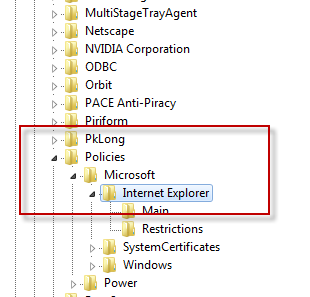
3. In the Registry Editor window, go to HKEY_CURRENT_USER\Software\Policies\Microsoft\Internet Explorer.
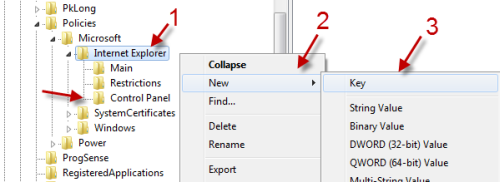
4. Right-click on the Internet Explorer key, choose New -> Key. Name the new key Control Panel.
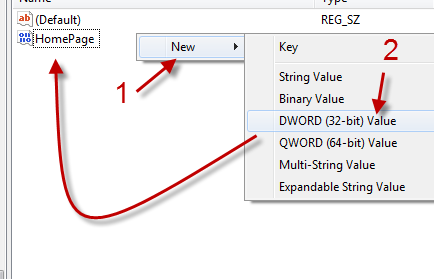
5. Right click on an emty space of the right panel -> New -> DWORD (32-bit) Value. Name the new DWORD Homepage.
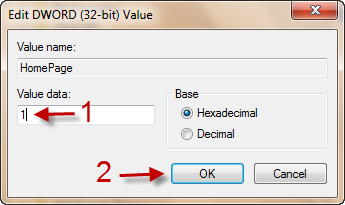
6. Double click on the DWORD value, and change its value from 0 to 1.
7. It should take effect immediately. However, if you do not see the Home page area is grayed out like below, please restart your computer to see the change.