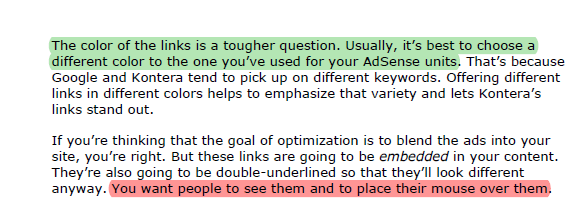
Adobe Reader: How to Highlight (or Unhighlight) Text in a PDF File
Highlighting texts or lines in a document allows users to identify important information quickly and easily. This tutorial describes how to highlight or remove highlighting of text within a PDF document. How to highlight text in the same document with different colors is also described.
Note: Works on Adobe Reader 10.
To highlight texts and lines:
1. Open your PDF file with Adobe Reader.
2. Choose Highlight text from the toolbar.
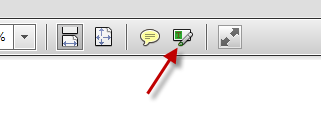
or choose Comment->Highlight Text.
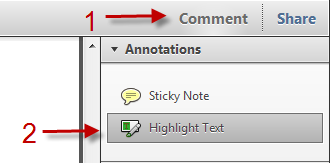
3. Highlight important texts and lines by holding the left mouse.
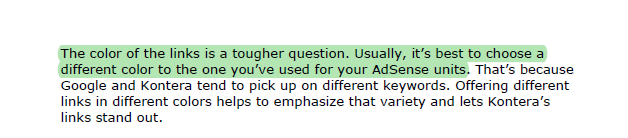
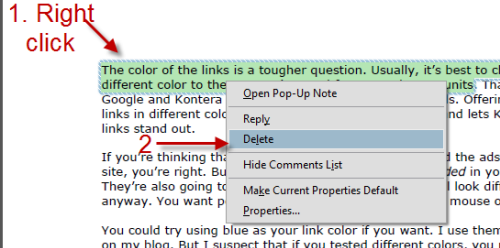
To remove a highlight from text and lines:
1. Right click on the highlighted part.
2. Choose Delete.
To highlight texts and lines with different colors in a same document:
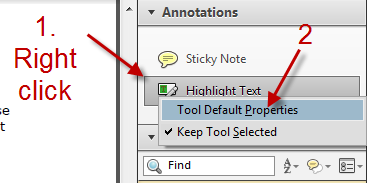
1. Choose Comment from the toolbar.
2. Right click on Highlight Text->Tool Default Properties.
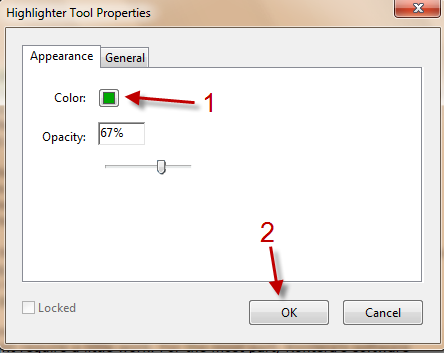
3. In Highlighter Tool Properties window, click on Color, set your color and hit OK.
About Lê Hoàng
View more articles by Lê Hoàng
The Conversation
Follow the reactions below and share your own thoughts.


November 24, 2010 at 6:03 am, Anonymous said:
Is PDF-XChange Viewer easier (and better) ?
November 24, 2010 at 9:25 am, Anonymous said:
This depends on your purpose.
Both are good for basic reading. If you want to creat PDF files, choose Adobe Reader (Pro version).
PDF-XChange is a bit lighter than Adobe Reader. Give both of them a try and let me know what you think
If you ever need a free PDF reader that can also create PDF file, go for Nitro PDF.
Hope this help
March 19, 2011 at 1:43 am, luister said:
But on my computer the sticky notes and highlight text are grayed out. I can’t do anything…. Help!
May 11, 2012 at 1:41 pm, Haelli Ferrari said:
> Hi I know its not that interesting and another person has already commented, but my highlighter and comment box are unhighlighted and grey so I am unable to use them. Do you know why?
I have uninstalled and installed again and I have one document where the highlighter is functioning normally.
Could it be an error from the person who sent me the document?
Many thanks
haelli
June 05, 2011 at 11:01 pm, Sidhu said:
how to save highlight test in adobe reader file permanently in that file
August 24, 2011 at 5:49 pm, James said:
Is there a shortcut key(s) to highlight text using Adobe 10.1.0?
ie, if I select text using the arrows and shift key is there a quick way to highlight the text without using my mouse?
thanks
August 30, 2011 at 2:00 pm, Terre said:
Can you comment/highlight in Adobe Reader 9.4.5? I have been trying to enable both of them and it will not work, how do I do it?
August 30, 2011 at 8:18 pm, Lê Hoàng said:
@Terre: Please upgrade to Adobe Reader X
October 08, 2011 at 8:39 am, Richard said:
How do you get out of the highlight tool once you’ve highlighted something? I need my cursor back!
November 18, 2011 at 9:20 am, salman said:
Hi, is there any way to remove all highlights in a pdf file at once?
I have mana\y pdf files that are highlighted, I want to remove all of them, but it’s very difficult to select the highlighted text and remove them one by one, is there any way to remove all of them.
Thanks
December 06, 2011 at 4:53 pm, Sarai said:
@Richard
Just double click anywhere. It took me forever to figure that out. So frustrating.
February 13, 2012 at 1:32 am, Sumi said:
Um…. what should u do if it still doesn’t work….. it’s like i pressed sth, and now it just cannot highlight…… pls help me
March 25, 2012 at 11:52 am, winnie said:
1. how do I get out of highlight mode? I want my cursor and control back
2. what did I do to get myself “stuck” in this mode? i.e highlighting whatever I clicked on instead of manually selecting the text that I wanted to highlight?
March 27, 2012 at 8:02 pm, John said:
In Adobe Reader X … To get out of highlighting mode, right click within the document and choose the “Select Tool”.
June 29, 2012 at 2:59 pm, B Joab said:
Thank you for a very helpful posting!
September 21, 2012 at 5:17 pm, George Newmen said:
Thank You !!!!!
I searched for this and found so many articles that did not help.
The time you took to create this article is greatly appreciated. You have an excellent way of clearly showing how to do something. I know that it must have taken you allot of time, and I wanted to let you know that your time and valued knowledge is so greatly appreciated. Thank You so very much, and I hope you continue to share your knowledge, wonderful people like you make this World a Much Better Place,
Sincerely Geroge Newmen
January 04, 2013 at 5:53 pm, Anon said:
Thank you, this helped me fix it on my reader for pc I have.. works almost the same way when removing it. I wouldn’t have highlighted except I needed to mark my place in case I forgot where.. from now on I’ll just type a note in the bookmark telling me where I’m at like I did before.