
Windows Live Mail 2011: How to Change the Default Font and Size

Contributor Icon Contributed by Lê Hoàng     
Tag Icon Tagged: Windows  

The default font for creating emails is Calibri. Many people have grown tired or just frankly dislike this font. Luckily, changing Calibri to a different default font (or different size) is rather simple.

One of my officemates hates Calibri like the plague. Changing the default composition font was the first thing he did after installing the new Windows Live Mail.

If you are looking for ideas, a previous favorite default was Times Roman New,

1. Launch Windows live mail 2011 and log in your account.

2. Click on the blue button at the top left and choose Options->Mail…..
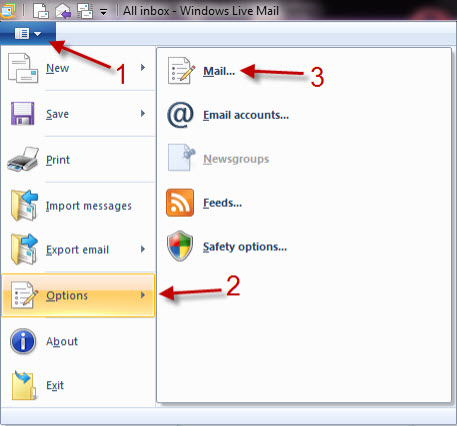
3. Switch to Compose tab in Options window.

4. Click on Font settings… (Mail’s font Settings), choose your font in the new window and hit OK. You can change the font size here as well.
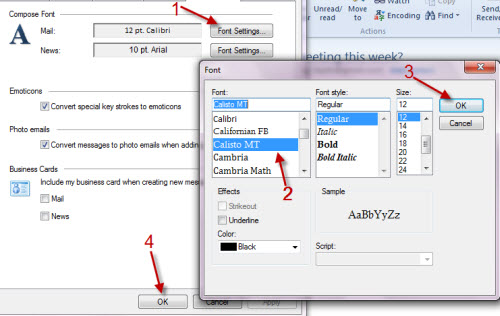
5. Hit OK again in the Options window.

If you are a true Calibri hater, you can now


7 Comments -


  1. hifromnz said on March 7, 2011

    How do I change the font and size of the folders, message list and reading panes?

  2. Jeremymayer37 said on March 19, 2011

    Yes!! This How do I do this!?!

  3. K Plank said on August 23, 2011

    I have been trying to figure out how to permanently change the default Windows Live Mail 2011 font for weeks. It was driving me crazy that I couldn’t figure out a way to do it. Thank you for returning me to sanity.

  4. Mike Ward said on November 21, 2011

    Thank for explaining a change in such a simple way.

    Mike

  5. ray said on November 22, 2011

    Perfect.

    Thank you

  6. Barbara said on January 21, 2012

    Much easier than I ever imagined. Beats trying to get the help from Windows off the computer. Thank you

  7. Barbara said on January 21, 2012

    Thanks so much


RSS feed for comments on this post. TrackBack URL

Leave a comment -



