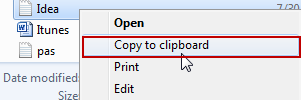
Do you store clips of text in notepad? In Windows, I frequently use notepad to store small amounts of information. However, it can be a hassle to open the file, select the text, and then copy it into the clipboard. This guide will demonstrate how to copy a complete text file into the clipboard just using the right-click context menu.
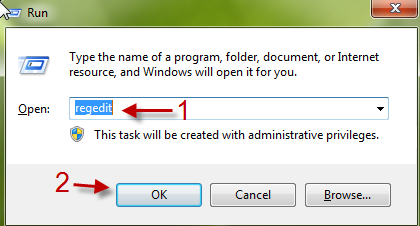
1. Press Winkey + R to open the Run box.
2. Type in Regedit and hit Enter to access Registry editor.
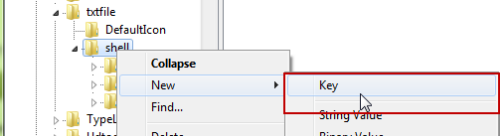
3. Go to HKEY_CLASSES_ROOT\textfile\shell, right click on Shell key and choose New->Key. Give your new key a name (example: Copy)
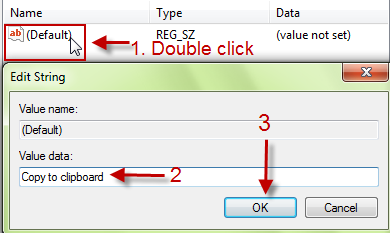
4. Double click on (Default) string value on the right pane, change its value data to something like “Copy to clipboard” (This text will appear in context menu) and hit OK to close the window.
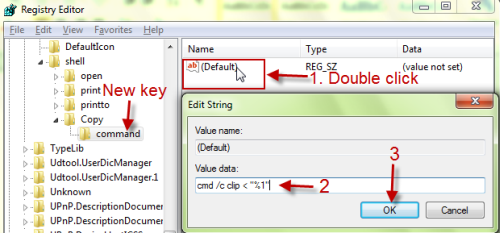
5. Now, back to the left pane. Right click on the Copy key (or which one was created in step 3) and choose New->Key. Name your new key: command.

6. Double click on (Default) string (this is command’s value, not Copy’s value) and change the value to: cmd /c clip < “%1” (Please change it manually. Don’t copy and paste this value, it will not work). Click on Ok to save.
7. Close Registry editor. It may take effect immediately. If you don’t see Copy to clipboard from the context menu, please restart your system to take effect. From now on, you don’t need to open the file to copy its contents. Copying them from the context menu is MUCH faster! 🙂