
Windows 7: How Do I Rename Multiple Files at Once?

   Posted by Lê Hoàng in Windows 7

When you have many files in a folder, renaming these files individually can take a lot of time. You do not have to rename files one-by-one. Following these directions will show you how to rename multiple files at once.

1. Select files you want to rename (you can press Ctrl+A to select all files or Ctrl+Left mouse to select files of your choice)

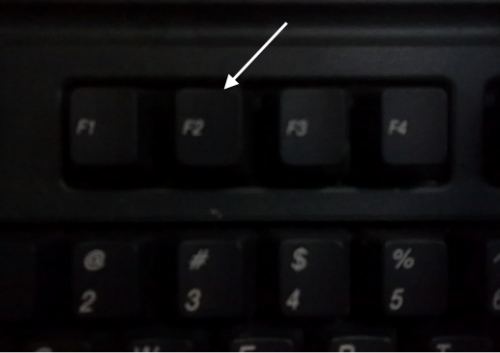
2. Hit F2 button on your keyboard.
You can also right click and select Rename from the context menu.

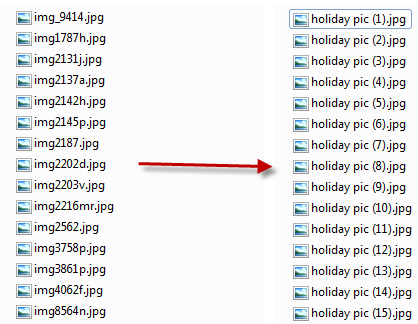
3. Rename your first file and hit Enter. The following files will be renamed right after that with an extra number at the end.
 

About Lê Hoàng

When not creating exciting new Android games, Lê Hoàng is here crafting tutorials, tweaks, and fixes for your enjoyment.
View more articles by Lê Hoàng

The Conversation

Follow the reactions below and share your own thoughts.

22 Responses to “Windows 7: How Do I Rename Multiple Files at Once?”

  1. September 10, 2010 at 2:41 am, hehe said:

    the awesomeness! It is too much!

    Reply

    • September 10, 2010 at 1:09 pm, Anonymous said:

      Thanks!
      Glad to hear your feedback ^^

      Reply

  2. November 20, 2010 at 6:01 am, Deb_irene said:

    Renaming multi files at once, especially pics, is such a time saver. Love it!

    Reply

  3. December 09, 2010 at 5:26 pm, schmerh said:

    what about renamin tv series episodes….this wont work

    Reply

  4. March 13, 2011 at 10:35 am, G RAVI KIRAN said:

    What if the brackets () should not come at all ?

    Reply

    • March 13, 2011 at 10:36 am, G RAVI KIRAN said:

      I mean how to remove the brackets() after using your method of renaming files

      Reply

  5. July 16, 2011 at 8:55 pm, giger said:

    Great! But brackets are not nice. Could be digits only.

    Reply

  6. May 22, 2012 at 4:16 pm, Patrick Seely said:

    Thank you for this tip. This is a must know technique for manipulating image file sets.

    Reply

  7. June 20, 2012 at 11:26 am, bilietai said:

    thanx nice tip, but how can i save them in other format

    Reply

  8. June 29, 2012 at 9:20 pm, David said:

    If you add the parenthesis and a number yourself when you rename the first one you can pick what number it starts with. I like to use 100 or 1000 so it always stays in the right order. If you let the computer default to start with “1″ is doesn’t use leading zeros and messes up the sorting order. Start with a big number so all of your files have the same number of digits in the name.

    Reply

  9. July 12, 2012 at 8:00 am, MPINARCI said:

    Hello It is nice but how can I rename them in like lets say files are 000.jpg 004.jpg 008.jpg and on … And I like to have them picture_0.jpg picture_1.jpg picture_2.jpg or a_001.jpg a_002.jpg a_003.jpg …..
    thank you

    Reply

  10. July 21, 2012 at 6:24 pm, Jagdeep Mankotia said:

    Yes, Its right way and true. Thanks a lot.

    Reply

  11. August 02, 2012 at 7:27 pm, Gory said:

    Absolutely Amazing, I’ve been using Windows 7 for 3 years and this single article has just saved me hours of work, thank you ;o)

    Reply

  12. August 12, 2012 at 10:30 pm, Turquinha said:

    so, Im looking for a command that renames several files at once BUT, what I want is to ADD information to the filename

    lets say the name of the file is: New Divide.mp3 and I want to rename it to Linkin Park New Divide.mp3 so…. can you help me??? I want to add the “Linkin Park” to a lot of files…

    thank you!!!!

    Reply

    • August 31, 2012 at 4:01 am, ADOLFO said:

      > You should try Thunar files admin in Ubuntu ;)

      Reply

  13. August 30, 2012 at 5:05 pm, ADOLFO said:

    Sometimes I need to rename a bunch on pic files but with an specific prefix/subfix tag and a particular numbering and that could easily be done in Ubuntu with Thunar, but how can >I do the same in Win7???

    Reply

  14. November 26, 2012 at 5:09 pm, Blackdoggy said:

    This is really not that useful. It will NOT renumber with initial zeros so files will not organize themselves correctly. Ex: It will do (1), (2), (3)…not, (001), (002), (003)…
    When files do not have the leading zeros, you get this:
    File 1
    File 1
    File 111
    File 2
    File 22
    File 222
    File 3….etc.
    this is another example of Microsoft clunking and bumping around in the dark. This is BASIC, BASIC stuff and for a renaming batch file to not be included with Windows is a prime example of their slack attitude. I have to go buy standalone software to perform this basic task.

    Even in Windows XP, there was a routine that came up as an option when you plugged in a camera to USB. You got a dialog box with the usual suspects like “Open Folder to View Files”, etc…and one of the options was “Windows Camera and Scanner Wizard”. You could select the photos that you wanted to affect, path to a save folder, add a file name prefix and then it would sequentially renumber and rename everything.

    Ex: You could take all the DCIM290458926349574 files…
    Add the correct path and folder
    Add a “prefix” such as: 2012-11-21_5 Yr Birthday-
    and have them automatically renamed and saved as:
    2012-11-21_5 Yr Birthday-001
    2012-11-21_5 Yr Birthday-002
    2012-11-21_5 Yr Birthday-003

    Apparently MS ditched that convenient bit. Nice going MS.

    Reply

  15. December 10, 2012 at 9:12 pm, Steve said:

    I would like to rename a several hundred photos, but retain the original file names like Sue.jpg Amy.Jpg Fred.Jpg Etc. and add a prefix like (1000)Sue.jpg (1001)Amy.jpg (1002)Fred.jpg This would be very useful if I sorted the photos by Date before renaming them, then when displayed in a slide show, they would play in order.

    Reply

  16. January 12, 2013 at 8:29 am, Bharat said:

    Thanks
    Its very easy and awesome

    Reply

  17. February 01, 2013 at 9:32 am, ann ferentinos said:

    What a big time saver!! thanks so much

    Reply

  18. March 10, 2013 at 5:28 pm, enkay said:

    How to rename multiple files with different new names?

    Reply

Leave a Reply

You may also like-

Windows 8: Change the Name of your ComputerWindows 8: Change the Name of your ComputerWhen setting up Windows 8 on your PC, did you put in a name that is boring and unoriginal? Did your computer come preinstalled ... GMail: Illegal Attachment Causes Bounced Messages when Sending EXE filesGMail: Illegal Attachment Causes Bounced Messages when Sending EXE filesCertain files are not allowed to be sent through gmail. Here is how to get through this restriction. Google has blocked the sending of ...



