
Windows 7 / Vista / XP – Hide User Account from Welcome screen / Login screen

This recipe will explain how to hide accounts from the Windows Welcome / Login screen.  This can be handy for when an application or service account is  created for apps to run with and are not needed for logging with. (ie Copssl and its SvcCOPSSH user account that it creates)
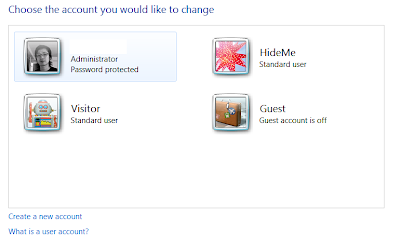
1. Run The Registry Editor in Windows XP/Vista/Win7 by going to Start Menu > Run or by hitting the Start Menu Key + R key> type: regedit and hit enter. You will need to run this from an account that has Administrative rights.

2. In the Registry Editor window, go to:

HKEY_Local_Machine\SOFTWARE\Microsoft\Windows NT\CurrentVersion\Winlogon\SpecialAccounts\UserList

3. Right-click on the UserList folder on the left pane and choose New > DWORD (32-bit) Value
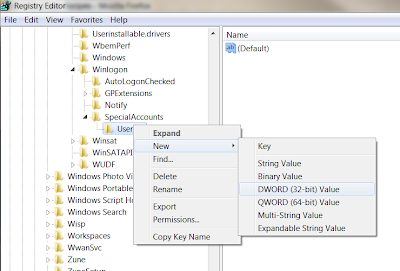

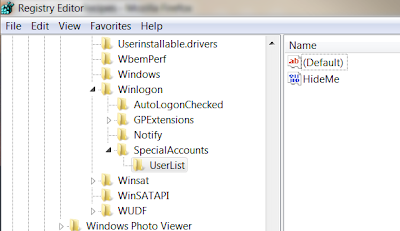
Use the username of the account you want to hide as the value and hit OK. It will show up in the right-pane. Exit the Registry Editor
Voila, your account should no longer show up on the Welcome / Login screen or in the Control Panel > User Accounts area.
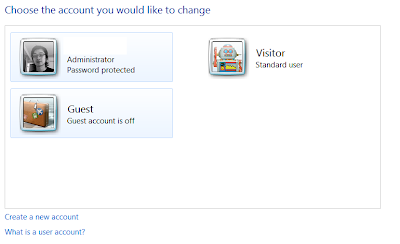

To unhide the account, just go back to the same registry entry/location and delete the key with the name of the account.


 

About Jimmy Selix

Jimmy Selix is an early adopter that loves to be one of the first on the block to have the latest and greatest in technology and gadgets. Another love of his is being able to share his knowledge to others seeking it. Feel free to drop any comments or questions that you may have.
View more articles by Jimmy Selix

The Conversation

Follow the reactions below and share your own thoughts.

18 Responses to “Windows 7 / Vista / XP – Hide User Account from Welcome screen / Login screen”

  1. July 11, 2010 at 1:21 pm, Tomhre said:

    I get as far as “CurrentVersion”; there is no “SpecialAccounts”showing on my display! I have the home version of windows 7.

    Reply

    • July 11, 2010 at 5:04 pm, Stennie said:

      Check the screenshot — a step was left out. It should be:

      HKEY_Local_MachineSOFTWAREMicrosoftWindows NTCurrentVersionWinlogonSpecialAccountsUserList

      Reply

      • July 14, 2010 at 10:34 pm, jimmyselix said:

        recipe has been updated w/full HKEY path. Thanks Stennie for the proofing :)

        Reply

        • August 01, 2010 at 8:30 pm, venky said:

          There is no specialaccountsUserList in Win7

          Reply

          • August 27, 2010 at 6:47 pm, jimmyselix said:

            you will then need to create these folder in the registry.

            create a new Key under the WinLogon folder and then another new Key called UserList under that folder. Once these are created, you can then follow the above recipe :)

  2. December 06, 2010 at 12:40 pm, Yar said:

    If I’m not mistaken, in Windows 7 this tweak will render the account completely unusable and is effectively disabling it.

    Reply

    • December 07, 2010 at 3:14 am, jimmyselix said:

      nope, the account should still be usable. i use this trick for my few Remote Desktop sessions i have setup and this allows them to be accessed just fine via Remote Desktop and not show on the login screen.

      i believe you should still be able to login locally but have to do the ctrl+alt+del twice trick on the Welcome login screen and type the account name and password in.

      Reply

      • December 30, 2010 at 3:35 pm, Guest said:

        Don’t do this tweak on Windows 7 or you get that account absolutely unusable and, by the way, ctrl+alt+del twice on the welcome login screen doesn’t work anymore after this registry modification. You’ve been warned!

        Reply

        • December 30, 2010 at 6:53 pm, jimmyselix said:

          the account is usable but not locally; you can still remote desktop into the machine using the account (given it was part of the remotedesktop users group).

          as for the CTRL+ALT+DEL twice to get the user name and password box, you can get that back somewhat by enabling a security policy. You would need to run the security policy snap-in (go to Run, type: secpol and hit enter. Then go to Security Settings > Local Policies > Security Options and double-click on the “Interactive Logon: Hide last username” Change the setting to Enabled. This does disable the Welcome screen login page but does let you type in and use the hidden user accounts.

          again, this recipe was mainly meant for user accounts that get created by applications or accounts you use to remote desktop into the machine with and not for accounts you use on a regular basis. hope that helps.

          Reply

  3. April 26, 2011 at 6:53 am, Guest said:

    Under “Winlogin” in RegEdit, I only see the directories “AutoLoginChecked” and “GPExtensions”. I don’t see “SpecialAccounts” or “Notify” as in your screenshot above.

    Do you know what is wrong?

    Reply

  4. April 26, 2011 at 7:49 am, Guest said:

    I think it is because I am running Windows 7 64 bit.

    Reply

  5. September 04, 2011 at 6:40 pm, jusselgomez said:

    I tried it but the account is still there. What must I do?

    Reply

  6. September 04, 2011 at 6:47 pm, xian michael said:

    Hey!!! I encounter jusselgomez’s question too, do you know what to do???

    Reply

  7. September 04, 2011 at 6:50 pm, jusselgomez said:

    But there is no current version in my display?:(

    Reply

  8. September 11, 2011 at 7:45 am, Jimmy Selix said:

    @jusselgomez and @xian

    are you sure your going to this path in Regedit/registry?

    HKEY_Local_Machine\SOFTWARE\Microsoft\Windows NT\CurrentVersion\Winlogon\SpecialAccounts\UserList

    This should exist both in windows 7 32bit and 64bit, main thing is that you have to go to Windows NT and NOT Windows.

    What version of Windows 7 are you using? Prof, Starter, Ultimate, Business?

    Reply

  9. April 04, 2012 at 7:52 am, xxxxxxxxxx_inc said:

    Beware – this reg hack disables administrator privileges on Windows 7 Ultimate if you do not have remote connections enabled and there is a blank password restriction and the admin password is blank.

    Reply

    • April 22, 2012 at 1:08 am, Jimmy Selix said:

      > i was not of aware of that since i use remote desktop/connections. thanks for the heads up!

      Reply

  10. May 02, 2012 at 10:48 pm, doug said:

    how do i login to this after i have hidden it

    Reply

Leave a Reply

You may also like-

Windows 7: Automatically Login to Account at StartupThis tech-recipe will explain how to setup Windows 7 to automatically login a user account.  This is handy for computers that you use as ...


