
Windows 8: How to Crop or Rotate Images
The Photos app that comes with Windows 8 is not only a hub for viewing photos from many sources like Facebook, Flickr or Skydrive, but it is also a useful tool for quickly rotating or cropping images.
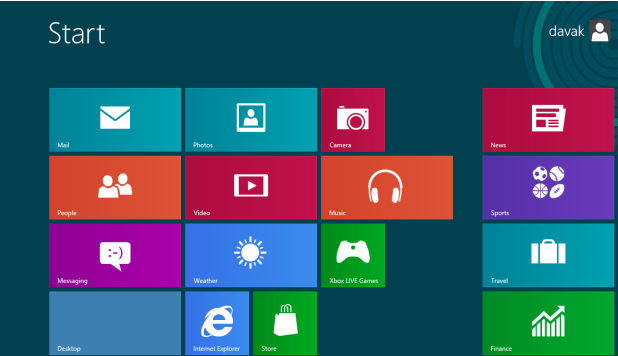
1. Go to the Start screen, and open the Photos app. If the app is not pinned to the Start screen, you can find it in the All Apps section.
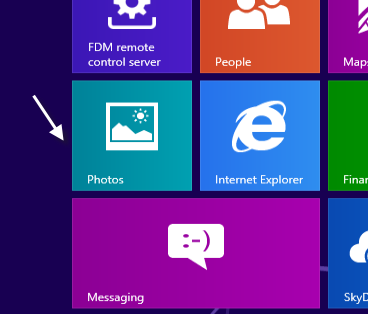
2. Choose the photo group that contains the picture you want to edit.
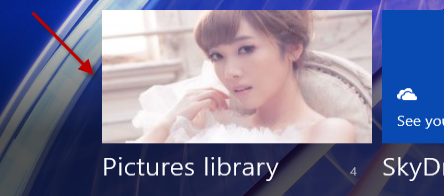
3. Find the picture you want from the collection.
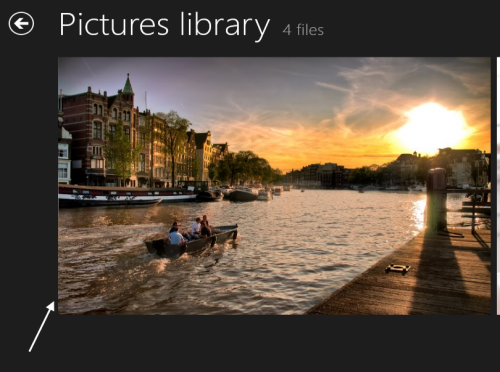
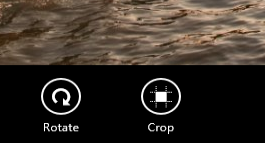
4. Once the picture is loaded in full view, right-click your mouse on it, and choose either Rotate or Crop. If you choose Rotate, the picture will be rotated in a clockwise direction. You may have to rotate more than one time to get the result you want.
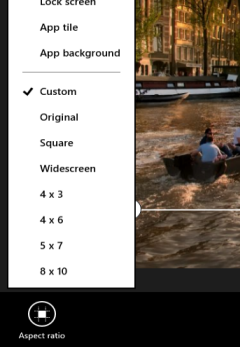
5. If you choose the Crop option, you may want to look at the Aspect ratio setting as the Photo app provides the following predefined options for you: original, square, widescreen, 4 x 3, 4 x 6, 5 x 7, 8 x 10. If you want to use the photo for the lock screen, app tile, or app background, there are also options for that.
6. Use your mouse or keyboard to move the rectangle to the desired area. Everything that is outside of the rectangle will be cut.
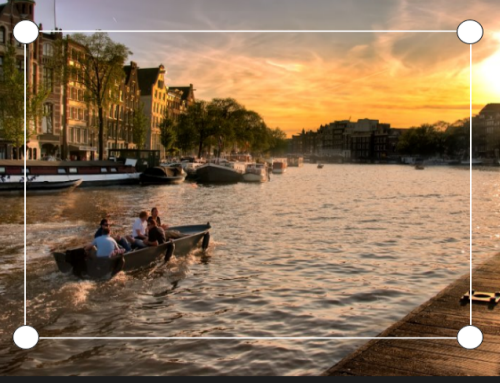
7. When you are done, hit Save copy.

8. The cropped picture will be found in the picture library.
About Lê Hoàng
View more articles by Lê Hoàng
The Conversation
Follow the reactions below and share your own thoughts.
January 20, 2013 at 11:49 pm, Steve said:
I don’t know what app you’re using, but the standard Photos app does NOT have the option to resize or rotate.
January 27, 2013 at 1:18 am, alexis said:
So what do I do?
February 07, 2013 at 4:08 pm, Neil said:
> I figured out how to rotate a picture in Windows 8. Open your files folder. Choose the picture you want to rotate, hover over it with your mouse and right click your mouse. Choose ‘open using paint’. When you open the picture in Paint, you can rotate and save the picture. Hope this helps. It worked for me.
February 24, 2013 at 7:12 pm, liz said:
> Thanks very much, opening with paint worked!
May 07, 2013 at 11:49 am, Tim said:
I am so sick of Windows 8! At least Vista was so easy to crop photos. Organizing photos is such a PAIN on Windows 8. Mine does not have the option to resize or rotate. I hate Windows 8 with a passion and will change the OS ASAP or buy an Apple computer!!!
January 27, 2013 at 1:27 am, alexis said:
how the heck do you move pictures into their own folder etc.???? How will I move all the pic already uploaded into the folders in windows 8 into an app that will allow me to edit my photos? crop/rotate etc.
February 22, 2013 at 9:17 pm, mudd said:
> Windows 8 sucks. Big time. I have tried hovering, right clicking, left clicking, nothing. There two options, open and delete. I have tried to delete Windows 8 but it wont come off…. I hate this…
February 23, 2013 at 5:50 am, Lê Hoàng said:
> please make sure you have the latest version installed. You can update the app from the Store.
April 26, 2013 at 7:54 pm, bill m said:
do you have to be high for this windows 8 sh– to work ? sorry I don’t do drugs!!!!!
>
March 04, 2013 at 2:24 pm, Lori said:
I am trying to crop a picture from my lap top using Windows 8 and not working. I have right mouse click and all I get is delete and set as. Right clicking isn’t working.
March 05, 2013 at 12:21 pm, JG said:
This is infuriating! I could do this two days ago when my laptop broke, and now on the identical replacement the options are all gone! What the hell is wrong with this? I’ve look in the store, but I can’t see how I’m supposed to update anything from there, and I’m not opening paint every time I want to crop a picture (which also doesn’t work) when photos can do it perfectly well.
Any help appreciated.
May 06, 2013 at 11:56 am, Claire said:
> Hi there JG, I have the exact same problem and it is driving me nuts! My parent’s have Windows 8 and get the option to crop or rotate, I only get the same as you – just Delete and Set as. If you have since found the answer to this could you let me know, to save me going completely mad!! Thanks, Claire
March 12, 2013 at 2:53 am, valber said:
am using a laptop no mouse i can not crop my picture pls. show how cropping is done in laptop
March 26, 2013 at 7:12 pm, Cyndi said:
I can not find any way to crop my pictures. I’m new to windows 8, but so far it suxs bad!!! Can anyone help me on cropping and also can anyone tell me how to print more than one picture on a normal sheet of paper, I can change the sizes if picture, but no matter how small I make them it’ll only put one per page. Please help!!!
April 12, 2013 at 10:06 pm, Whitney said:
Windows 8 blows it shouldn’t be this hard to crop a damn picture
May 06, 2013 at 6:28 am, monique said:
why doesnt the frigging crop option come up when i right frigging click on the photo nothing works on stupid windows 8
May 07, 2013 at 8:35 am, DJ said:
hi there. i played with my fav pic (original) tried to crop it. and when i hit the save i lost the original file and replaced it with the cropped one. how can i recover the original file. is there any chance to get it back? please help. i want the original picture back…
May 08, 2013 at 10:03 pm, Kay said:
I will try to hovering, right clicking, and everything suggested. I have to wonder if Microsoft actually had focus groups with the normal user of a computer. My guess would be NO! I thank God that I didn’t have it installed on my netbook which has Windows 7. It is the only way we get anything done. Anyone else have problems with saving a simple photo and then not being able to find it?!?!?!
While Microsoft is apparently working on updates to improve things, the paper said today that those changes wouldn’t be ready until FALL – are they kidding? I share everyone’s pain and frustration.



