
Windows 8: Force Images to Open in Desktop Mode

   Posted by Lê Hoàng in Windows 8

metro-finger

In Windows 8, every time you try to open an image, it will be opened in the Photo app, even if you are in Desktop mode. For many users this will cause frustration. If you wish, you can configure Windows 8 to open your images in Desktop mode as it did with prior versions of Windows.


First method:


1. Go to Desktop mode, and navigate to one of your images.

2. Right-click on the image, and choose Open with -> Choose default program from the context menu.
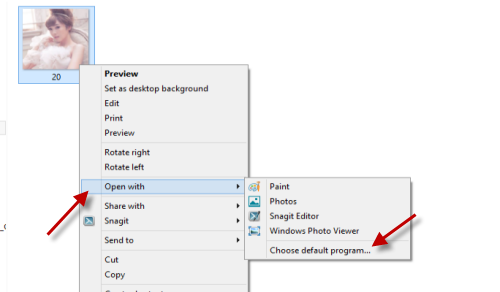
3. In the Choose default program window, select Windows Photo Viewer.
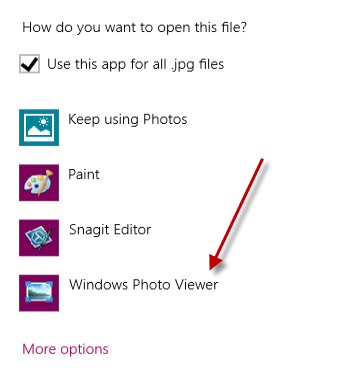
4. From this point, Windows Photo Viewer will open all images in Desktop mode.


Second method:


1. Go to the Start screen, and type “default” or “default program” to quickly find this Control Panel setting. Once you have found it, click on it to continue.
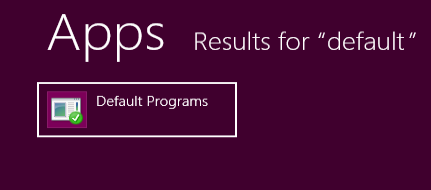
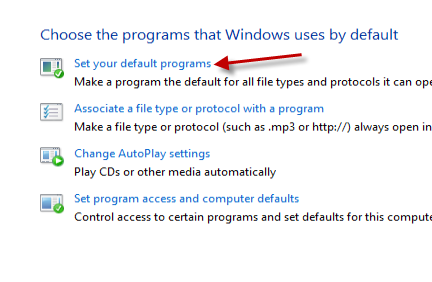
2. In the Control Panel window, choose Set your default programs from the list.
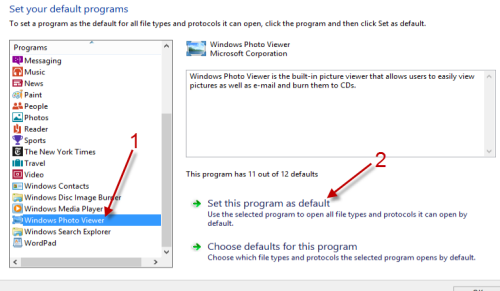
3. Find Windows Photo Viewer on the left-side scroll list, and then hit the Set this program as default option on the right side. This will make Photo Viewer the default program when you try to open any images on your hard drive.
4. Exit the Control Panel.




About Lê Hoàng

When not creating exciting new Android games, Lê Hoàng is here crafting tutorials, tweaks, and fixes for your enjoyment.
View more articles by Lê Hoàng

The Conversation

Follow the reactions below and share your own thoughts.

One Response to “Windows 8: Force Images to Open in Desktop Mode”

  1. November 29, 2012 at 1:25 pm, Rebecca said:

    Is there anyway to open more then one image from the thumbnail view?

    I can only figure out how to open one image at a time from the thumbnail view, but I would like to be able to select multiple images and open them in my set default program; Photoshop.

    Thanks very much.

    Reply

Leave a Reply

You may also like-

Internet Explorer: Force IE to Start in Full-Screen ModeInternet Explorer: Force IE to Start in Full-Screen ModeWithin Windows 8, Internet Explorer (IE) and many other applications launch automatically in full-screen mode. As this is gaining in popularity, many users are ... WMP: How To Reset Windows Media Player File AssociationsWMP: How To Reset Windows Media Player File AssociationsIf Windows Media Player (WMP) no longer plays your music or video files, you have lost the correct file associations. These directions should fix ...


