

One of the most powerful features of Google Calendar is the event notification system. Using these steps you can change if reminders are sent through email, SMS, or a pop-up message. You can also disable reminders if you wish.
Google Calendar will happily send a reminder email or a text message at a predefined time period prior to an event. Additionally, if you keep the web application open, you have a pop-up alert you instead. Many users just want the notifications from Google Calendar disabled. By following this tutorial, you can tweak the event reminders in multiple ways.
1. Log in to your Google Calendar.
2. Click the settings gear in the upper right hand corner. Select the Settings link.
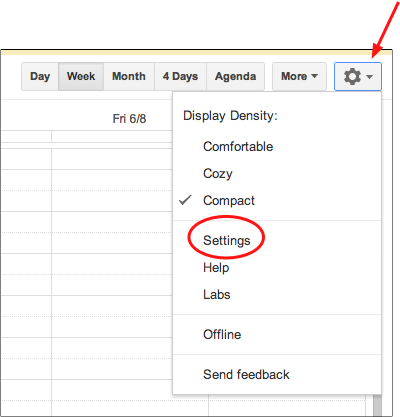
3. Go to the horizontal menu in the upper right and select Settings.
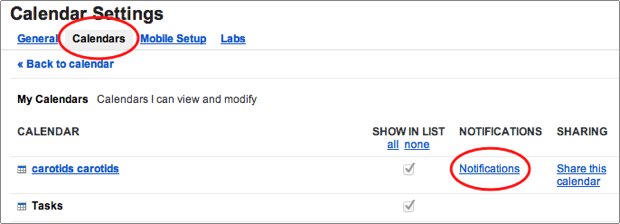
4. Under Calendar Settings, select the Calendars link.
5. Go to the desired calendar on the list of My Calendars. Select the Notifications link for that calendar.
6. Go to the Event reminders section and use the By default, remind me via dropdown and select Email or SMS. You can adjust how much time before the event is provided for the notification to occur.
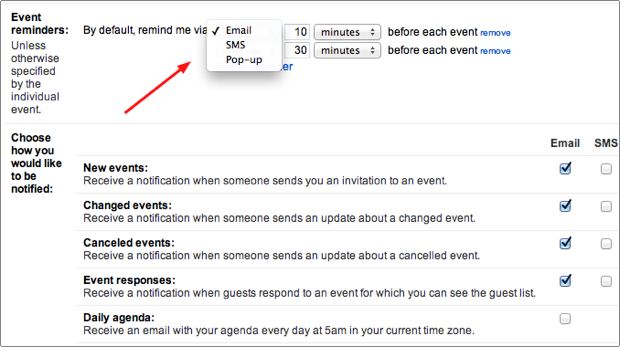
7. Below, you can adjust how to be notified for various event actions such as when new events are posted, events are changed, etc. These are very beneficial tools for shared calendars.
8. When you are finished, click the Save button.
Like all tech-recipes, this article has been updated multiple times to keep it as updated as possible. Please let us know in the comments if additional updates need to be made.





