

This recipe explains how to remove and delete all enrolled users and fingerprints in Wave’s Embassy Security Suite. This is very handy if you, like me, had enrolled fingerprints/users but then did a clean install of an OS without deleting the enrolled fingerprints/users. Usually you will get an error saying that the fingerprint is already enrolled but none show in the security center.
I had upgraded my XP Prof installation to Vista by doing a clean install. However, after reinstalling the Embassy Security suite i was unable to re-enroll my fingerprints. It appeared that the TPM/Biometric scanner thought my prints were already enrolled. This recipe will show how to reset all the users and prints.
1. Open windows explorer and go to the C:
2. Then go to Program Files > Wave Systems Corp > Dell Preboot Manager
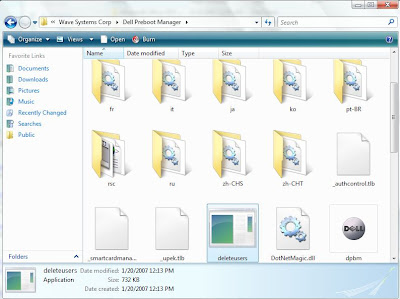
3. Double-click on the deleteusers.exe
4. This will bring up a command window and a prompt asking if you want to delete all enrolled users. Choose Yes.

5. The command box window will run and then show “users deleted”
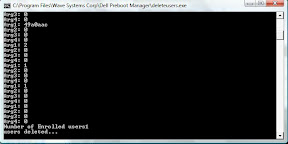
6. You should now be able to re-enroll your fingerprint.

This was tested on a Dell D430 laptop w/Wave Embassy Security.




