

The iPhone (or iPod) can go to sleep at some time in the future with a simple option in timer mode. If you want to go to sleep listening to music on your iPhone, you can instruct your iPhone to go to sleep, too. When the time comes, your music will gently fade and your iPhone will enter sleep mode. Updated for iOS 5.
To give you iPhone a curfew, tap the Clock icon on the home screen:

In the Clock screen, tap the lower right Timer icon (if it’s not already selected). The resulting Timer screen will show the Price-is-Right tumblers to set the countdown time in hours and minutes:
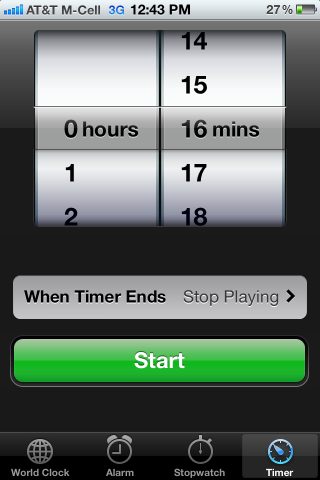
Also visible on this screen are the “When Timer Ends” and “Start” buttons. Tap the “When Timer Ends” button and at the bottom of this list of sounds is a special option, Stop Playing.
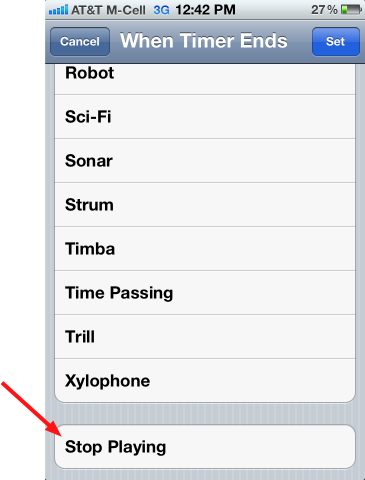
Tap the Stop Playing option and then tap Set. Review your settings and tap Start on the Timer screen.
You’ll be rewarded with a serious, Mission Impossible worthy countdown timer. When the timer ends, the iPhone or iPod will essentially enter sleep mode by stopping the current tunes that are playing.




