

The auto-lock feature of the iPhone causes it to “lock” the touchscreen and turn off the display after so long since your last interaction. The default delay is one minute which may be too short for you (especially if you are writing Tech-Recipes about the iPhone!). If you would like to change the auto-lock delay (or turn off auto-lock completely), follow these steps.
How to Change the Auto-Lock Delay on Your iPhone and iPad
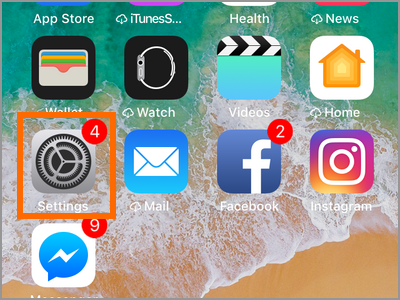
1. Access your iPhone’s Settings by going to your device’s Home screen.
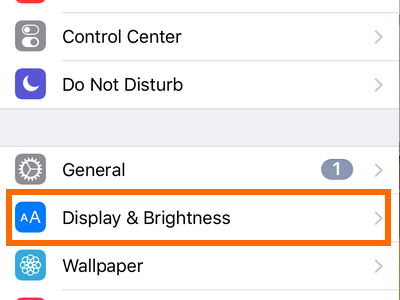
2. From Settings, open up the Display and Brightness settings.
3. Tap on the Auto Lock option.
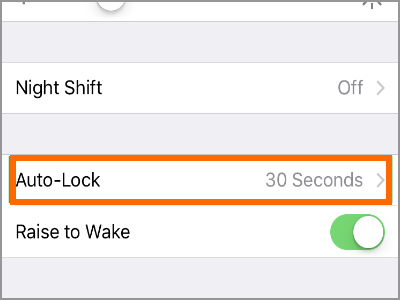
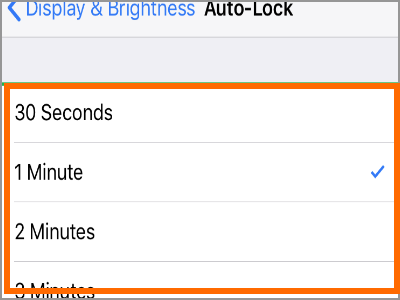
4. Choose the time delay that you prefer. You can choose a time between 30 seconds to 5 minutes.
How to Turn On and Turn Off Auto-Lock Delay on iPhone
If you want to disable the Auto-Lock feature on your iPhone, follow these steps:
1. Access your iPhone’s Settings by going to your device’s Home screen.
2. From Settings, open up the Display and Brightness settings.
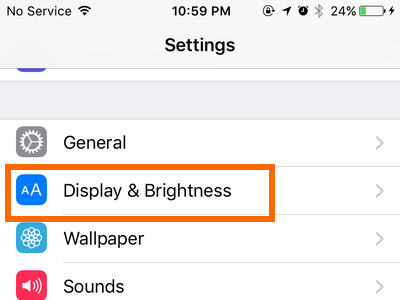
3. Tap on the Auto Lock option.
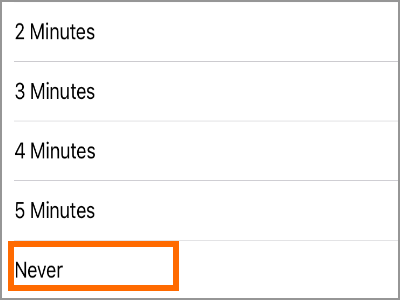
4. On the Auto-Lock time delay option, tap on Never to completely turn off the auto-lock on your device.
Original Tutorial: How to Change the Auto-Lock Delay
This is the original tutorial for changing the auto-lock delay for iPhones. This tutorial was originally intended for the iPhone 5 and older devices. The steps may still work on newer devices but it’s best to use the steps as indicated in the above section.
To change the auto-lock settings, tap the Settings icon in the home screen. Look for the General button in the main Settings screen and tap it.
In the General settings screen, tap on the Auto-Lock option which will cause a list of options to slide in. At release time, there are options for 1, 2, 3, 4, 5 minutes and Never.
If you choose never, you’ll need to press the sleep/wake button (the thin black button on the very top of the iPhone and to the right as you’re looking at it) to make your phone go to sleep.
Even with the auto-lock feature on, you can still press this button to lock your iPhone.
Frequently Asked Questions:
Q: I followed the steps to the dot but for some reason, I cannot change the Auto-Lock time on my iPhone. What should I do?
A: The only reason why Auto-Lock time cannot be change on iPhone is when you turn ON the Power Saving Mode on your device. If this is your case, simply disable the Power Saving Mode on the iPhone then you can change the Auto-Lock time. If the issue persists, then try turning off the device and starting again.
Q: My iPad automatically locks every time I close its cover. However, the Auto-Lock time has not been reached yet. Also when I open up the cover, the device’s screen automatically turns on. How do I fix this?
A: The iPad has an auto lock and unlock feature that activates every time you open and close your device. To disable the feature go to Home Screen > Settings > Display & Brightness > Lock/Unlock Switch. The auto lock/unlock feature on the iPad should be disabled after that.
You just learned how to change the Auto-Lock time delay on your iPhone. If you have questions about any of the steps above, let us know in the comments section.





