After a long hike, I like to share my trails with my friends and family — virtually. Google Earth makes it very easy to show others exactly where you have been.
I love to hike; however, it is a difficult hobby to share with others. With pictures alone, it is difficult to share the magnitude of a lengthy hike or the great distance taken. Using Google Earth, this is actually very simple.
1. While on your hike, enable the Track or Path feature in your GPS
2. After your hike is over, export your travels as a GPX file onto your computer.
3. Drag the .gpx file onto Google Earth. It will appear under the Temporary Places section.
4. Make sure the Tracks and Path sections are enabled as in the flickr picture below. You can decide here if you want your saved waypoints to show as well.
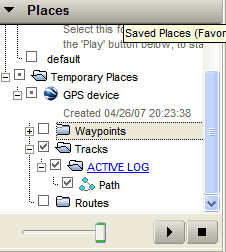
5. Double dlick on that same Path link and google earth will swing around to the location of your path.
6. If the path does not appear, slide the Timebar at the very top of the screen to the date of your hike.

7. With your hike on your screen, you are now free to give a virtual tour of your adventure.
Here’s a flickr example of a path below: