

If you can’t find your favorite app in the Chrome Web Store and you want it to be included in the Apps of your Chrome browser, you can easily make your own. It is an extremely easy process!
A Chrome Web App requires two components, the Manifest and an Icon.
The Manifest is a JSON file with the name manifest.json
The Icon is a 128px x 128px image that will be used on the New Tab page.
To create the Manifest, copy the following into a text editor like Notepad or TextEdit:
{

"name": "Tech-Recipes",

"description": "Your Cookbook of Tech-Tutorials",

"version": "1.0",

"icons": {

"128": "128.png"

},

"app": {

"urls": [

"https://www.tech-recipes.com/"

],

"launch": {

"web_url": "https://www.tech-recipes.com/"

}

},

"permissions": [

"unlimitedStorage",

"notifications"

]

}
You will need to make the appropriate changes to the areas indicated below (name, description, urls, and launch):
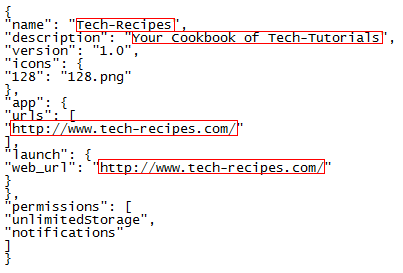
Once this is done, save the file as manifest.json (NOT manifest.json.txt!!!)
Next, you need an icon for your web app. You can use any graphics application or web app that allows you to save it as a 128×128 png file. Save the file with the name 128.png.
Create a new folder and give it the name that you will call your Web app and place both the manifest and icon files inside the folder.
Now it’s time to install the Web App into Chrome.
1. Open Google Chrome.
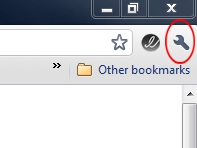
2. Click the wrench in the upper-right corner of the application.
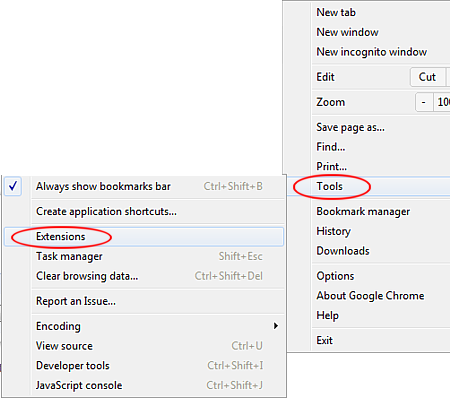
3. Click Tools and select Extensions.
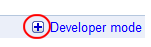
4. On the right side of the Extensions page, click the + that is next to Developer mode.
5. Click the Load unpacked extension button.
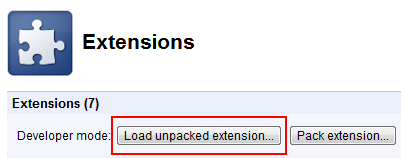
6. Browse to the Web App’s folder and click OK.
Your web app should now be created, any errors are likely a manifest typo. Go back and check the manifest for a missed character(or an unnecessary one).
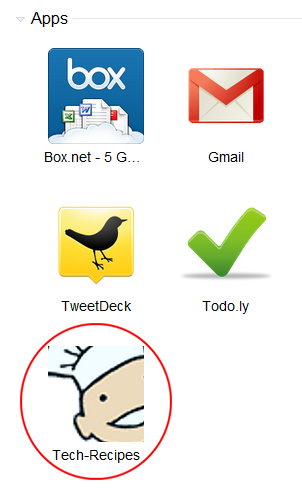
When you go to the New Tab page, your new web app will appear with the others.
We will cover how to submit your web app to the Web Store in a future article.




