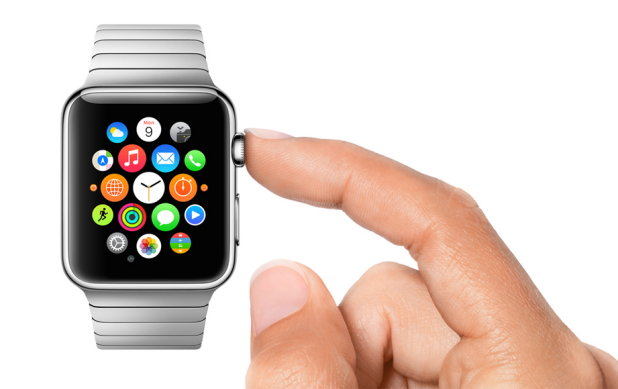
Since the third-party apps running on the Apple Watch are still in the early stages of development, you may sometimes encounter an unresponsive app. Even though this does not occur often, it can be a frustrating experience because there is no visible way to restart an app on Apple Watch. The function to close an app is available, but it is hidden. Here is how to use it to close unresponsive apps as the need arises.
The Apple Watch is the perfect companion device for your iPhone and is helpful for reading incoming notifications without using your phone. By default, whenever there is a notification, the watch will “tap” your wrist to let you know, and then it displays the notification’s icon when you raise your wrist. Seconds later, it will display the full message from the notification. The problem is that the transition happens too fast, so there will be times that people standing next to you can see your private message or information. Fortunately, it is possible to prevent notifications from being displayed automatically.
SQL language is divided into four types of primary language statements: DML, DDL, DCL and TCL. Using these statements, we can define the structure of a database by creating and altering database objects, and we can manipulate data in a table through updates or deletions. We also can control which user can read/write data or manage transactions to create a single unit of work.
Besides controlling the music app on the iPhone, the Apple Watch is capable of doing the same with iTunes on your computer. This feature is helpful because you can control your music from anywhere in the house.
Alter Table is a DDL (Data Definition Language) statement which is used to add, drop, or alter existing columns. With this statement, you can also rename a table or column and make constraints. Using a table as an example, this tutorial demonstrates alter table statements with syntax.
Since the screen of the Apple Watch is very small, reading text on it can be difficult for many people, especially those with vision problems. Luckily, you can manually increase the font size of apps so that you can read the text more easily without moving the watch closer to your face.
By default, when you use an app on the Apple Watch and then the screen goes off for a few minutes, the watch will switch to the watch face the next time you look at the screen. Even though you can always go back to the last used app by double-pressing the Digital Crown, it is more convenient if the Apple Watch opens the app automatically when you raise your wrist.
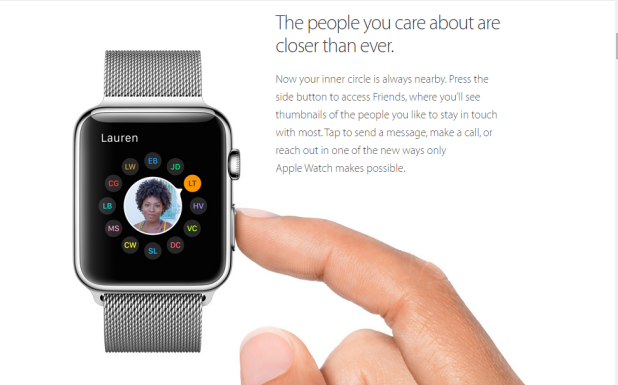
Besides the Digital Crown, Apple Watch has another button located on the side of the watch that enables you to communicate quickly with your friends. When you press this button, you will see a list of friends that you contact most, and then you will be able to make a phone call or send a message to any of those contacts right from your wrist. Selecting contacts that you want to appear in that screen can be done using the Apple Watch app on your iPhone. Here is how to do it.
Besides controlling the music playing on your iPhone or on iTunes, the Apple Watch can also play music files stored on the watch itself without having to connect to your phone. However, none of your music is synced to the watch by default. You have to select the playlists manually.
On the Apple Watch, Glances are like mini versions of full apps and provide summaries of key content from the apps you use most frequently. Glances can be accessed by swiping up from the watch face. Since a Glance takes up the whole screen, it may take several swipes to the left to access the Glance screen that you want. Luckily, you can always rearrange the order of your Glances, remove the ones you do not need, and add new ones if you want.
By default, all notifications that are shown on your iPhone can also be shown on your Apple Watch. Showing all your notifications on your Apple watch is not a good idea because the notifications that are useful on your iPhone may not be useful on the watch. For example, notifications coming from your favorite games may not be helpful at all. Too many notifications buzzing on your wrist can also be distracting. To deal with this problem, you should consider turning off unnecessary notifications and only keep the ones that matter most on your wrist. Here’s how to do it.
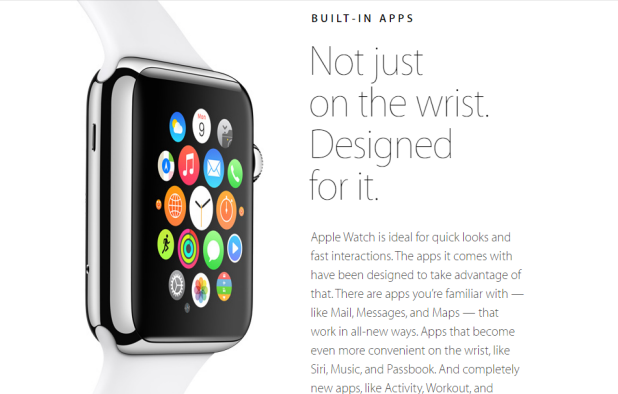
Since the Apple Watch’s screen is very small, navigating around and opening apps may be a troublesome task for people with big fingers. To make things easier, you can rearrange the app layout to place frequently-used apps around the center of the layout. At the center, the icons of the chosen apps are already at their largest size when you open the app screen.
1...214215216...524Page 215 of 524 error: Content is protected !!