How to Appear offline on Instagram — Disable Activity Status

Instagram recently introduced a creepy last seen feature, which lets followers know that you’re up and about on the social media website. Most people would rather “disable activity status” for obvious reasons. I mean, come on, we all have clingy and desperate lovers who are always seeking an opportunity to message us. Knowledge of our online activity only serves to incentivise them.
However, according to Instagram, this new upgrade in the DM section will enhance user experience. A spokesperson stated that they’re constantly trying to improve the performance of Direct to make it a cordial and fun environment for all. He added that the option to see the online status of friends bridges certain limitations.
This new feature is enabled by default on a user’s profile. It shows when a user was last active and is view-able in the Direct messages section. Only those people can see it who are your followers or who receive a private message from you. So, if you’re worried that everyone in the whole wide world will get wind of your online activity, rest assured, because that is not the case. Also, the feature’s applicability is limited to the Android and iOS app, as of yet.
Owing to the fact that it’s still relatively new, many people don’t know how to deactivate it, so in this tutorial I’m going to show you how to do exactly just that.
Step-by-Step: Disable Activity Status in Instagram App
1.Go to your Instagram profile’s homepage and locate the the three vertical dots on the top right corner.

2.In the drop down menu, scroll down to the “Show Activity Status option” and toggle it off.
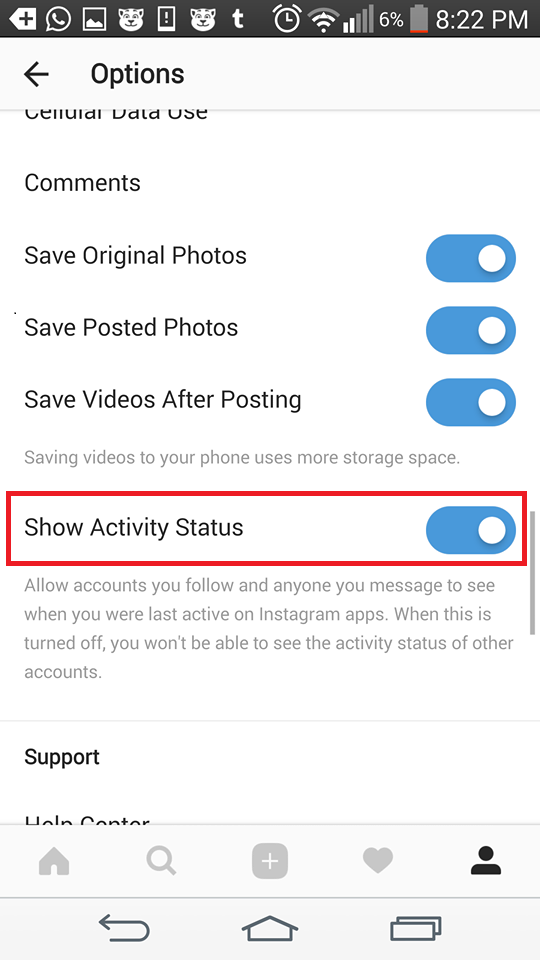
Keep in mind, that deactivating online appearance also means that you will not be able to see the activity status of others as. You can’t have it both ways.
To be frank, this isn’t a sure way of hiding your online presence. If you post stories and statuses round the clock, you are indirectly revealing yourself. Take every precautionary measure there is if you don’t want to end up hurting someone’s feelings. We all need time and personal space sometimes, but not everyone understands that. Some people might get the wrong idea and this could spell the start of a never-ending personal feud. You know well, how the Internet works nowadays. Emotions are tattered at the slightest hint of negligence.
Frequently Asked Questions
Will my online presence be revealed to all of my followers?
No, as already mentioned in the article, only your followers and the recipients of your DMs will be made aware of your online activity.
What about Instagram Web? Do I have to shut this feature off there to hide myself from my followers?
Not at all! On the web version of the app, you’re completely safe.
If you have any further questions, please leave them in the comments section below. We’ll get back to you in a jiffy. Also, check related articles by clicking on my profile name to get further tech-related assistance.
How to get daily Bing image as wallpaper on Windows 10
Anyone that has ever used a Windows phone and tinkered a bit with the personalization settings is aware of the gorgeous wallpapers that you can have on the lock screen. With the release of Windows 10 Microsoft continued the tradition with daily changeable wallpaper on the lock screen only.

How to master Adobe Photoshop Express
Previously we talked about using Adobe’s express version of Photoshop that will help you improve the photos that you take with your outdated or budget phone. As promised, today we are going to go into greater detail outlining each option and what can you expect to get out of it.
How to Add Gifs to Instagram Stories

Who doesn’t want to fun include fun, animated pictures to their stories? Don’t answer that question,it was rhetorical. Recently,I heard this rumor that Instagram is collaborating with GIPHY to bring the gif feature to Instagram stories. As it happens, there was some truth to all that background talk. Instagram has finally unveiled the gif feature for stories. Users can adorn their stories with gifs by choosing them from GIPHY’s enormous repository. In this tutorial, we’ll show you how add gifs to Instagram stories in the easiest way possible. Trust me,it’s easy as ABC and the way we’re going to explain it, you won’t even have to break a sweat. So get your reading glasses on and let’s start.
How to Easily Login to Instagram
You can set Instagram to remember your login credentials. This way, you can easily login to Instagram without entering the password of your account. Learn how to quickly login to Instagram without hassles by following the steps outlined in this article.
How to Use NFC to Share Content on Samsung Galaxy Phones
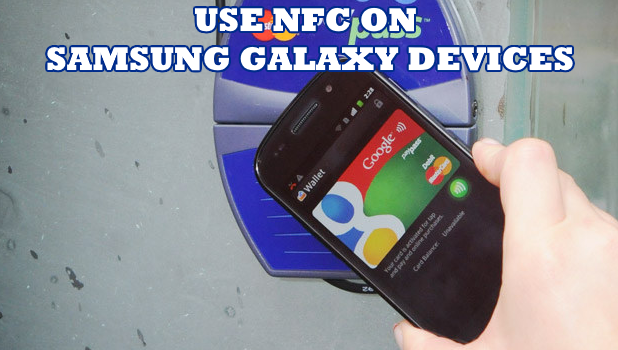
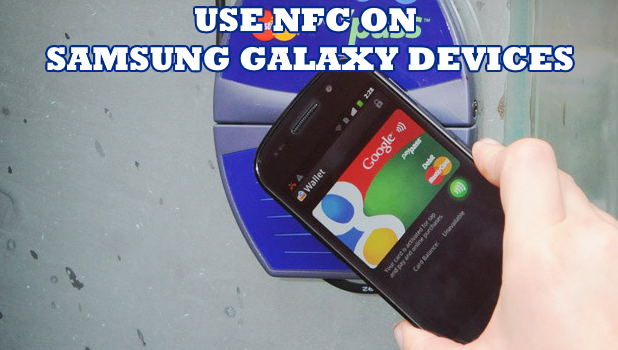
You can use NFC to share content on Samsung Galaxy phones by quickly putting two device’s back to back. The transfer is fast, easy, and convenient. This article will teach you how to enable your Samsung Galaxy phone’s NFC and Android Beam to easily share files and contents between Samsung devices.
How to use Cortana on Windows 10 – Part 1
A while back we wrote an article on how to deflect Microsoft’s new browser Edge when searching through Cortana, as well as avoid getting the search results from their search engine Bing. Even though a lot of people don’t like using Edge or Bing, Cortana is one of the many products of Microsoft that can be very handy when used the right way.
How to Quick Launch Camera on Samsung Galaxy S9