
How to Send Gif on Whatsapp[Solved]

Wondering how to send gif on Whatsapp? Well, this was a non-existent feature on the highly popular Facebook-owned texting app, not so long ago. However, things have changed now. Users now will get the opportunity to send lively animated images to their friends via Whatsapp text. Some people are still unaware of how to use the feature, so in this article, we’re going to do an in-dept tutorial on what this new upgrade brings to the table. Trust me, more than just the ability to send gifs has been imbued in the pervasively used messaging app.
How to Enable Android USB Debugging Mode

Are you a hotshot Android developer? Because if you’re, you need to enable Android USB debugging mode to access a host of developer options. Android is simple for an average user, but for Android developers who have a penchant for making applications, it has a lot of hidden sophisticated features. One of the most widely used and popular Android feature for developers is the USB debugging mode. You might have heard people talking about it in the developing community. Let us see how we can enable it on an Android device, before we delve into its details.
How to Share Live Location On Whatsapp
Whatsapp is rolling out the new live location feature; Some users are yet to receive this update on their Android and iOS devices. Many popular Android apps, such as Facebook Messenger and Google Maps integrated this feature a long time ago. If you share live location on Whatsapp, not only will it inform your friends and siblings or any close relatives of your active physical location, it will also lessen your safety concerns in the process. Sometimes, we feel horribly stuck in certain places, and need directions from a close friend who actually knows the place from top to bottom. In situations like these, this feature can come in quite handy.
My device already has this feature, but I’m not sure if all devices have received the update yet. As we know, apps first beta-test certain upgrades, making it available to only selective users. One of the great things about the Share current Location on Whatsapp feature is that you can decide how long you want to share your location for. It’s up to you to share it for 20, 40 or 6 hours. It also has end to-end encryption, so rest assured, because there is little to no chance of your privacy being breached.
According to Whatsapp, the live location feature permits you to share your current real-life location for a predesignated period. You can choose to share it with just a single individual or a group of contacts. In order to share it with multiple people, you’ll have to start a group chat with them. If at any time, you decide that you no longer want to share your location, you can do so. However, your contacts or members of a group chat wills still be able to see your last-seen location, before its viewing rights were evoked.
Step-By-Step: How to Share Live Location on Whatsapp
1. Open a chat or a group chat( if you want to inform multiple people of your whereabouts)
2. Tap the + button or the paperclip(attachment icon) on the bottom of the chat, and select Location. 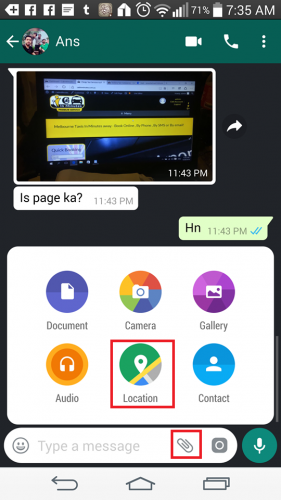
3. A window containing a map will open. A list of suggestions will be provided to you, based on your recent visits. Right above those suggestions, will be the Share Live Location button. Tap it.
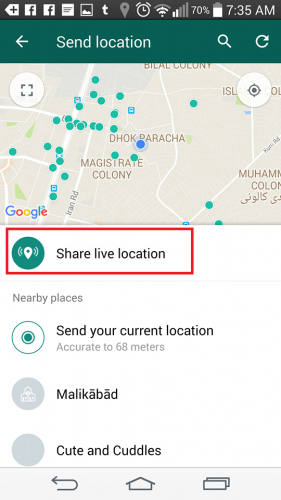
4. Click on Continue.
5. Choose a time period and add a comment, and click on the arrow to finally share your physical address.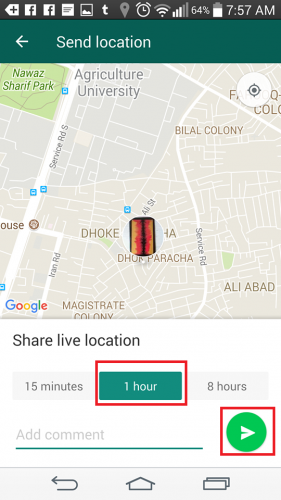
How to End Location Sharing on Whatsapp for all chats
If you’ve shared your location to multiple contacts, then there’s a way to stop sharing, all at once. Here’s how to do it.
1. Open your Whatsapp app.
2. Click the three vertical dots on the top right corner and go to Settings>Account>Privacy>LiveLocation.
3. Click Stop Sharing.
It’s a simple process, guys! No hassles guaranteed. Now, whenever you go to a dangerous neighborhood or are skeptical about your navigation skills, let a trusted contact know about your whereabouts so that he or she can be your virtual spotter.
Frequently Asked Questions
Can I stop Whatsapp from getting access to my location?
Yes, you certainly can. Just go to your phone settings, and toggle off location.
How to Disable Predictive Text and Autocorrect on An Iphone and Android
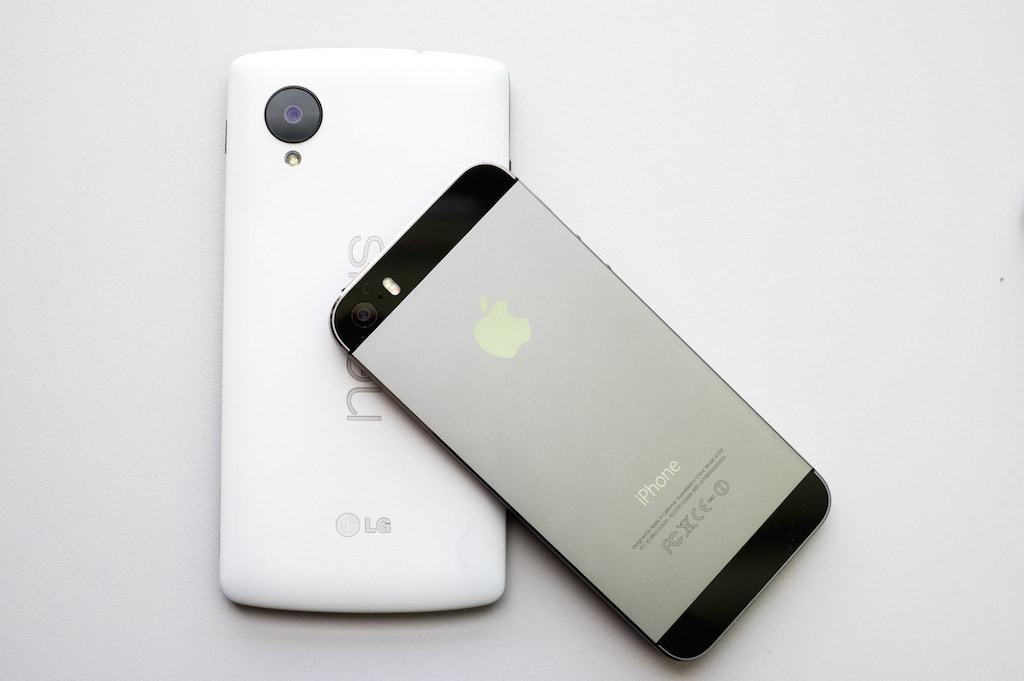
The way Millenials text is atrocious. If they don’t disable predictive text, they face constant nagging from Android’s default predictive keyboard. Turning off this feature is absolutely essential if your native language isn’t English. One of the things I love about android is its customization. You can adjust its settings in many different ways to meet your own preferences. However, a lot of the users find it tricky to navigate the settings panel. That’s why in this article I’m going to show you how to deactivate predictive text and disable autocorrect through step by step visual instructions, making it an extremely easy affair for you.
How to reverse search an image on your phone

There isn’t a person in the world that haven’t used a search engine in his life. Regardless if it’s Google’s or Microsoft’s, all of us are using them. The algorithms behind them have come a long way in the past years, as to how they were and how they searched. Apart from the part that we don’t see, the search engines of today have come a long way in terms of features.
How to scan without a scanner

Living in a digital era we have access to tons of applications that we use for digital documents. Regardless if it’s a documents that you just typed on Microsoft Word or you just received a contract in a PDF format that you need to sign, millions of documents are digitally handled all over the world.
How to transfer photos from a phone to a PC wirelessly
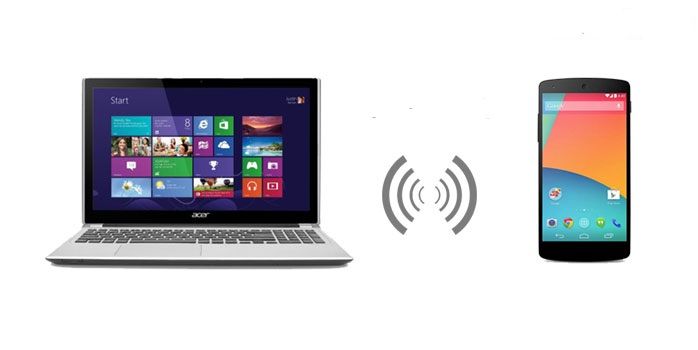
Every single on of use has come across the struggle to transfer some photos from your phone to your PC. There are various ways in which you can do this and anyone that does this on a regular basis knows that it can be problematic, especially if you need to transfer them in a hurry.
How to Download Whatsapp Status Video or Picture [Solved]

Whatsapp, not so long ago, rolled out the new status feature, and it’s popularity has skyrocketed in the past couple of months. Users, quite frequently, use the feature to post pictures of their visit to the nearest restaurant or an exhilarating trip to the Bahamas, while others, set quotes and song lyrics, as their status. Many of us, have a creepy habit of stalking their crushes on Whatsapp, and why wouldn’t they? Love is creepy. Anyway, for the romantically damned, to download a status video or picture of their lover’s dreamy images for viewing at a later time is quite important.
How to Use Siri to Translate on iPhone
Siri is not your ordinary AI assistant. iPhone’s famous intelligent personal assistant can now do more than answer queries. Siri can now translate languages. This article will teach you how to use Siri to Translate on iPhone.
If your iOS device is running on iOS 11 and higher, then your phone supports Siri’s translation feature. You can ask Siri to translate an English word, phrase, or sentence into any of the most commonly used languages in the world – Mandarin, German, Spanish, Italian, and French. Using Siri to translate is easy and pretty much straightforward. Translations may not be close to the native language, but it is enough for users to get into a conversation with the speaker of any of the languages supported. The next section will guide you how to use Siri’s translation feature.
How to Use Siri to Translate
Do the following steps to translate any English word or phrase to any of the supported languages:
1. Launch Siri. Depending on your device, you can either long press the Home button (iPhone 8 and earlier models) or hold the Side button (iPhone X). Alternatively, you can check on one of our articles to learn how to access Siri hands-free. An article with the details on how to use Siri for iPhone X is also available.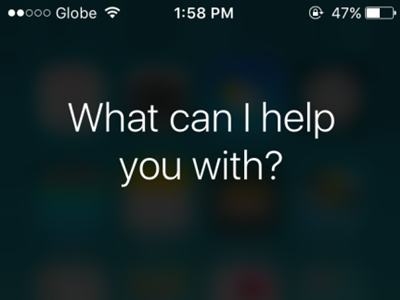
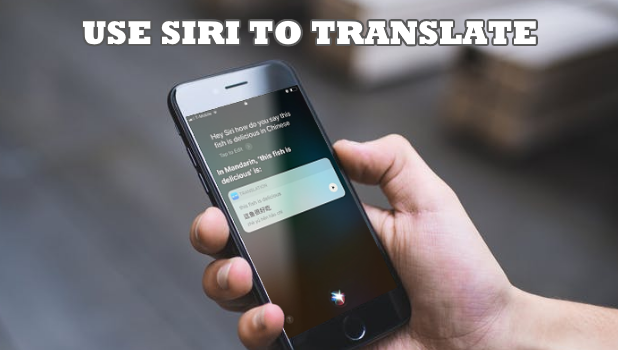
2. With Siri launched, ask Siri to translate words and phrases to a supported foreign language by speaking out. You can use the format “Translate WORD to LANGUAGE” or “How do I say WORD in LANGUAGE?”
3. If you are in a public place and is not comfortable with speaking, you can type the same format to Siri.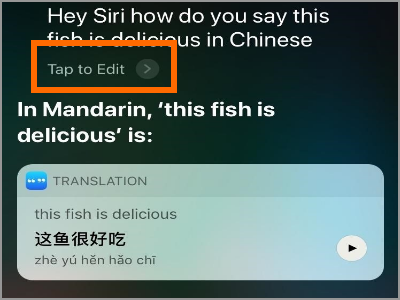
4. Siri will translate the words or phrase. Siri will speak the translation and displays the translation in a text.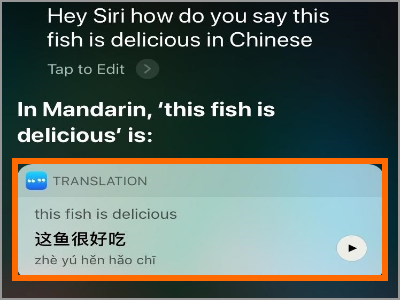
5. Replay the audio translation by pressing the Play button.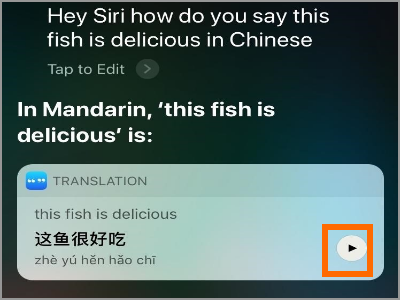
Frequently Asked Questions
Q: Can I use Siri to translate from another language to English?
A: Right now, Siri translates only English to other languages. You cannot translate a foreign language into English using Siri. However, with the way things are going these days, it is highly likely that in the next installment of iOS a two-way translation is expected.
Q: Siri has a hard time translating a long sentence. Is there a workaround for this?
A: Siri may have a hard time putting together translation for a long sentence. The trick is to cut the sentences into multiple phrases so Siri can effectively translate them.
Q: What languages does Siri translate support?
A: Right now, Siri only translates from English to these following languages: Mandarin, French, German, Italian, and Spanish. Oher languages are not yet supported.
Q: I am in Spain and will only be translating to Spanish, can I lock Siri to translate only in Chinese? That way I won’t have to mention to Siri to translate in Chinese.
A: You can mention the language to translate to only once. After that, you can continue asking Siri to translate words and phrases without stating the language to translate to. Siri assumes that the command to translate will be for the same language unless the user specifies a new language.
Q: I don’t know how to pronounce the translated words, how can I communicate with a local person?
A: You can ask a local person to read the translation or have Siri speak the translation by pressing the play button.
Learning how to use Siri to translate to a foreign language can help you communicate with people in a foreign country. Little by little, technology is breaking the barriers of communication. If you have questions about any of the steps above, let us know in the comments section.
If you find this article interesting, then you might want to check out these related articles:
How to Change Siri’s Voice in macOS Sierra
How Do I Change Siri’s Language?
How to Use Siri on the iPhone X
How to Use Siri Hands-free
How to Turn Off Siri Suggestions on iPhone iOS 9
How to use Cortana on Windows 10 – part 3

Android: How to Logout from Gmail App [Solved]