
Sign in
  • Apple
  • Windows
  • Internet
    • Hosting
    • Database
  • AI Coding
    • Programming
  • Apps
    • Android
  • Entertainment
  • Finance
Sign in
Welcome!Log into your account
Forgot your password?
Password recovery
Recover your password
Search
Tech-Recipes tech-recipesHow-tos and Tutorials about all things tech
Sign in
Welcome! Log into your account
Forgot your password? Get help
Password recovery
Recover your password
A password will be e-mailed to you.
Friday, June 19, 2026
Sign in / Join
  • Apple
  • Windows
  • Internet
    • Hosting
    • Database
  • AI Coding
    • Programming
  • Apps
    • Android
  • Entertainment
  • Finance
Facebook
Instagram
X
Vimeo
Youtube
tech recipes logotech-recipesHow-tos and Tutorials about all things tech
  • Apple
  • Windows
  • Internet
    • Hosting
    • Database
  • AI Coding
    • Programming
  • Apps
    • Android
  • Entertainment
  • Finance
Home Apps How to Create an Instagram Account: A Step-by-Step Guide
  • Apps
  • Instagram

How to Create an Instagram Account: A Step-by-Step Guide

By
Sarah Davis
-
0
1430
Facebook
X
Pinterest
WhatsApp
    instagram account

    In today’s digital landscape, Instagram reigns supreme among social media platforms, with over a billion active users, and creating an Instagram Account is the starting point. This visually captivating platform has transformed into a thriving global community, providing a canvas for individuals and businesses alike to share their stories, connect with like-minded individuals, and nurture their creativity.

    If you’re ready to embark on your Instagram journey, this comprehensive guide will be your trusted companion. From the initial profile setup to the intricate selection of your profile picture, we’ll leave no stone unturned as we guide you through the process of creating your very own Instagram account.

    Step 1: Download the Instagram App

    Your Instagram adventure commences with a simple download. Goto your relevant app store, either on Google Play for Android or the App Store for iOS. In the search bar, type “Instagram” and patiently await the app’s arrival. Once it appears, tap on “Install” to initiate the download and installation process.

    Step 2: Sign Up and Create your Instagram Account

    As the app springs to life, you’ll be greeted by the Instagram login screen. Since you’re in the process of forging a new account, direct your attention to the bottom of the screen and tap on “Sign up.”

    Step 3: Enter Your Email Address or Phone Number

    Sign up on Instagram by entering either your email address or phone number. Choose the options that best respond to your preferences and input the requested information. Ensure that you provide accurate contact details, as Instagram will promptly dispatch a verification code to finalize your sign-up process.

    Step 4: Create a Username and Password

    Your username serves as your digital fingerprint on Instagram, your unique online identity. Take your time to choose the most appropriate to reflect your personality or brand. Surely Instagram will promptly inform you if your chosen username is already claimed by another user, so allow your creativity to flow!

    Simultaneously, it is crucial to craft a robust password to safeguard your account. Fashion a code that combines uppercase letters, lowercase letters, numbers, and symbols for an impregnable layer of security.
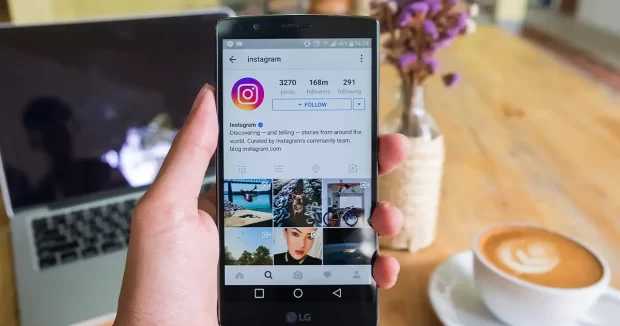
    Instagram image

    Step 5: Complete Your Instagram Account Profile

    Now, let’s infuse your profile with character:

    • Profile Photo: Your profile picture is your digital face to the Instagram world. Click on “Add Profile Photo” to upload an image from your device’s gallery or capture a fresh one using your camera. This visual representation sets the tone for your account, so select an image that effectively conveys your essence or brand identity.
    • Name: The “Name” section invites you to enter your actual name or any pseudonym you wish to be recognized by on Instagram. It can be your real name, a creative alias, or even a catchy nickname.
    • Bio: With a character limit of 150, your bio is your brief introduction to the Instagram universe. Craft a concise yet engaging bio that provides visitors with a snapshot of your personality or the essence of your Instagram presence.
    • Website: If you possess a personal website, blog, or any other online presence, seize this opportunity to share it with your Instagram audience. Simply input the link, and it will be accessible via your profile.
    • Connect with Facebook: If you’re already connected to Facebook and wish to streamline the process of finding friends and contacts on Instagram, this option is available. Link your Facebook account to your Instagram for a seamless cross-platform experience.

    Step 6: Explore and Connect your Instagram Account

    With your profile now tailored to your liking, it’s time to embark on your Instagram adventure:

    Upon completing your profile setup, Instagram will introduce you to its captivating world. The app provides suggestions for accounts to follow based on your interests and existing connections. Also, you can conduct searches for specific users or hashtags, enabling you to dive headfirst into content that resonates with your passions and curiosities.

    Conclusion

    Congratulations! You’ve taken the initial steps on your Instagram journey, successfully creating your account and crafting an enticing profile. As you continue to explore the platform, remember that Instagram is a dynamic space where engagement and creativity flourish.

    Personalize your profile further, follow friends and influencers, engage with captivating content, and let your unique essence shine through. Welcome to Instagram, where endless opportunities for connection and inspiration await! Your presence is a valuable addition to this vibrant global community.

    FAQs (Frequently Asked Questions)

    Is Instagram a free platform?

    Yes, Instagram is a free social platform. You can create a free account, where you can post content, as well as, interact with other users without incurring any charges.

    Can I access Instagram on a computer, or is it strictly a mobile app?

    While Instagram is primarily designed for mobile use, you can access your Instagram account and browse content on a computer through Instagram’s website. However, certain features, such as uploading photos, may be limited on the web version.

    How can I increase the privacy of my Instagram account?

    In order to set your account privacy please go to your “Profile Settings” (by tapping the three dots in the top right-hand corner) > then select “Privacy” > and finally toggle the option for “Private Account”.

    What types of content can I post on Instagram?

    Instagram offers a grand variety of content options that you can post, such as stories, videos, photos, and IGTV videos. You can post content related to your interests, hobbies, business, travel, and much more.

    Is it possible to use the same device to manage multiple Instagram accounts?

    Yes, Instagram allows you to manage multiple accounts from a single device. You can add additional accounts in the app’s settings and easily switch between them to post and interact with your followers.

    What are Instagram Stories, and how do I create them?

    Instagram Stories disappear after 24 hours since they are temporary posts. To create a Story, simply swipe right on your Instagram home screen, or tap your profile picture. You can then add photos, videos, text, stickers, and more to share updates with your followers in an engaging format. The curious capabilities of the Stories are that they are temporary posts that are live for 24 hours and then they disappear.

    Explore more related articles for insightful tips on maximizing your Instagram experience, from crafting compelling captions to mastering advanced story features:

    How to Add Music to Instagram Story: A Comprehensive Guide

    The Complete Handbook on Crafting Compelling Instagram Captions

    How to Add Music to Instagram Story: A Comprehensive Guide

    • TAGS
    • Create Instagram Account
    • Instagram Account Setup
    • Instagram Bio
    • Instagram for Beginners
    • instagram name
    • Instagram Password
    • Instagram Profile Photo
    • Instagram Profile Setup
    • Instagram Sign Up
    • Instagram Step-by-Step Guide
    • Instagram Tricks
    • instagram username
    Facebook
    X
    Pinterest
    WhatsApp
      Previous articleUpdated 2026 – The Best 8 Online Sports Betting Sites in the Philippines
      Next articleSell My House Fast Lawrence County, Alabama – The Ultimate Guide Selling Safely 2026
      Sarah Davis
      Sarah Davis

      RELATED ARTICLESMORE FROM AUTHOR

      Best AI APP Builders

      Best AI App Builders in 19th June 2026 (Tested & Compared)

      Schedule Instagram Posts

      How to Schedule Instagram Posts for Consistent Content: A Comprehensive Guide

      Backup and Restore Whatsapp

      Here’s How to Quickly Backup and Restore WhatsApp Chats!

      1. techylist on How to Create a Save Collection on Instagram

        Loved this tutorial! I was stuck on how to create a save collection on Instagram for ages, thanks to your…

      2. Techylist on Get the Scoop on How to Use Twitter Moments in Just 5 Minutes! June, 2026

        Great post! I completely agree that Twitter Moments can be a powerful tool for curating content and engaging with followers.…

      3. techylist on Get the Scoop on How to Use Twitter Moments in Just 5 Minutes! June, 2026

        I'm loving this post! I've been wanting to use Twitter Moments but didn't know where to start. Thanks for breaking…

      Tech-Recipes

      Apple

      • Mac
      • iPhone

      Programming

      • Computer programming
      • C programming
      • Hardware
      • Java programming
      • HTML
      • HTTP
      • Apache web server
      • ASP NET Programming
      • JSP programming
      • BASH shell
      • Bourne shell
      • Korn shell
      • Batch file programming
      • Bourne shell scripting
      • csh shell scripting

      POPULAR POSTS

      How to Turn Off Open to Work Feature on LinkedIn

      Create an Exit Button in C# Visual Studio

      How to View Facebook Login History

      Database

      • MySQL
      • Oracle
      • PostgreSQL PgSQL

      Networking

      • Mac networking
      • Cisco call manager
      • Cisco firewall
      • Cisco router
      • Cisco switch
      • Cisco networking
      • Juniper Networking
      • Linux networking

      POPULAR CATEGORY

      • Apple iPhone593
      • Windows538
      • Entertainment536
      • Android536
      • Internet511
      • Games398
      • Google385
      • Apple Mac371
      • Technology reviews330

      Internet

      • Hosting
      • Facebook
      • Google
      • Mozilla Firefox
      • reddit

      Windows

      • Windows
      • Microsoft Vista
      • Windows 7
      • Windows 8
      • Windows installation
      • Windows security
      © Copyright Tech-Recipes.com || DMCA.com Protection Status
      error: Content is protected !!