
Outlook for Mac 2011: How to Disable the Unified Inbox
Posted by Rob Rogers in Apple Mac
By default, the Outlook 2011 groups the Inbox, Sent Items, etc from all your mail accounts. This is to make it simpler to view all messages at the same time without having to change mail folders. If you like keeping your accounts separated (such as work and personal email), you can disable this feature. The folder list will then be separated out for each account.
1. Open Outlook.
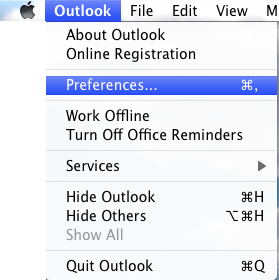
2. Go to the Menu at the top of the screen, click Outlook and select Preferences.
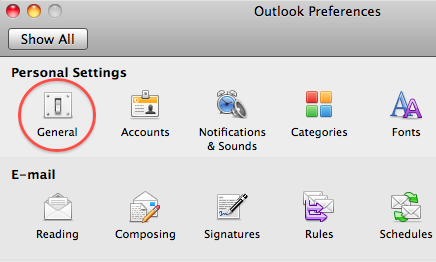
3. In the Personal Settings section, select General.
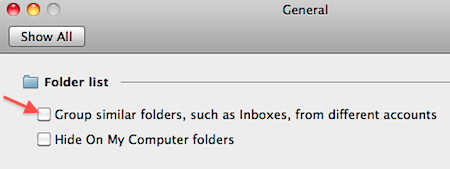
4. Under Folder list, uncheck the Group similar folders, such as Inboxes, from different accounts checkbox.
5. Close the General window.
About Rob Rogers
Once a prolific author here on Tech-Recipes, Rob has moved on to greener pastures.
View more articles by Rob Rogers
The Conversation
Follow the reactions below and share your own thoughts.
May 17, 2011 at 1:53 am, Gsdf said:
Mine still stays after changing this setting
June 21, 2011 at 11:47 am, Anonymous said:
thank you! worked like a charm!
June 21, 2011 at 11:47 am, Anonymous said:
thank you! worked like a charm!
July 31, 2011 at 4:14 pm, Monsoonmeow said:
This is misleading, all accounts will not “be separated out for each account”. What actually happens is POP accounts remain ‘grouped’ in the Inbox under ‘On My Computer’. Only accounts such as Gmail will appear with its own folder list.
The way to separate mail from different POP accounts is to create new folders in the Folder List, and then a Rule for each account.



