
Outlook for Mac 2011: How to Automatically Download Images

As a default setting, Outlook never automatically downloads images from the internet. While this is a valid security measure, it means that you have to manually download them for each and every email message in your inbox that contains pictures. Here’s how to override this setting.

1. Open Outlook 2011.

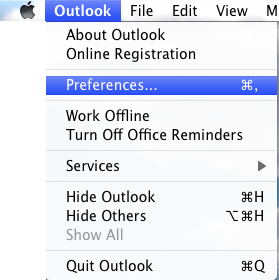
2. Go to the Menu at the top of the screen, click Outlook and select Preferences.
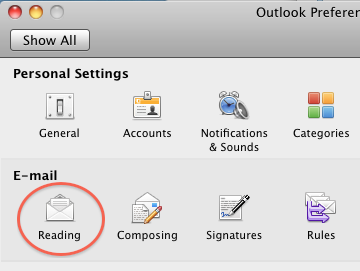
3. In the E-mail section, select Reading.
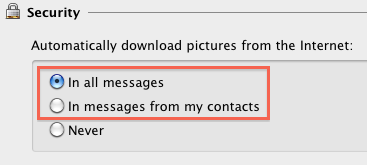
4. Go to the Security section and select either the In all messages radio button, or if you want a little more security, select the In messages from my contacts radio button.
5. Close the Reading window.


 

About Rob Rogers

Once a prolific author here on Tech-Recipes, Rob has moved on to greener pastures.
View more articles by Rob Rogers

The Conversation

Follow the reactions below and share your own thoughts.

13 Responses to “Outlook for Mac 2011: How to Automatically Download Images”

  1. November 07, 2010 at 5:58 pm, Manish230 said:

    Thanks a lot

    Reply

  2. November 12, 2010 at 3:57 am, Herodoct said:

    Very helpful. How dumb is this: reading = the alphabet. Images = … preliterate societies? That’s where we are headed, at any rate!

    Reply

  3. January 09, 2011 at 2:48 pm, Genghis said:

    shame you can’t add an exception (as in Outlook 2007) rather than adding it to contacts as a way of protecting from spam/trojans etc.

    Reply

  4. March 18, 2011 at 9:36 pm, Ruben said:

    It would maybe be best if one could create/manage a list of trusted sites rather than use contacts for the middle ground…

    Reply

  5. March 21, 2011 at 4:34 pm, Katie said:

    Thank you!

    Reply

  6. June 17, 2011 at 5:00 am, Vonster12 said:

    This was really annoying me and your simple solution makes me feel quite the idiot that I couldn’t work it out myself! Thanks so much!

    Reply

  7. August 06, 2011 at 1:25 am, Yalsta said:

    The option was well hidden, thanks heaps.

    Reply

  8. August 06, 2011 at 1:25 am, Yalsta said:

    The option was well hidden, thanks heaps.

    Reply

  9. August 09, 2011 at 5:40 pm, Jimmyjammy said:

    thanks for this

    Reply

  10. August 13, 2011 at 3:58 am, Kc113 said:

    Thanks so much.  Had a heck of a time finding this!

    Reply

  11. September 24, 2011 at 7:49 pm, Will said:

    THANK YOU!!!

    Reply

  12. March 06, 2012 at 10:55 am, Andrew said:

    This downloads them but I still have to use Preview to see them. Is there any way of displaying them directly in the body of the email where there are placeholders.

    Reply

  13. May 03, 2012 at 1:12 am, buzzwig said:

    As part of a workflow in my office, people send me image requests via email. I have Outlook Mac 2011, and the images have always appeared in the body of the message allowing me to verify I have the correct one. As of yesterday, they no longer appear as images. They are small, blue squares with question marks inside. The above instructions did not yield a fix. Any other ideas?

    Reply

Leave a Reply

You may also like-

Outlook 2010: Download Images AutomaticallyOutlook prevents the automatic download of pictures in email messages as a security measure to help prevent possible spamming. It permits images from sites ...


