If you are left-handed, using a mouse that is configured for right-handed users will be uncomfortable for you. Keep reading to find out how to change the mouse settings to left-handed mode.
Windows 8, along with many other operating systems, unfairly assumes that all of their users are right-handed. In my opinion, Windows should at least ask you about it when you are setting up your system. This tutorial will show you how you can switch the functions of the two mouse buttons. This will make the mouse more practical and easier to use for those who are left-handed.
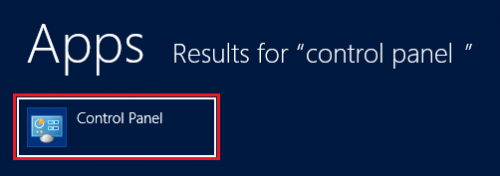
1.From the Start screen, search for Control Panel, and click on it. Or you can press Ctrl + Win to bring up a menu from which you can select the Control Panel.
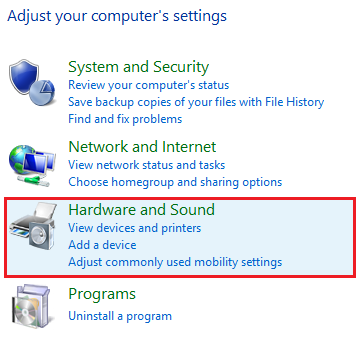
2.Once you are in the Control Panel, select Hardware and Sound under Adjust your computer’s settings.
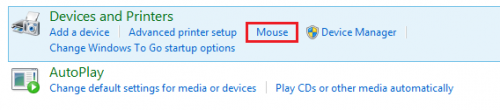
3.From the available options, select the Mouse setting from the Devices and Printers heading.
4.A Mouse Properties window will appear. Here, you must make sure that the Buttons tab is selected. Then under Button Configuration select Left-handed. Once you have chosen the desired button configuration, click on Apply and then OK to save your settings.
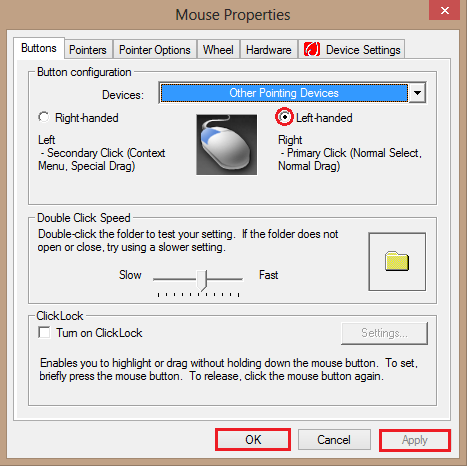
You are now able to use your mouse easily with your left hand.