By default, Firefox keeps a history of everything that you have downloaded. While you could constantly maintain this list to keep it tidy, it is much easier to disable the download history completely. All of the files you download will usually be in your Downloads library under your User folder, unless you’ve manually changed your download folder, so disabling download history won’t cause you to lose any files.
By examining your download history, people can learn a lot about your internet habits. Many users feel uncomfortable knowing that anybody with access to their Firefox application can see all the files that had been previously downloaded. By completely disabling the Download History, this potential privacy weakness can be eliminated.
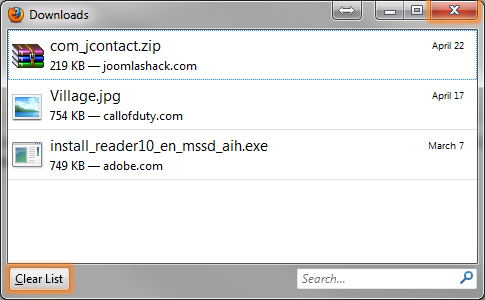
1. Click the orange Firefox button and select Downloads. (Protip: Press Control + J)

2. Click the Clear List button. Close the Downloads window.
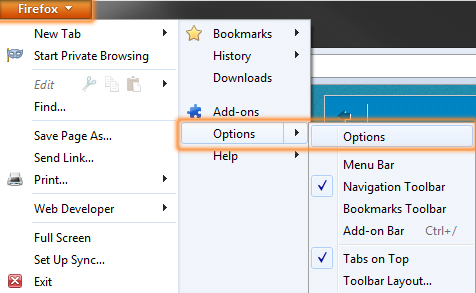
3. Click the orange Firefox button again, but this time hover over Options, then click Options. (It doesn’t matter which Options you click.)
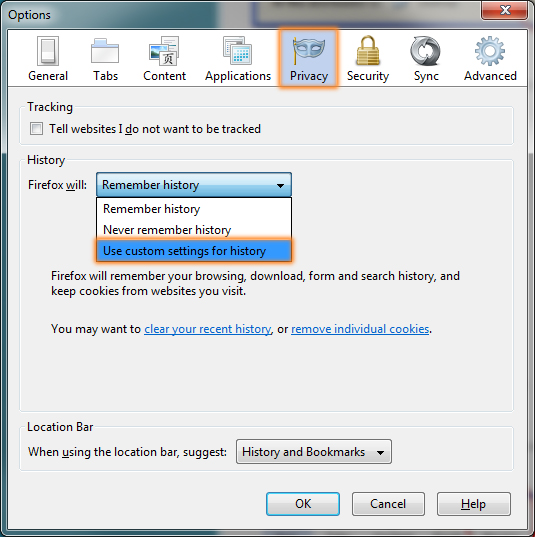
4. Navigate to the Privacy tab. Under History, click the drop-down menu and select Use custom settings for history.
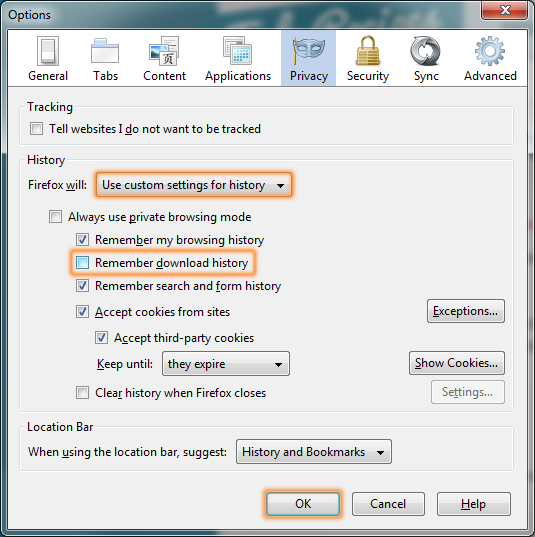
5. Uncheck the Remember download history checkbox. Click the OK button to save your changes.