

You surf your Facebook account and see one of your friends has posted a beautiful status in bold text. You want to do the same but unable to find an option. Don’t worry, this “How to” guide from Tech-Recipes explains how to make bold text in a Facebook status.
How to Search for Anything in Google Photos
Google Photos is one of the best photography apps in both the Play Store and the App Store. The most common reasons why people love the app is due to its offer of free unlimited storage for photos and videos. What most people do not know is that the extremely advanced AI-powered recognition capabilities of the app allows you to search for anything in Google Photos.
How To Change Background On Google Slide

A well-designed Google slide presentation does more than just being professional. It could help in bolstering your confidence as an online presenter and can also make it easier for you when creating a new presentation. Google slides has several ways to assist you in putting together awesome background color or custom images on your presentation, even if you have not yet taken a course on Google slides before now. In case you are wondering how to change the background on a Google slide presentation, then you are in luck. Working with a background color or custom image you like on Google slides is not too difficult, once you know what you are doing. Here’s how to change background on Google Slide.
How To Get Add-ons On Google Slide

Google Slides is an online presentation solution with a real-time collaboration as well as several powerful tools which allows users to easily build up customs slide presentations and decks. You can also extend Google slides presentation with several add-ons which help users in constructing new presentations on Google slides, establish connectivity with third-party systems, and also integrate Slides data with similar Google suites applications (such as Google Sheets)
How To Report An Issue On Google Chrome
In the last few years, the Google Chrome browser has become the choice for thousands of users around of the globe. Irrespective of the fact that the Internet Explorer browser still has the highest number of users around the globe, Google Chrome has been relentlessly filling in the gap since it was introduced in 2008. It started as a lightweight and minimalist browser, but presently it has grown bigger, and just as the saying goes “With greater power, comes greater responsibilities”, the Google Chrome has been experiencing more issues and bugs, this can be evidenced by various reports made by users.
How to Fix iPhone X Side Button Delay

If you are a long time iPhone user and you just switched to the iPhone X lineup (iPhone X, iPhone XS, iPhone XS Max, and iPhone XR) you may have noticed an issue with the iPhone X side button delay. You are not alone. There is really a delay in the iPhone X’s side button responsiveness. This article will teach you how to fix iPhone X side button delay.
How to Insert and Remove the SIM Card in an iPhone

To use the cellular services on your iPhone, you need to put in a SIM card on your iPhone. This article will teach you how to insert and remove the SIM card in an iPhone.
How to Send and Receive Money Using Facebook Messenger

You can now use Messenger to make financial transactions. By linking an online payment processor to your Messenger account, you can send and receive money using Facebook Messenger without ever leaving the Messenger app. This article will guide you on how to use Messenger to make online payments so you won’t have to switch to a separate payment processor app.
How To Use Encrypted View In SQL Server

A VIEW is a virtual table defined by a query. VIEWs are essentially similar to other database objects whose structure along with query is stored in the database. VIEWs can have complex queries with multiple joins, nested views or ad-hoc queries. Most importantly, a VIEW is benefited because we can expose a limited number of fields to users. Allowing users to see fields defined in a VIEW instead of presenting them with actual tables stored in a database.
How to Use NTILE Ranking Function In SQL Server
NTILE is a ranking function in SQL Server to distribute rows into a specified number of groups and assign a number to each group in incremental order starting with One. NTILE function works with ORDER BY clause to sort the rows in the specified order and splits them into groups.
Let us assume we have 10 rows in a table and using NTILE(5) function. Considering we’ve even number of rows in each group as 10 divided by NTILE(5) comes to 2 rows in each group. Thus NTILE function will distribute 2 rows in each group and assign them a number from 1 to 5.
How To Turn Off Email And SMS Notifications On Instagram

Among other notifications which Instagram can send to you, the email and SMS notifications can sometimes be very annoying. Even if you have been away from Instagram for a while, this won’t stop Instagram from sending you SMS and emails on “so and so posted after a long time or for the first time’, or someone followed you or liked your post. Here’s how you can Turn Off Email And SMS Notifications On Instagram.
How To Upload Videos To IGTV

If you are a devoted Instagrammer, you probably must have heard of “IGTV”. Whenever you open the Instagram application on your Android phone, you will notice a brand new button and I am sure you have already been disturbed by certain orange messages asking you to tap on this new button. Before you go further in checking out this new feature, let’s clear any existing doubt. What exactly is IGTV and how can you use it? This will be explained in this article!
- What is IGTV?
IGTV is the new Instagram platform which allows you to upload any video that is as long as an hour.
The name “IGTV” is derived from the acronyms used for Instagram (IG) and the acronym used for television (TV), and as you might be imagining already, it is a service which allows you enjoy unlimited video content.
Facebook has been attempting to come up with a YouTube alternative and finally, it has a potential contender, the IGTV. This new Instagram platform for sharing videos is already becoming very popular as a lot of celebrities have already started sharing their videos on the platform. In case you own an Instagram account, then you can also join IGTV and start uploading and sharing your videos with your followers on this amazing new platform. Fortunately, you can do this using your mobile phone.
Unlike the Instagram stories which last for only 24 hours on your profile, this new feature allows uploaded videos to stay on your IGTV channel for as long as possible, just like similar video platforms like YouTube and Vimeo.
Uploading a video to IGTV
Videos uploaded to Instagram TV need to adhere to special rules because of the platform peculiarity.
- They must all be in an MP4 format.
- The video format has to be between 4:5 and 9:16.
- The video’s duration need be between 15 seconds and ten minutes for IG standard profiles.
- File size should not exceed 650MB for videos which are less than 10 minutes and 5.4GB for videos which are up to 60 minutes.
- Videos which are longer than ten minutes should be uploaded via a PC.
Luckily for you, Instagram has made the entire process very simple! I had already explained how to create your own IGTV channel in a previous post. However, in today’s post, I will be showing you How To Upload Videos To IGTV.
How To Upload Videos To IGTV
1. Open the Instagram App.
2. Tap on the IGTV icon.

3. Tap on your profile photo.
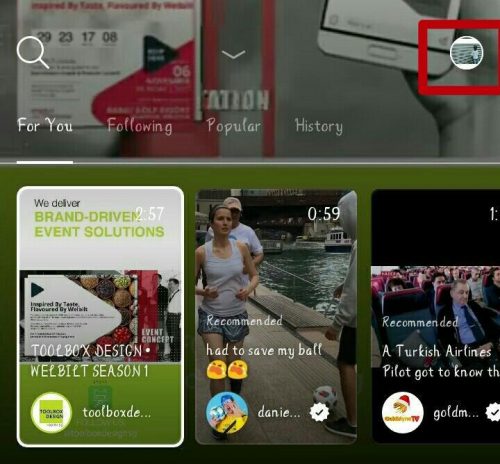
4. Tap on the plus (+) symbol.

5. Tap on any video.

6. Tap on next.
7. Fill in the title and video description and tap on post.
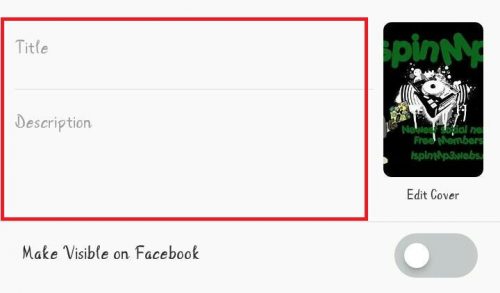
8. Your video will be posted on your IGTV channel.
Conclusion
I am sure today’s post will leave a smile on your face. I can imagine how desperate you want to try this out. It is important to know that, the IGTV, for now, doesn’t allow users post videos directly from their phone cameras, unless via a directory. Also, if you haven’t created an IGTV channel yet, I will advise you go back to my previous post on “how create an IGTV channel” before thinking about uploading a video to IGTV. Thanks for your time! Season greetings!



