

This tech-recipe will explain how to use 7-Zip to create a text file (tab delimited) listing of the contents of a zip file. You can run this .bat file in a directory and get the listings of every ZIP file contained in that directory and any sub-directories. Keep reading for the commands and explanation.
Required Software/Skills:
–7-Zip (free, v4.65 as of recipe creation)
-Windows XP, Vista, 7
–Basic batch file knowledge (how to create, run)
1. Download and install 7-Zip.
2. Navigate to the 7-Zip install directory (C:\Program Files\7-Zip\) and copy these three files and paste them into a folder on our desktop called “7zip”
7z.exe
7z.dll
7z.sfx

These files will be used with our batch (.bat) file we create to do our directory listing and content listing of the zip file.
3. Open Notepad (Start Menu > All Programs > Accessories > Notepad or Start button + R, type “Notepad” and hit Enter)
4. Insert this code (copy and paste from below) into Notepad.
FOR /F "tokens=* delims=" %%A in ('dir /b /s *.zip') do (7z.exe l -r "%%A" >> listing.txt)
5. Then click on File > Save. Browse to our Desktop and the 7zip folder. Click the “Save as type:” drop-down and choose “All Files“. Give it a name of ziplist.bat and hit the Save button.
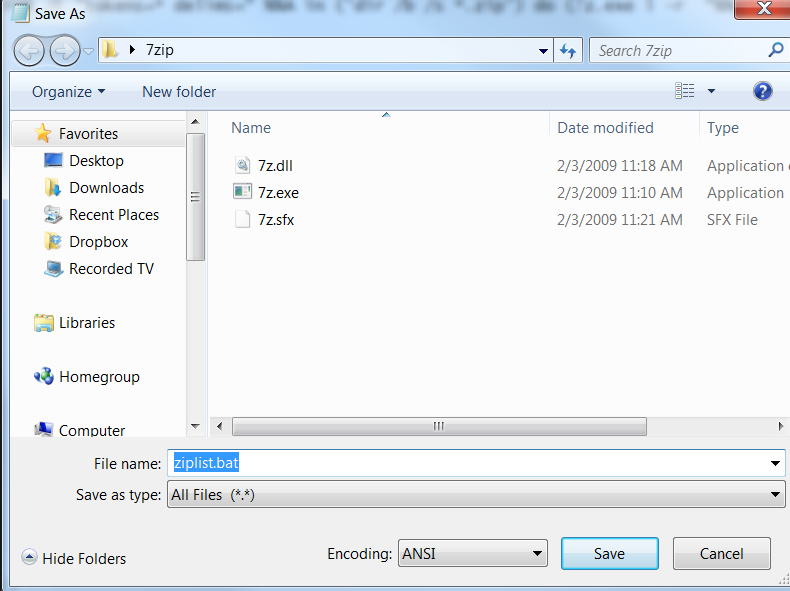
6. Copy the four files from the 7zip folder on our desktop: 7z.dll, 7z.exe, 7z.sfx, ziplist.bat to the folder that contains the zip files and other sub-folder of zip files.
7. Finally, run the ziplist.bat by double-clicking on it. This batch file will do the following using a FOR statement:
It will do a directory listing of the current folder and all subfolders for any file with a .zip extension. If it finds any, it will then send the path to 7-zip’s command line exe and then output the contents listing to a text file called listing.txt. This file will be saved in the same folder that the ziplist.bat is located in.
You can then import the text file into Excel or any other spreadsheet program as a Tab Separated file. Use TAB as your delimiter in Excel when importing the data.




